
Permalinks in mPower Analytics let you save or share a specific analytics view so you can return to it later or share it with others who have access to mPower. A permalink preserves the graph, dashboard, and filters exactly as you configured them.
What a permalink does
A permalink:
- Saves your current analytics view.
- Preserves selected concepts, measurements, and filters.
- Opens the same view when accessed later.
- Can be bookmarked or shared with other authorized users.
Permalinks help you avoid rebuilding frequently used analytics views.
Create a permalink for an analytics view
You can create a permalink from Custom Graph or dashboards.
To create a permalink:
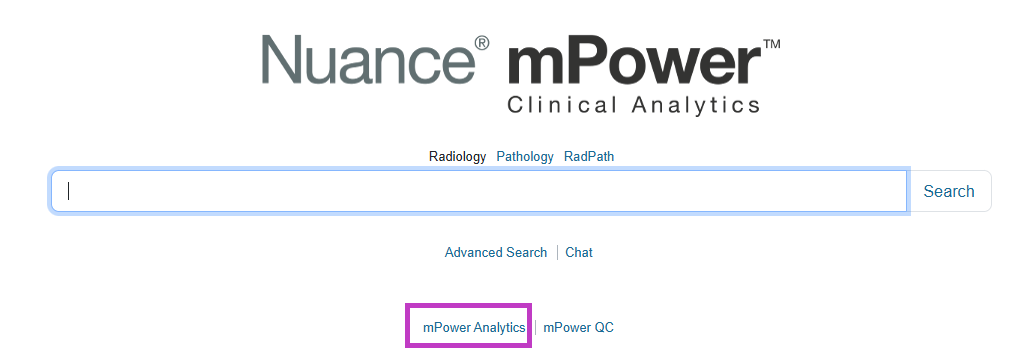
- Open mPower Analytics.
Build a Custom Graph or open a dashboard.
Apply the filters and settings you want to keep.
Select Permalink.
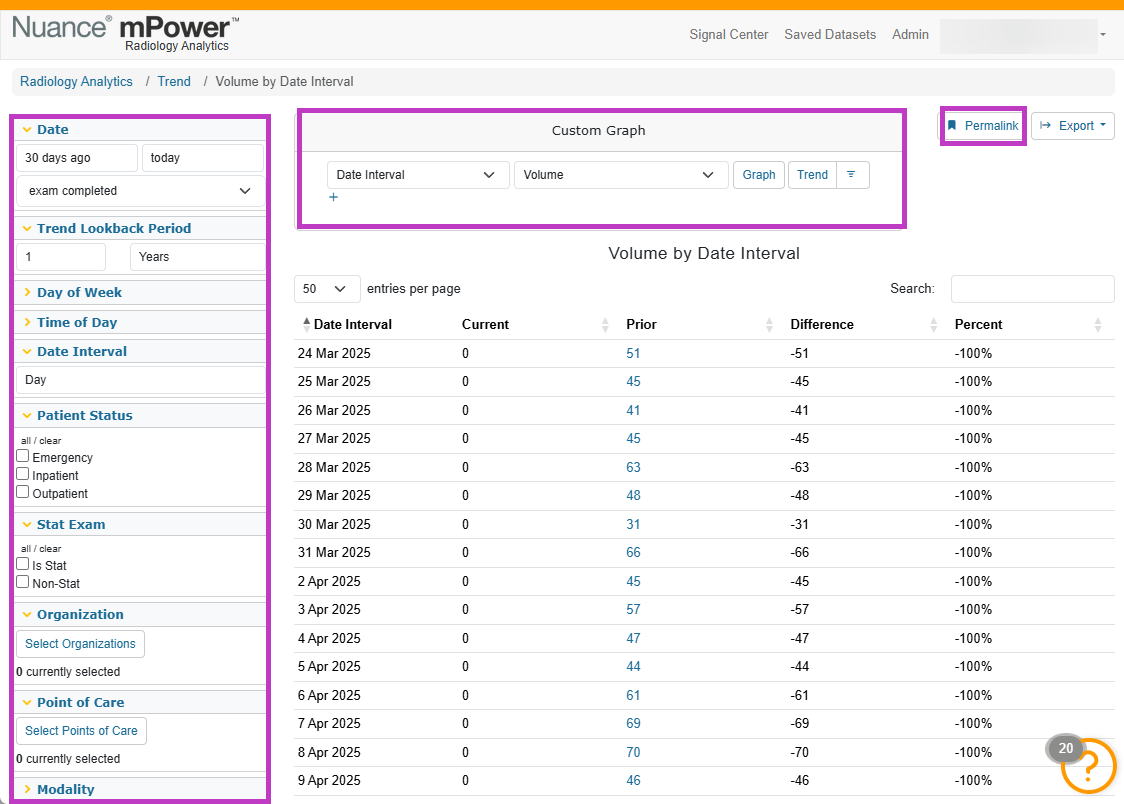
mPower generates a link that represents your current analytics view.
Use permalinks to return to analytics views
After creating a permalink, you can:
- Bookmark the link in your browser.
- Paste the link into documents or notes.
- Open it later to return to the same analytics view.
When you open a permalink, mPower loads the saved view with all filters already applied.
Tip
- Apply filters before creating the permalink to keep views focused.
- Use permalinks for analytics you revisit often.
- Combine permalinks with exports when sharing insights outside mPower.
Next up: Use standard dashboards
Use prebuilt dashboards to quickly review common metrics like volume, turnaround time, and quality events without creating custom graphs.Let's go