
The Mismatch dashboard in mPower QC helps you identify reports where extracted clinical data does not align with expected values. Reviewing mismatches supports documentation accuracy, patient safety, and quality improvement.
The Mismatch dashboard shows potential inconsistencies detected by mPower’s Natural Language Understanding (NLU), including but not limited to:
- Laterality mismatches
- Age mismatches
- Sex mismatches
- Ultrasound mismatches
The dashboard displays:
- Each mismatch type
- The number of affected reports
- Direct access to review and resolve each mismatch
Access the Mismatch dashboard
Sign in to mPower.
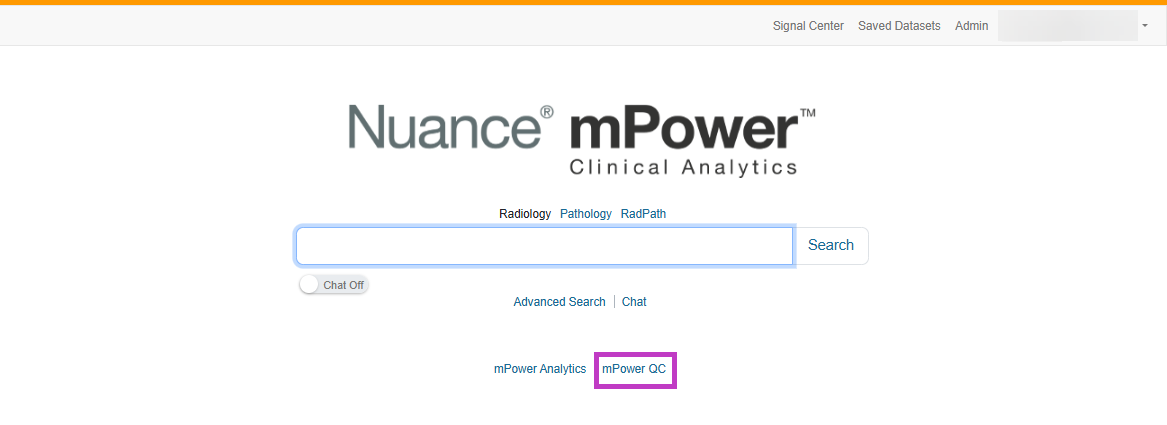
Select mPower QC from the main page.
In the QC Overview section, select Mismatches.
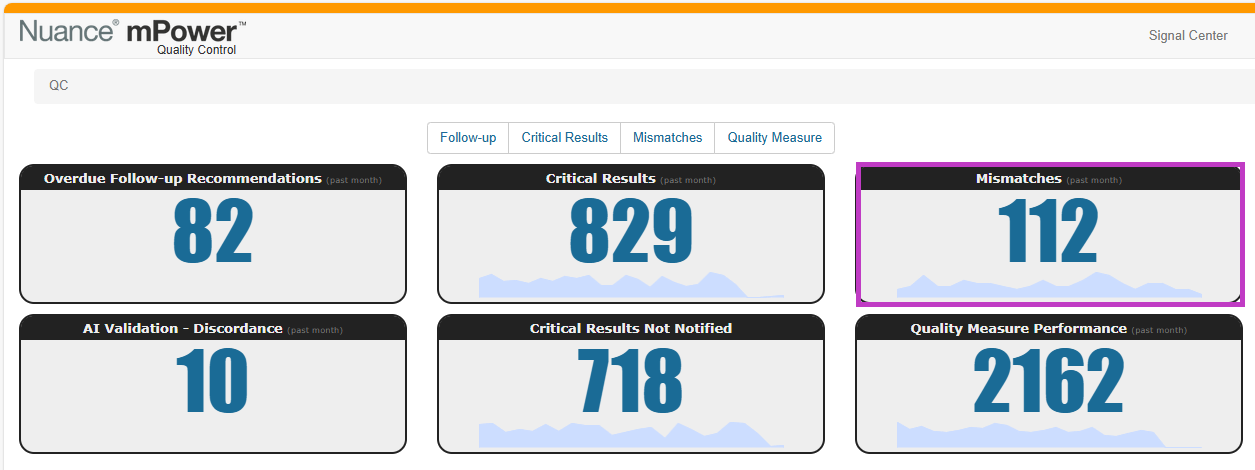
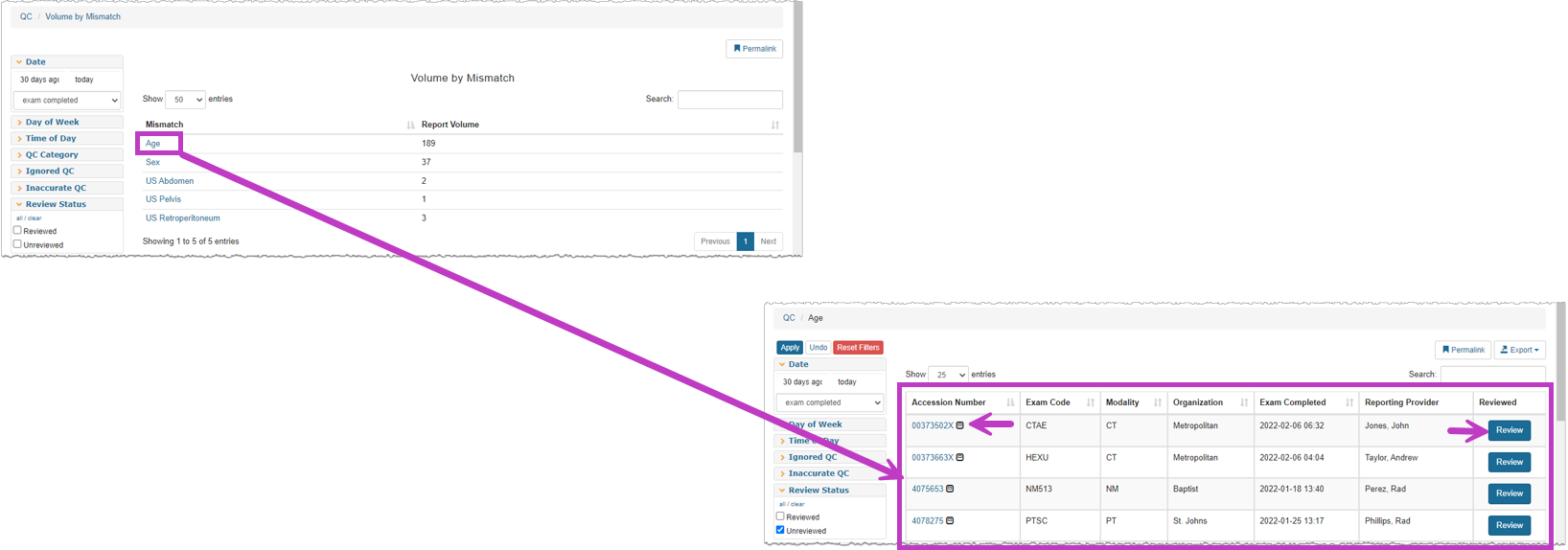
You’ll see a summary list of all mismatch types detected in the last 30 days.
Select an Accession Number to view the full report.
Select Review to evaluate and resolve the mismatch.
Important
Once a mismatch is reviewed and edited, it will not change-even if the QC algorithm updates later. Human review always overrides AI detection.
Tip
- Review mismatches regularly to improve documentation accuracy.
- Use filters to prioritize unreviewed items.
- Avoid reviewing reports that may still receive addenda, wait until the final report is complete.
- If you notice repeated false positives, contact mPower Support for algorithm guidance.
Next up: Review the Quality Measure dashboard in mPower
Review quality measure compliance, identify non‑compliant reports, and support regulatory and quality improvement efforts. Let's go