
The Critical Results dashboard in mPower QC helps you identify and review radiology reports that contain critical findings. It also highlights cases where a required notification statement might be missing, supporting timely follow‑up, patient safety, and quality improvement workflows.
What are Critical Results?
mPower QC uses natural language understanding (NLU) algorithms to identify critical results from the radiology report narrative. Clinical domain experts design these algorithms to detect clinically significant findings that might require urgent communication or documentation.
Access the Critical Results dashboard
- Sign in to mPower.
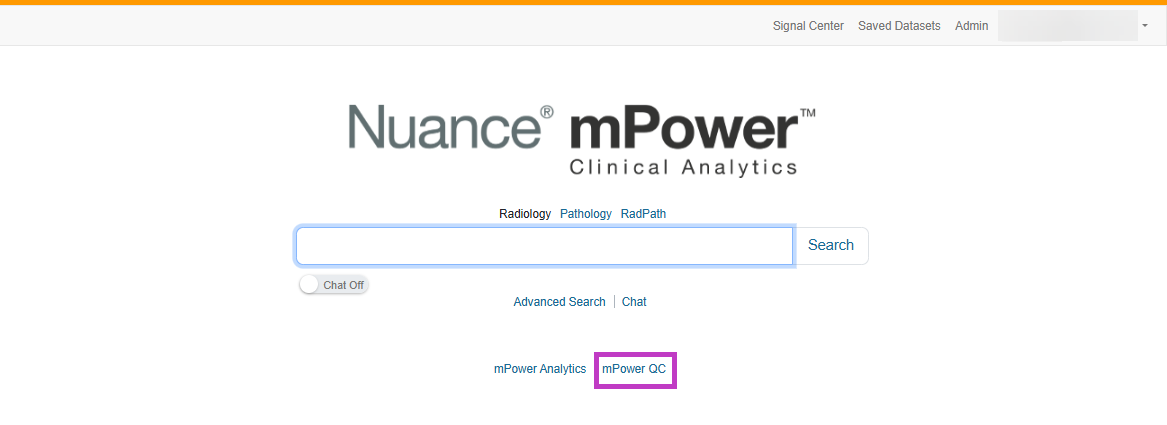
- From the main page, select mPower QC.
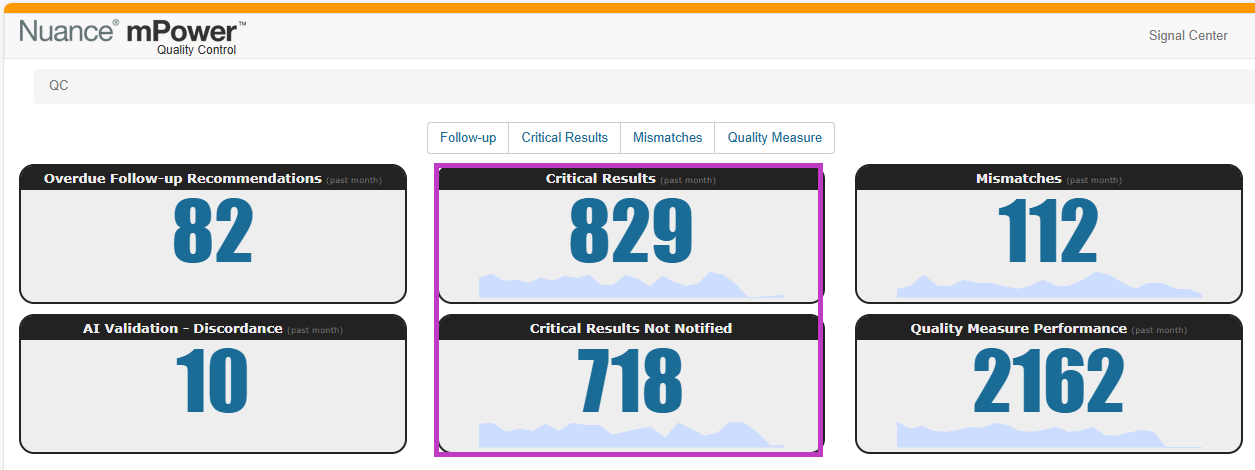
- On the QC overview page, select Critical Results or Critical Results Not Notified.
Understand the dashboard views
The Critical Results area includes two views:
- Critical Results – Shows critical result events identified in the past 30 days.
- Critical Results Not Notified – Shows critical results where a notification statement wasn't identified in the report.
Use these views to prioritize reports that require review or follow-up.
Review a critical result
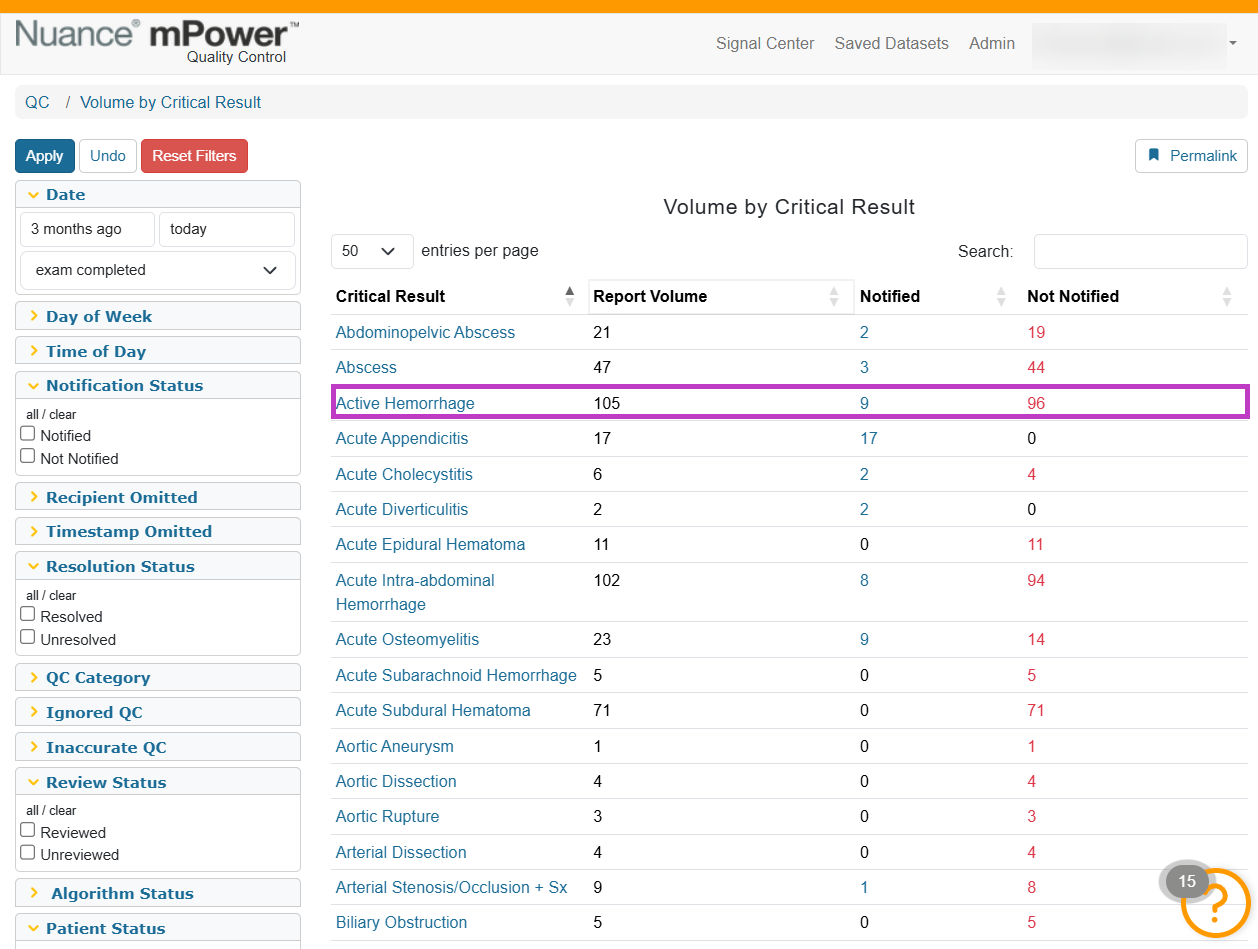
- In the Critical Results list, select a critical result to view matching reports.
- Select an Accession Number to open the report.
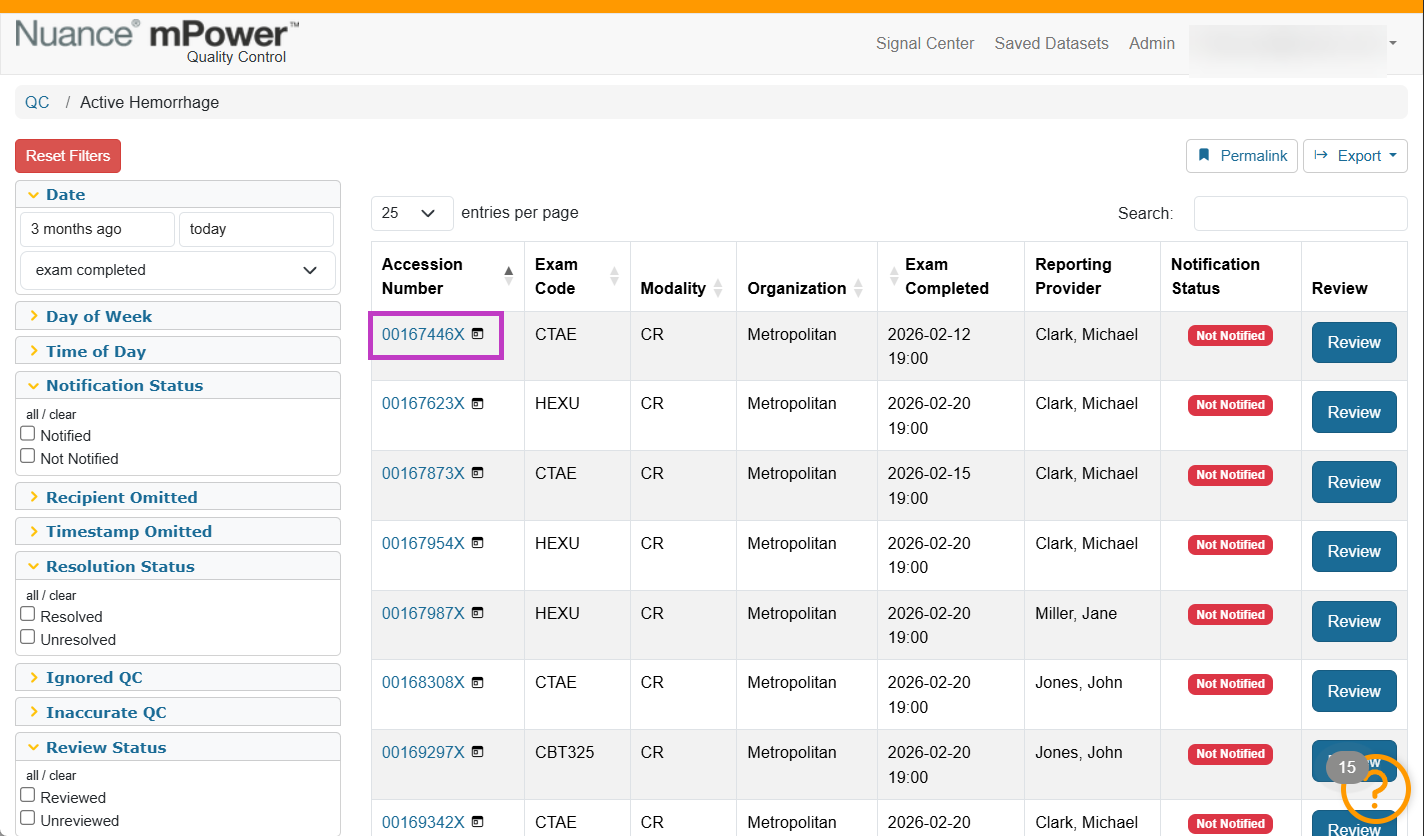
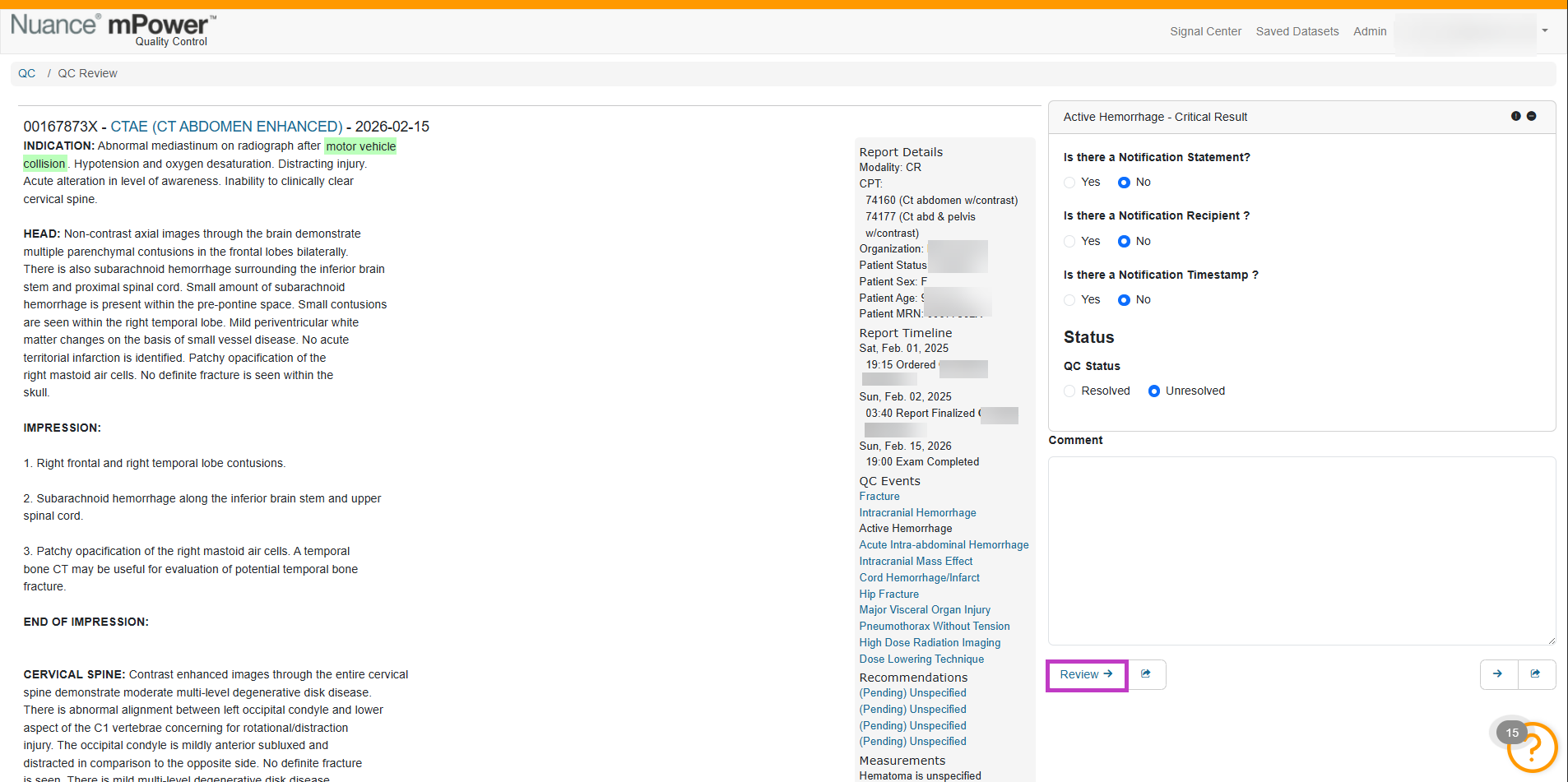
- Select Review to open the QC review screen.
- Text related to the quality event appears highlighted in green,
- There are “quick action” icons you can click to ignore the result or mark the result as inaccurate, and
- You can edit any of the available fields on the right side of the screen and add an optional Comment.
Next up: Review the Mismatch dashboard in mPower
Identify and review documentation mismatches such as laterality, age, or sex inconsistencies to improve report accuracy.Let's go