
Navigate the mPower interface to quickly search reports, access analytics and quality dashboards, and manage saved content—all from one place.
Overview
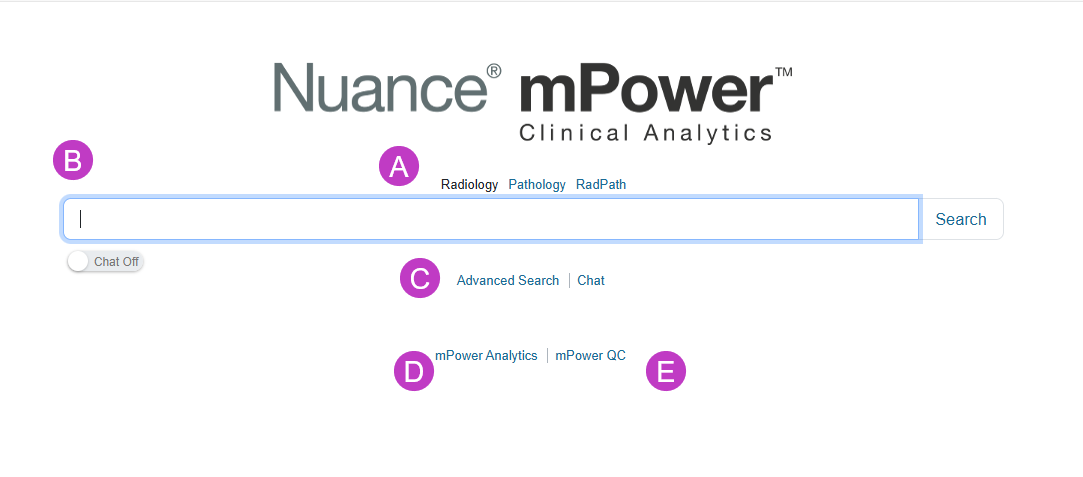
A. Radiology/Pathology/RadPath
Select the database to search. Radiology is selected by default. The selected database appears in black text instead of a blue link.
B. Search text field
Enter one or more words to run a basic search, then select Search. Leaving the field blank returns all indexed reports. For more details, see Run a basic search.
C. Advanced search
Opens a new page where you can enter detailed criteria to refine search results. For more information, see Advanced Search.
D. mPower Analytics
Opens a new page where you can create custom graphs and view topic‑specific dashboards. For more information, see mPower Analytics.
E. mPower QC
Opens a new page to view the status of quality control dashboards and drill into details as needed. For more information, see mPower QC.
Use header and footer options
Header options
Footer options

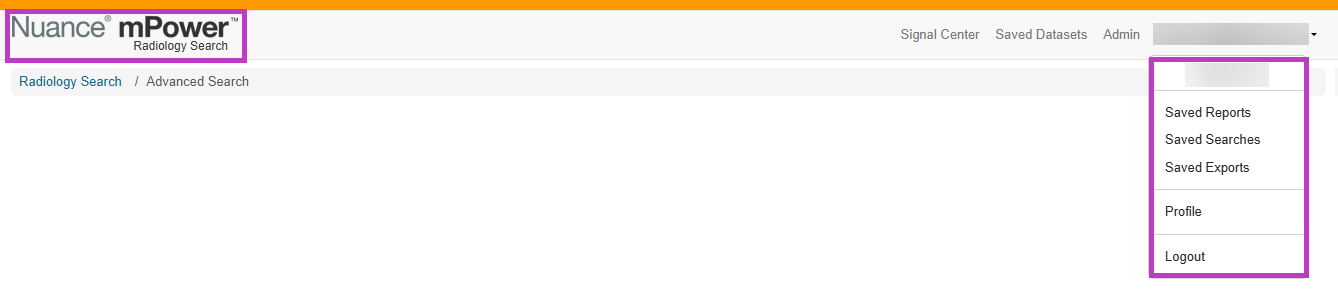
- The mPower logo returns you to the main page from anywhere.
- The user menu lets you access saved searches, saved reports, your profile, and settings.
- The footer shows indexing status, customer information, and resource links.
- The question mark provides in-app training contents for mPower.
Next up: Use profiles, dashboards and saved content
Learn about how to find, review, refine, and reuse clinical report data through powerful search and filtering tools. Let's go