
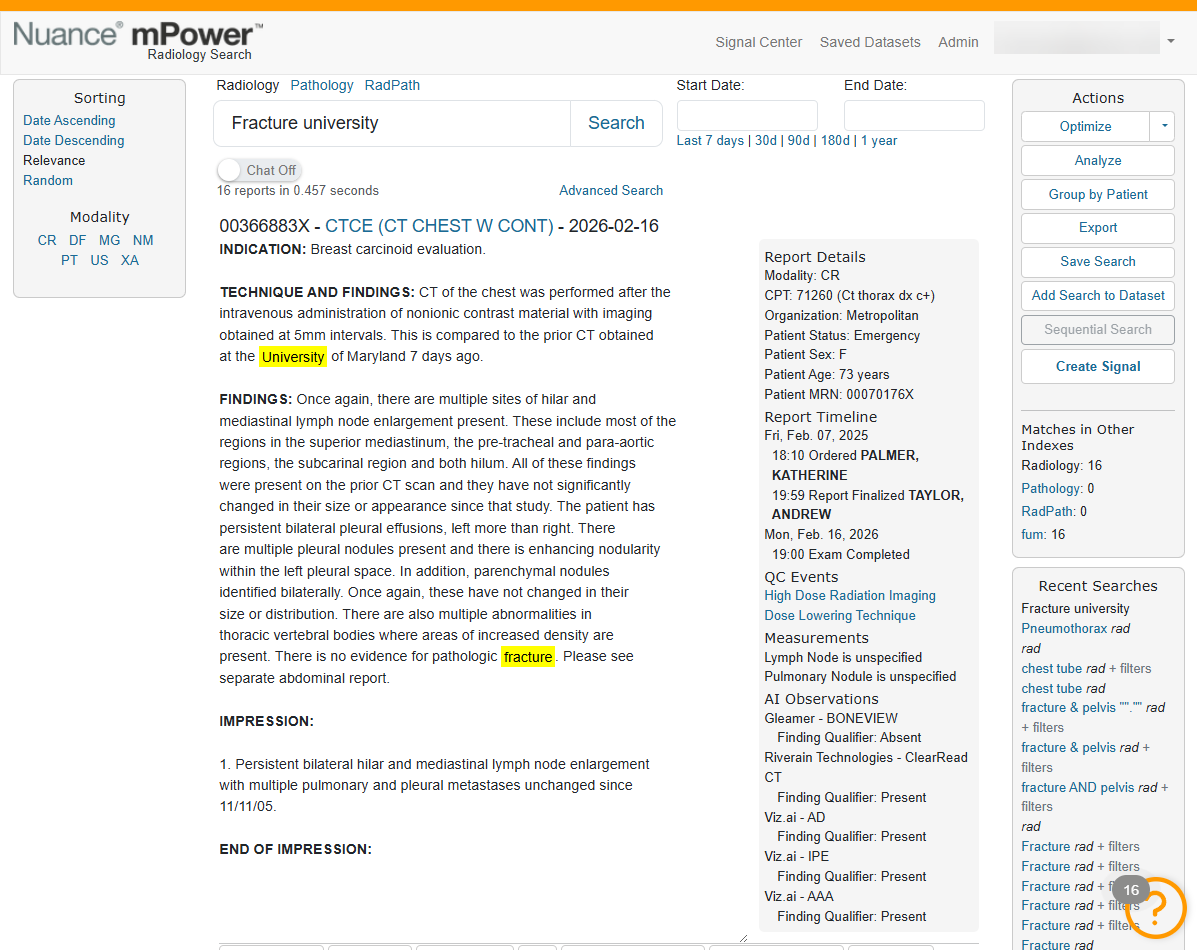
After you run a search, mPower displays results in a list similar to an internet search engine. The results page shows:
- The number of matching reports and the time taken to run the search.
- Results sorted by relevance by default.
- Highlighted keywords within the report text.
This view helps you quickly identify the most relevant reports before opening them.
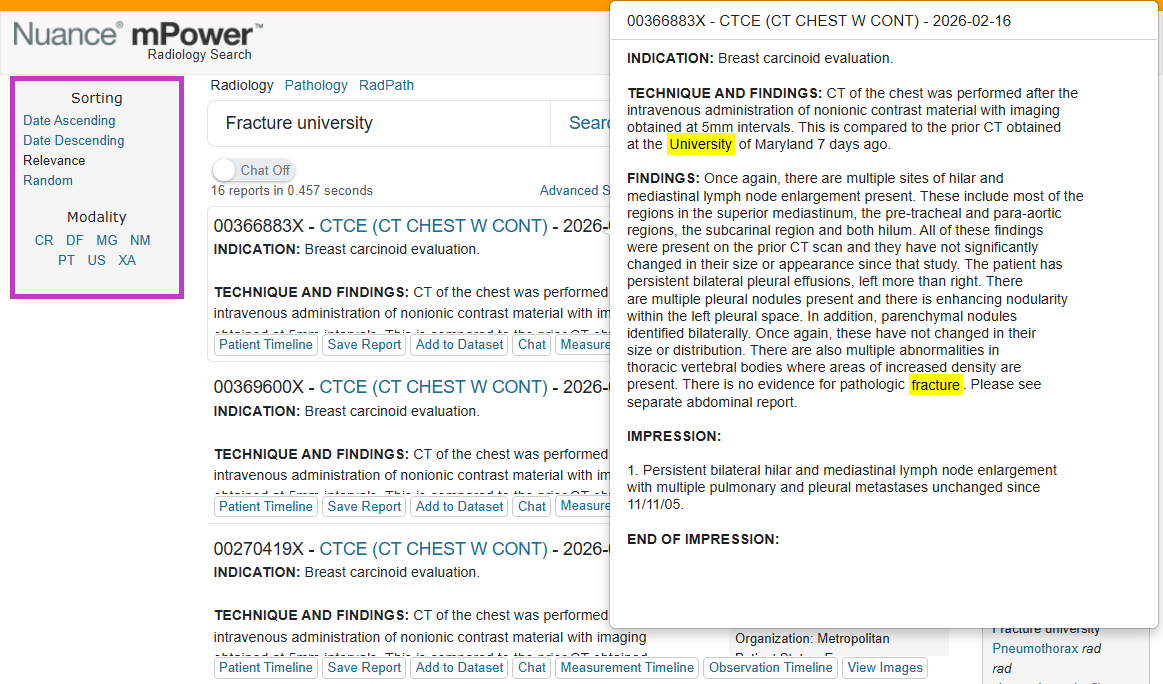
Understand result ordering
By default, mPower sorts results by relevance, not by date. Relevance is determined by an internal algorithm that evaluates how well each report matches your search terms.
If needed, you can change the sort order (for example, to view newer or older reports first).
Preview a report from the results list
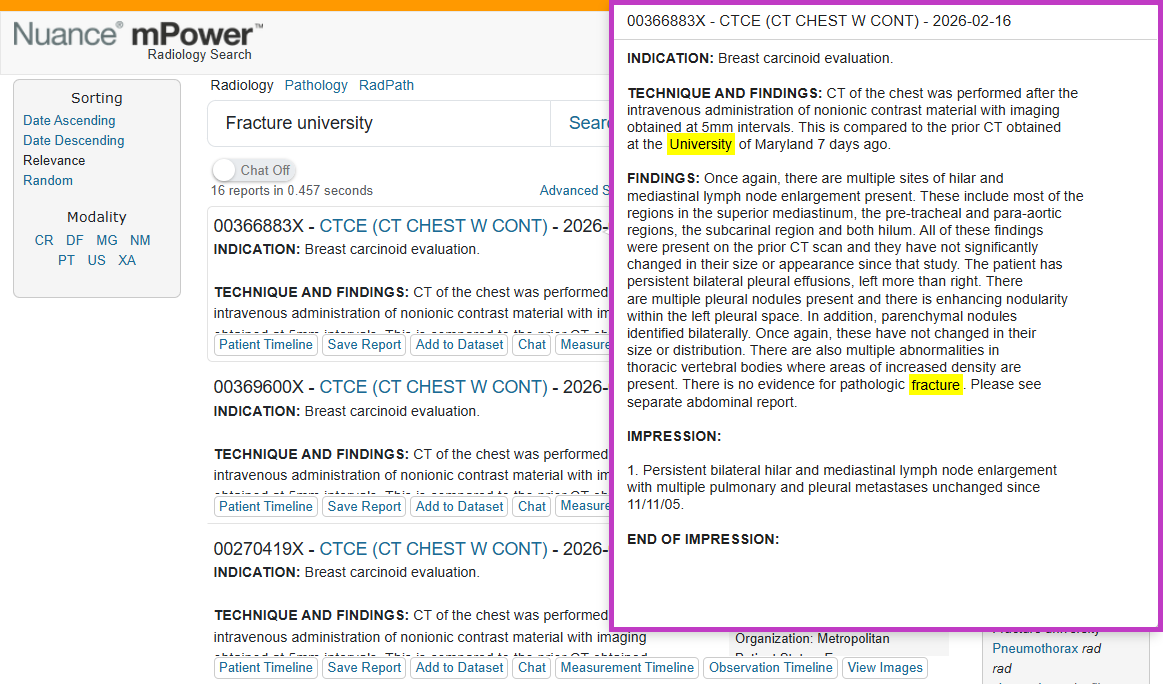
You can preview report content without fully opening it:
- Hover over a report title to see a preview of the report text.
- Review highlighted search terms to confirm the report matches what you are looking for.
Previewing reports helps you decide which reports to open in full.
Open and view a full report
To view the full report:
- Select within the report text area to expand the report.
- Double‑select the expanded report to collapse it again.
This allows you to quickly review full clinical details directly from the search results page.
Use the Patient Timeline
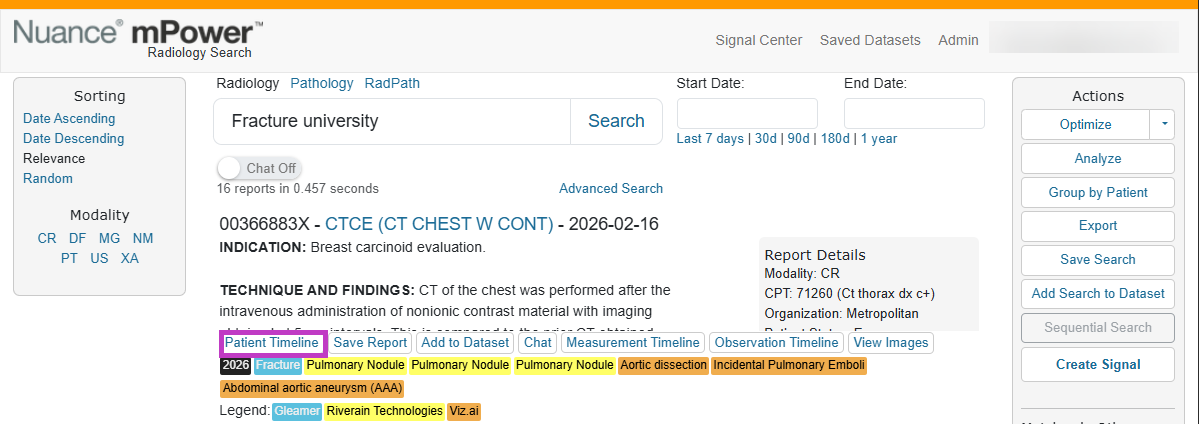
From a search result, you can select Patient Timeline to view related studies for the same patient.
The timeline displays:
- The current study.
- Other studies for the same patient, grouped visually.
Hover over any item in the timeline to preview the report text for that study.
Tip
- Highlighted terms show where your search keywords appear in the report.
- Relevance‑based sorting helps surface the best matches first.
- Use preview and expand options to review reports without leaving the results page.
Next up: Refine results with filters
Learn how to narrow your search results using filters and advanced options to quickly find the most relevant reports. Let's go