
Use filters and advanced options to narrow your search results and focus on the reports that matter most. This helps reduce noise and quickly surface the most relevant findings after running a basic search.
When to refine your results
Refine results when:
- Your search returns too many reports.
- You need reports from a specific time period, modality, or provider.
- You want to exclude reports that are not clinically relevant.
Use filters on the search results page
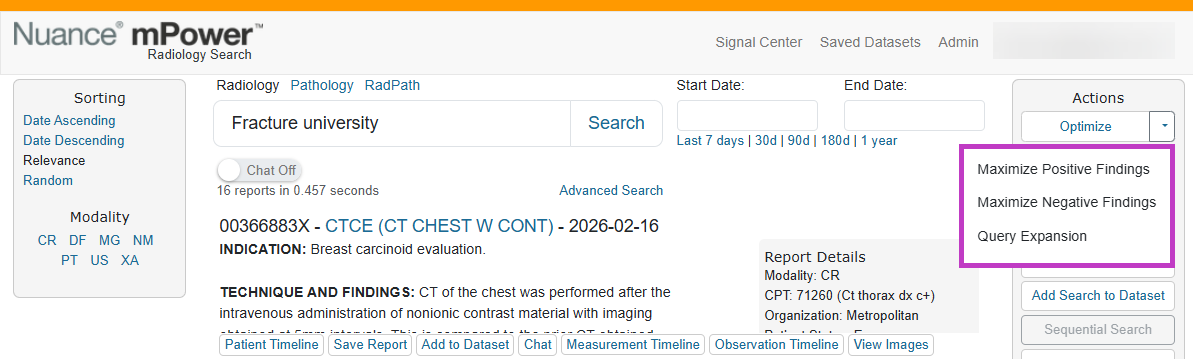
After running a search, you can refine results directly from the results page using available filters and actions.
Common ways to refine results include:
- Date range – limit results to a specific timeframe.
- Modality – focus on exams such as CT, MR, or XR.
- Sorting options – reorder results by relevance or date.
Filters update the results immediately, allowing you to iteratively narrow your list.
Optimize results using actions
Use optimization actions to improve result accuracy:
- Maximize Positive Findings – shows reports where the finding is present.
- Maximize Negative Findings – shows reports where the finding is absent.
- Query Expansion – includes related terms, synonyms, and acronyms in your search.
These options use natural language processing to reduce false positives and broaden or narrow results as needed.
Use Advanced Search for precise filtering
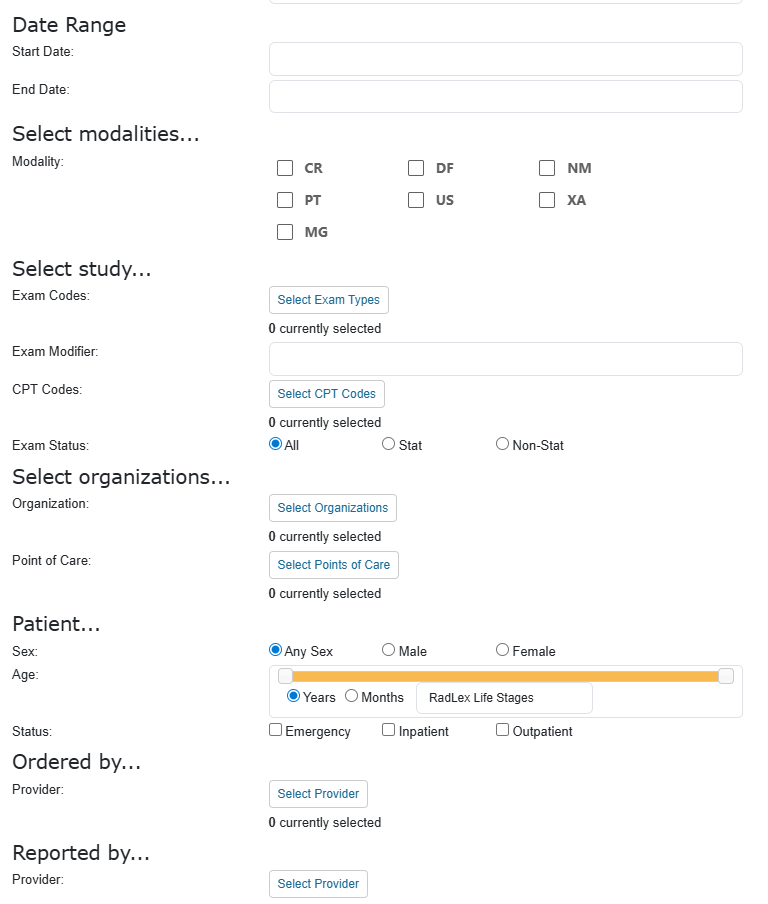
Select Advanced Search to apply more detailed filters when basic filters are not enough.
Advanced Search allows you to filter by:
- Exam type and modality.
- Organization or point of care.
- Ordering or reporting provider.
- Patient attributes such as age, sex, or status.
- Date ranges using calendar selection.
You can combine multiple filters to create a more targeted result set.
Next up: Export search results
Learn how to export your search results to Excel or CSV so you can review, share, and analyze reports offline. Let's go