
Use Saved Searches and Saved Datasets to avoid repeating work. Saving lets you quickly rerun common searches and reuse curated report sets for ongoing analysis.
Save your work when you:
- Run the same or similar searches frequently.
- Create complex searches with multiple filters or optimizations.
- Need to track results over time or reuse a curated set of reports.
Save a search
Saving a search allows you to rerun the same query without re‑entering search terms or filters.
To save a search
Run a basic or advanced search.
Refine or optimize the results as needed.
Select Save Search.
(Optional) Add a comment to describe the search.
Select Save.
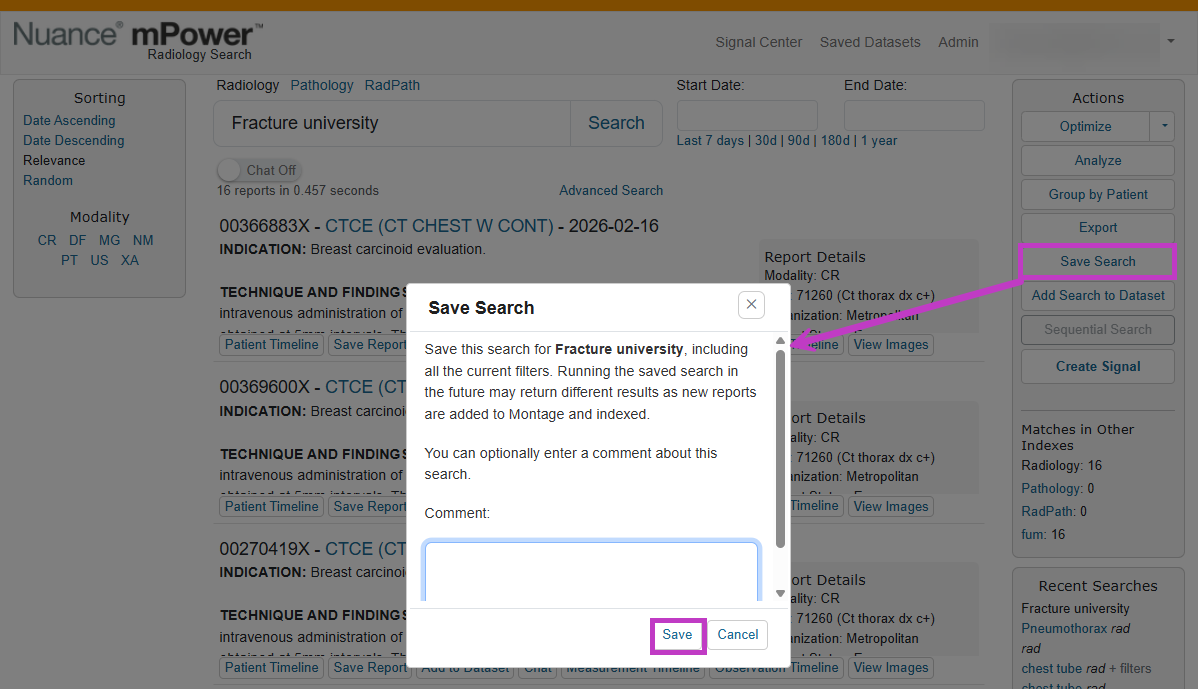
The saved search stores your search terms, filters, and optimization settings.
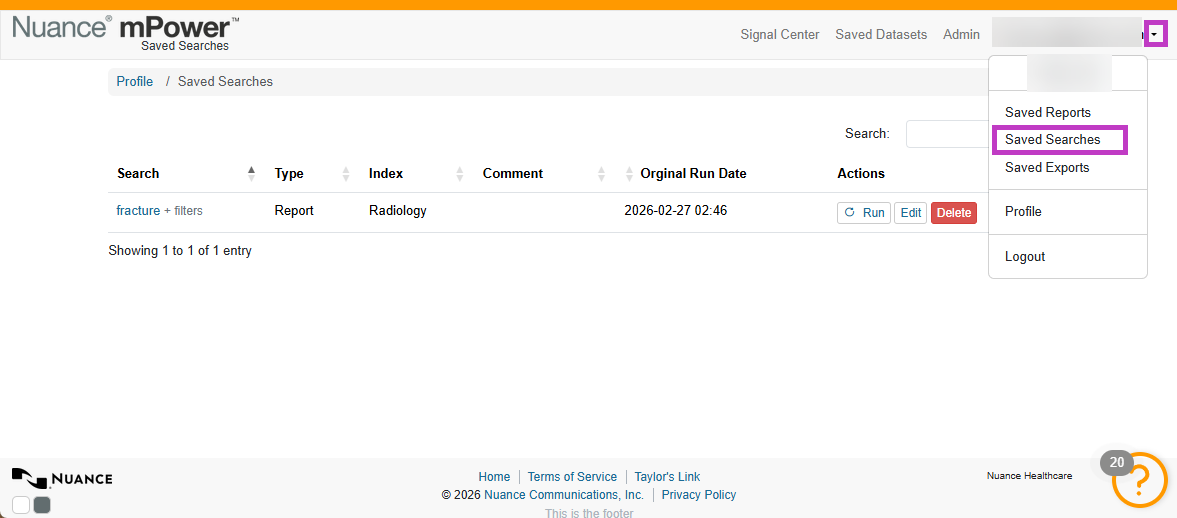
To access saved searches
You can run saved searches at any time. Reusing saved searches helps you get consistent results with a single click.
Select your username in the upper‑right corner.
Select Saved Searches.
Choose a saved search to run, edit, or delete.
Save and reuse datasets
Saved datasets group reports that match specific criteria. Datasets are useful when you want to reuse a refined set of reports for analysis or validation.
Run a search and refine results.
Use optimization options if needed.
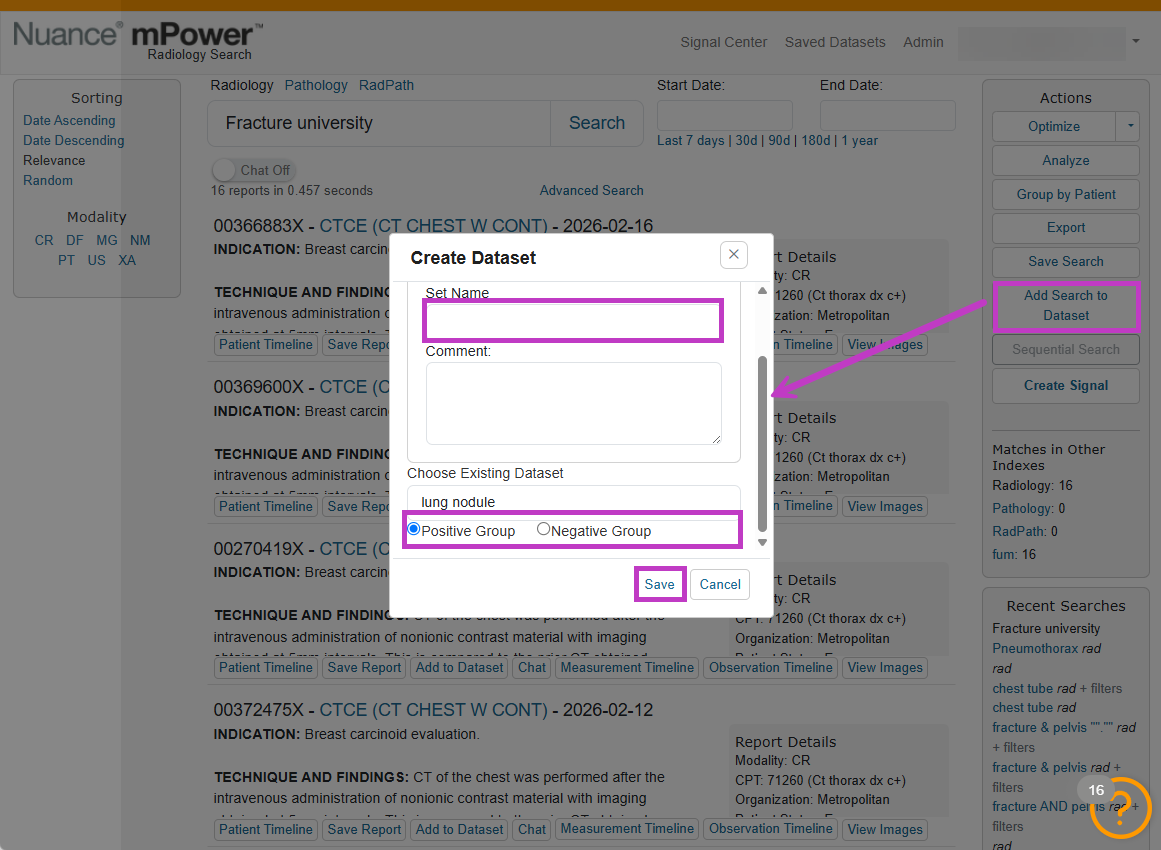
Select Add Search to Dataset.
Enter a name for the dataset.
Choose whether to tag reports as Positive or Negative.
Select Save.
Work with saved datasets
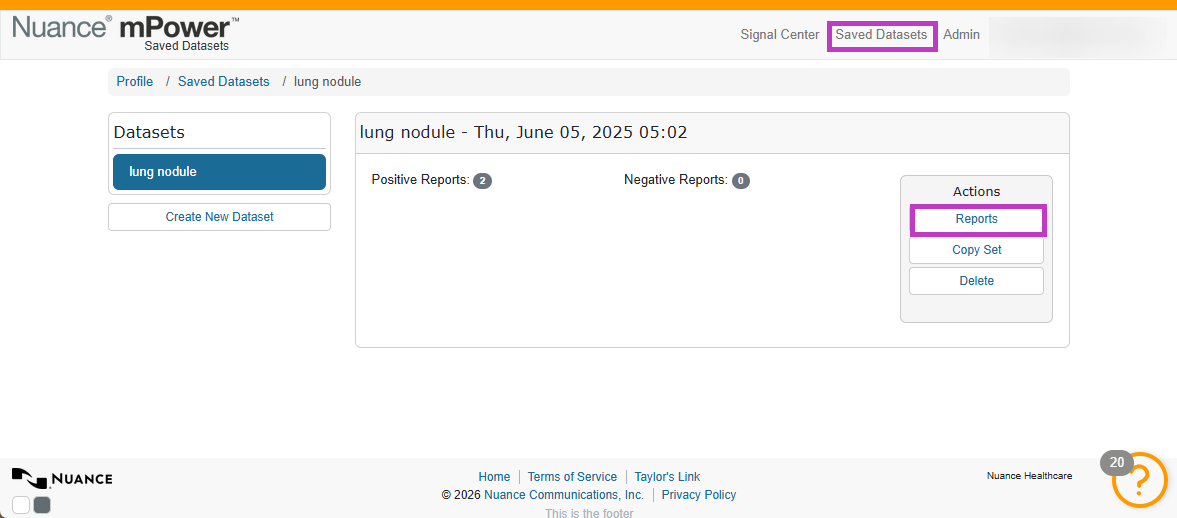
After creating a dataset, you can:
- View all reports included in the dataset.
- Remove reports that do not belong.
- Move reports between Positive and Negative groups.
- Export dataset reports for further analysis.
Tip
- Save searches with clear names or comments so they are easy to identify later.
- Refine results before saving to keep searches and datasets focused.
- Review saved datasets periodically to ensure they remain accurate.
Next up: Use Advanced Search options in mPower
Learn how to use Advanced Search options in mPower to apply detailed filters and precisely target the reports you need. Let's go