
Svarīgi!
Teams tiešraides pasākuma pieredze tiks pārtraukta 2026. gada 30. jūnijā. Lūdzu , pārejiet uz Teams kopsapulcēm, lai skatītu jaunākos pasākumu līdzekļus un pieredzi. Lai iegūtu vairāk informācijas, lūdzu, izlasiet šo emuāra ziņu.
Pārskats
Noskatieties šo videoklipu, lai gūtu pārskatu par tiešraides pasākumu veidošanu programmā Teams.
Ražotāja iespējas
Teams tiešraides pasākumi nodrošina elastīgas opcijas pasākuma producentiem:
- Ja vēlaties apraidīt Teams sapulci, pasākumā piesaistot attālos prezentētājus un ekrāna koplietošanu, varat izveidot savu tiešraides pasākumu programmā Teams.
- Ja jūs vadāt pasākumu ar producēšanas komandu, varat izmantot ārēju programmu vai ierīci, lai producētu savu pasākumu. Šo metodi nodrošina Microsoft Stream.
Piezīme
Jums ir jāizvēlas, kā plānojat producēt savu pasākumu , kad to plānojat.
Producenta iespējas var atšķirties atkarībā no izmantotās ražošanas metodes:
| Producenti var... | Producēšana pakalpojumā Teams | Producēšana, izmantojot ārēju programmu vai ierīci | Producēšana, izmantojot Teams kodētāju |
|---|---|---|---|
| Atlasiet citu prezentētāju video plūsmas un nosūtiet tās uz pasākumu | Jā | Nē | Nē |
| Tērzēšana ar citiem producentiem un prezentētājiem | Jā | Jā | Jā |
| Sākt un beigt tiešraides pasākumu | Jā | Jā | Jā |
| Skatiet reāllaika dalībnieku skaitu | Jā | Jā | Jā |
| Kopīgot savu ekrānus (darbvirsmu vai logu) notikumā | Jā | Nē | Nē |
| Izslēgt visu pārējo producentu un prezentētāju skaņu | Jā | Nē | Jā |
| Audio pievienošana no PSTN tālruņa (iezvanes vai pašatzvanes) | Jā | Nē | Tikai Yes-Event grupai |
| Moderēt jautājumus&atbildes, ja tas ir konfigurēts notikumam | Jā | Jā | Jā |
| Yammer saruna, ja tā ir konfigurēta šim pasākumam | Jā | Jā | Jā-ja ieplānots, izmantojot Yammer |
| Automātiska ierakstu arhivēšana pakalpojumā Microsoft Stream | Nē | Jā | Yes-Microsoft Stream tikai nepubliskiem pasākumiem |
| Lejupielādēt ierakstu | Jā | Jā, izmantojot Microsoft Stream | Jā |
| Lejupielādēt dalībnieku atskaiti | Jā | Nē | Jā |
Veidojiet savu tiešraides notikumu
Varat izveidot notikumu tieši pakalpojumā Teams, izmantojot tālāk sniegtos norādījumus. Detalizētākus norādījumus par pasākuma iestatīšanu skatiet rakstā Teams tiešraides pasākuma veidošanas paraugprakse.
Piezīme
Ja pasākumam izmantojat ārēju aparatūras vai programmatūras kodētāju, skatiet rakstu Tiešraides pasākuma izveide, izmantojot ārēju programmu vai ierīci .
Atlasiet
 , pēc tam tiešraides pasākumu un pievienoties.
Iepriekš noregulējiet mikrofonu un kameru.
Atlasiet nolaižamo bultiņu blakus opcijai Pievienoties tūlīt un izvēlieties Pievienoties kā producentam vai Pievienoties kā dalībniekam.
Piezīme
- Kā producents jūs pievienosities tikai tad, ja esat pasākuma rīkotājs vai ja organizators jums ir piešķīris šo lomu, ieplānojot pasākumu.
- Lai izveidotu tiešraides pasākumu, pievienojieties pasākumam datora programmā.
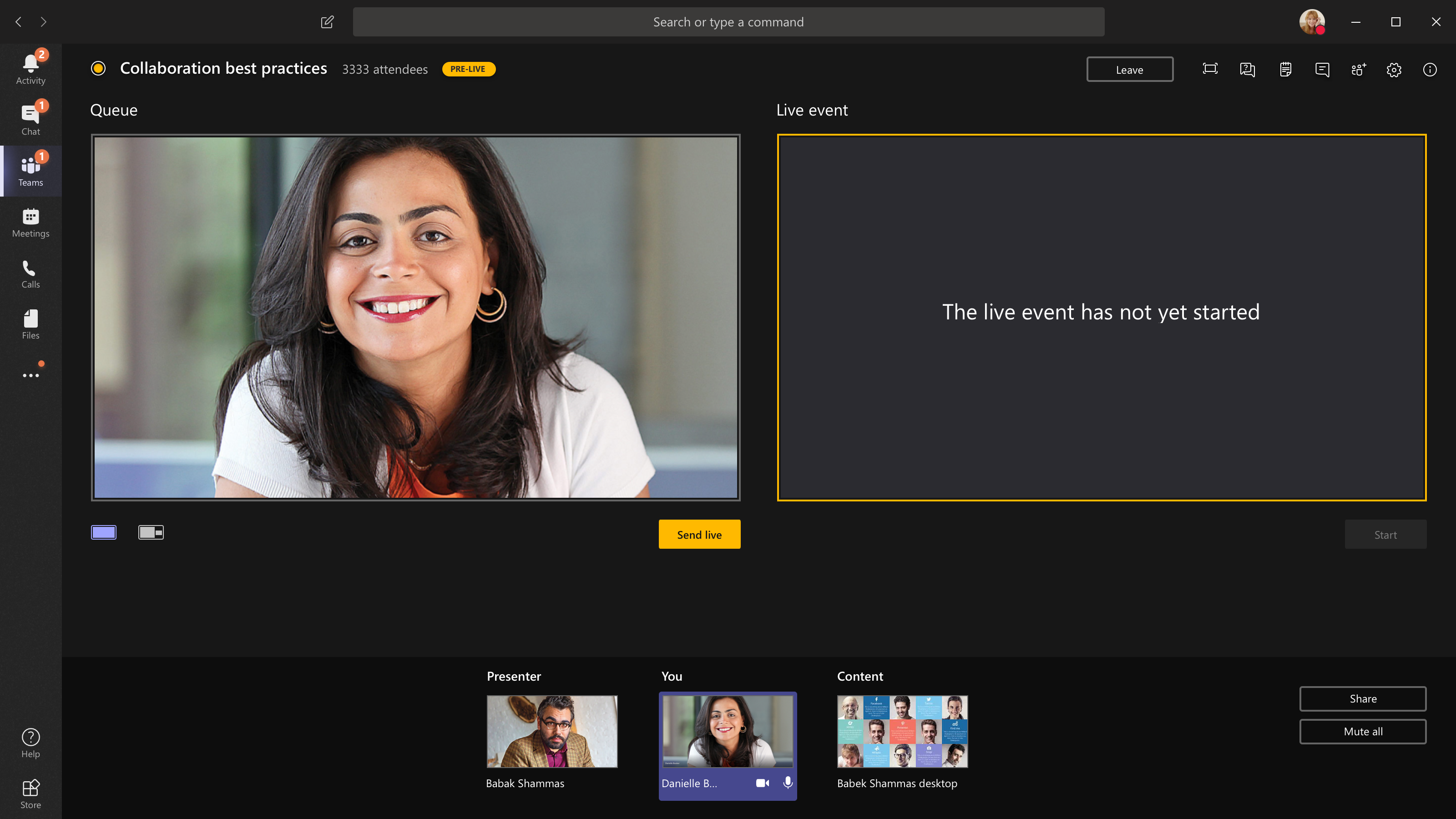
Ieslēdziet kameru, lai to redzētu ekrāna apakšdaļā. Atlasiet kameras plūsmu, lai priekšskatītu to savā rindā (pa kreisi).

Lai pārslēgtos uz citu kameru, atlasiet Papildu opcijas
 >iestatījumi
 >ierīces iestatījumi sapulces vadīklās un izvēlieties jaunu kameru.
Atlasiet Nosūtīt tiešraidē, lai plūsmu nosūtītu no priekšskatījuma uz tiešraides pasākumu.

Atlasiet Sākt>, lai sāktu tiešraidi saviem dalībniekiem.
Piezīme
- Kad plūsma tiek pāriešana tiešsaistē, augstākā atbalstītā izšķirtspēja ir 720p.
- Izslēgt visu to producentu vai prezentētāju skaņu, kuri aktīvi nerunā. Ja ierīču skaņa nav izslēgta, dalībniekiem tiks rādīts viņu audio raidījums.
- No multivides straumes apraides brīža līdz brīdim, kad to redz dalībnieki, ir 15–60 sekundes aizkave.
Ja pārtrauksit kopīgot video (piemēram, izslēdzot kameru), visi redzēs, ka tiešraides pasākums pēc mirkļa atsāksies.

Lai kopīgotu darbvirsmu vai logu, atlasiet Kopīgot
 , kuru vēlaties kopīgot. Kad koplietošana ir pabeigta, sapulces vadīklās atlasiet ikonu Apturēt koplietošanu
 .
.Padoms
Uzaiciniet tiešraides pasākumā līdzprezentētāju, kurš var koplietot darbvirsmu vai logu, lai dalībniekiem netiktu rādīta Teams un jūsu pasākuma rinda.
Lai ievietotu rindā citu video plūsmu, jums būs jāpievienojas citiem prezentētājiem, lai pievienotos pasākumam. Viņu plūsmas tiks parādītas jūsu ekrāna apakšā.
Piezīme
- Video vai saturu var kopīgot līdz pat desmit prezentētājiem vai producentiem (tai skaitā jūs). Tomēr vienlaikus var koplietot tikai vienu darbvirsmu vai logu.
- Ja jūsu saturs ir tiešraidē, citi prezentētāji vai producenti var sākt kopīgot savus ekrānus, atlasot Kopīgot, bet tas aizstās visu, ko koplietojat. Pārliecinieties, ka pasākuma grupa ir informēta par šo potenciālo konfliktu.
Lai beigtu notikumu, atlasiet Beigt>Turpināt.
Ja jūs producējat savu pasākumu no auditorijas un telpā ir auditorija, kuras reakcijas (smiekli, aplausi utt.) vēlaties iemūžināt tiešraides pasākumā, varat izslēgt trokšņu slāpēšanu.
Lai izslēgtu trokšņu slāpēšanu, atlasiet Vairāk opciju>Iestatījumi>Ierīces iestatījumi sapulču vadīklās un izslēdziet trokšņu slāpēšanas slēdzi.
Piezīme
Jūs nevarēsit izveidot tiešraides pasākumu, izmantojot Linux.
Restartējiet tiešraides pasākumu
Kā producents jūs varat atsākt tiešraides pasākumu, kamēr pasākums ir aktīvs vai pēc tā beigām. Pēc restartēšanas ir jāaptur un jārestartē kodētājs , vai arī tas var nesūtīt video uz sapulci.
Svarīgi!
Ja restartējat tiešraides pasākumu, iepriekš sāktā pasākuma ieraksts, transkripcija un titri tiks dzēsti un aizstāti ar restartēto pasākumu. Dalībnieki nevarēs skatīt iepriekšējo pasākumu pēc pieprasījuma.
Lai restartētu tiešraides pasākumu, jums būs jāizmanto Teams datora programma vai Teams tīmeklī.
- Atlasiet Citas darbības
 >Restartēt pasākumu sapulces vadīklās.
 - Atlasiet Restartēt, lai apstiprinātu.
Komandas pārbaudīs, vai notikumu var restartēt. Ja Teams var veiksmīgi restartēt tiešraides pasākumu, producenti un prezentētāji tiks atvienoti, bet dalībnieki redzēs gaidīšanas ekrānu ar informāciju, ka pasākums drīz sāksies. Producentiem un prezentētājiem būs atkārtoti jāpievienojas un jāsāk pasākums no jauna.
Darbspējas un veiktspējas pārbaude
Lai pārbaudītu ierīču veiktspēju tiešraides pasākuma veidošanas laikā, informācijas panelī atlasiet Darbspēja un veiktspēja .
Šeit varat pārskatīt dažādus rādītājus, tostarp:
| Metrika | Mērvienība | Kāpēc vēlaties uzzināt |
|---|---|---|
| Aptuvenais joslas platums | Jūsu tīkla jauda, mērīta megabaitos sekundē (Mbps) | Zems joslas platums var ietekmēt dalībniekiem nosūtāmā audio un video kvalitāti. |
| Laiks turp un atpakaļ | Tīkla ātrums milisekundēs (ms) | Ilgs laiks turp un atpakaļ var ietekmēt dalībniekiem nosūtāmā audio un video kvalitāti. |
| Kameras sūtīšanas izšķirtspēja | Detalizācijas apjoms, ko kamera var nosūtīt, mērīts pikseļos (p) | Zema kameras sūtīšanas izšķirtspēja var ietekmēt dalībniekiem nosūtāmā audio un video kvalitāti. |
| Video apstrāde (aparatūras kodeks) | Kā pārvēršat kameras kadru ciparu signālā | Programmatūras kodeks var būt neefektīvs un prasa vairāk atmiņas, kas var ietekmēt pārsūtāmā video kvalitāti. |
| Multivides bitu pārraides ātruma ierobežojums | Joslas platums, ko Teams drīkst izmantot multividei, mērīts megabaitos sekundē (Mbps) | Šī organizācijas politika var ietekmēt dalībniekiem nosūtāmā audio un video kvalitāti. |
| Ekrāna koplietošana | Informācija par to, vai jūsu organizācija sapulcēs ļauj koplietot ekrānu | Šī organizācijas politika var neļaut jums kopīgot ekrānu tiešraides pasākumā. |
| IP video | Informācija par to, vai jūsu organizācija sapulcēs ļauj kopīgot video | Šī organizācijas politika var neļaut jums kopīgot video tiešraides pasākumā. |
Piezīme
Lai iegūtu mērījumu katrai kategorijai, jums ir jāieslēdz kamera.
Saistītās tēmas
Teams tiešraides pasākuma pārskats