
Use PowerShare to securely access and view your medical images online. Once images are shared with you, you can open and review them anytime.
Access your images
You can access your images after you sign in or use a secure access method provided by your imaging facility.
Sign in to access images
Go to the PowerShare sign-in page.
Sign in by using your registered email and password.
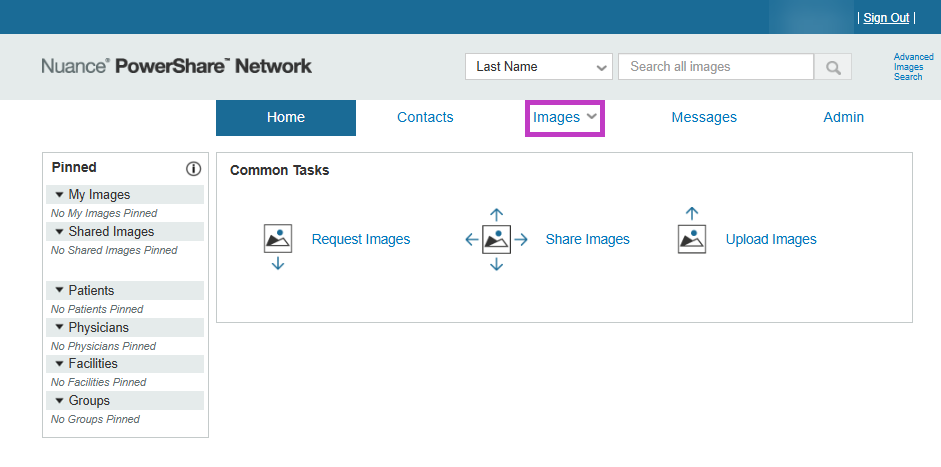
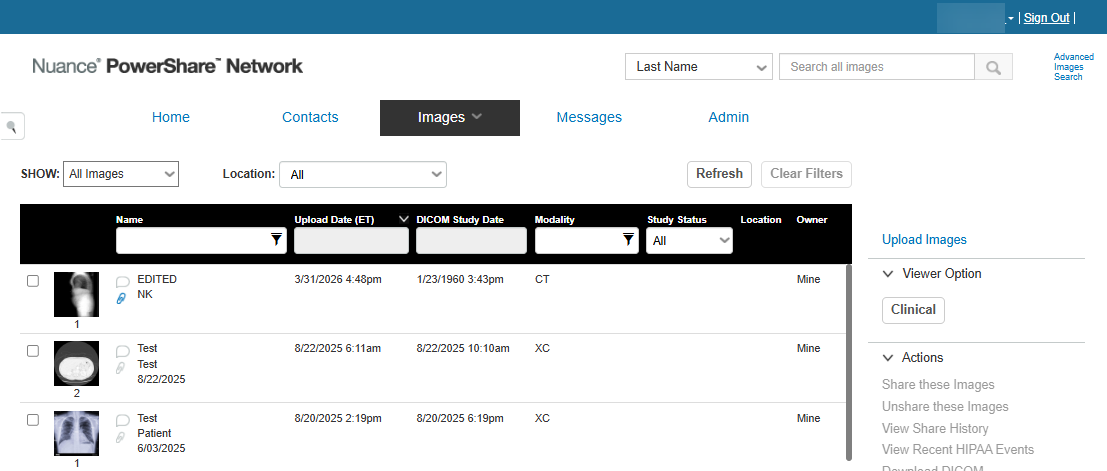
Select Images from the top navigation bar. The Images page displays all studies shared with you.
View your images
After you access your account, you can open and review your studies.
Open a study
Go to the Images page.
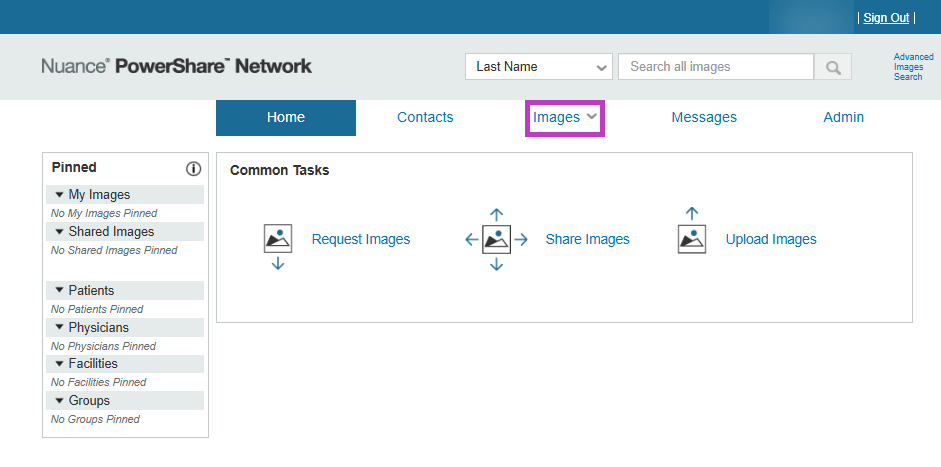
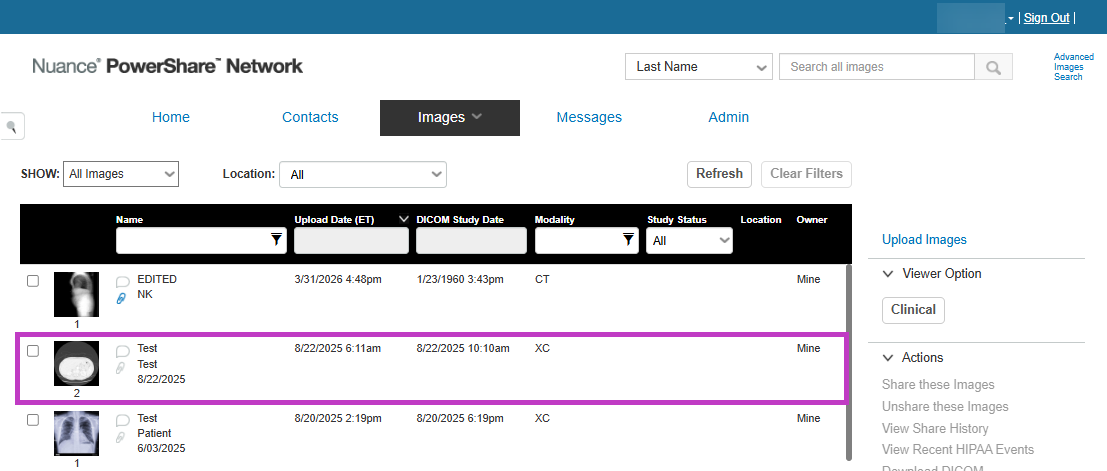
Locate the study you want to view.
Select the study or image thumbnail. The study opens in the viewer so you can review the images.
Find and manage your images
Use the built-in options to quickly locate and review your studies.
- View all images shared with you in one place.
- Filter or sort studies to find specific images.
- Open studies to review image details and content.
If you don't see your images
If your images aren't visible, try the following steps:
- Make sure you're signed in with the correct email address.
- Confirm the facility shared images with you.
- Check if you need to use a token code or invitation link.
- Refresh the page or adjust filters.
- Check Messages for notifications about shared images.
Tip
- You can access your images from any approved internet-connected device.
- Images are securely stored and available whenever you need them.
- Use the secure links provided by your facility to access images quickly.
Next up: Upload images in PowerShare Image Sharing
Upload imaging studies to PowerShare for secure storage, access, and sharing with authorized users. Let's go