
Use Account Settings in PowerShare to manage your personal details, account information, and password. Keeping your account settings up to date helps ensure accurate communication and secure access.
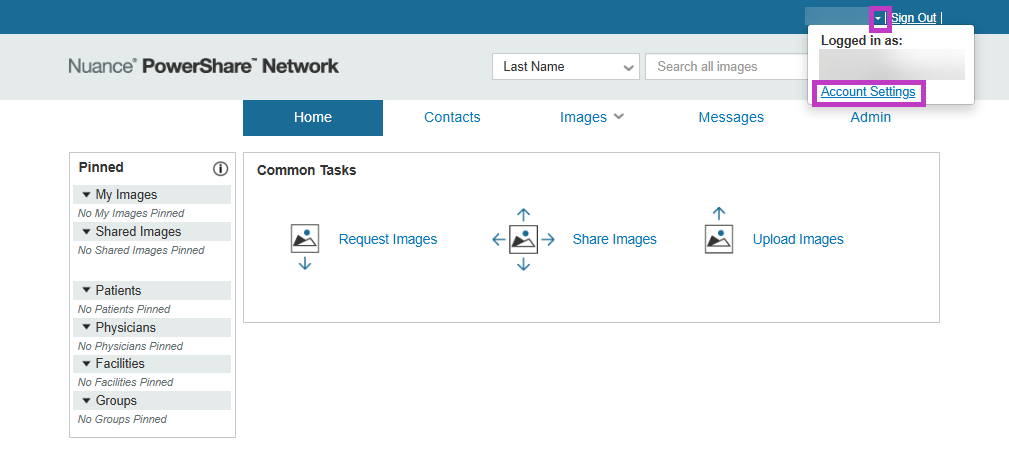
Open account settings
Sign in to your PowerShare account.
Select your name in the top-right corner.
Select Account Settings. The account settings window opens, where you can view and update your details.
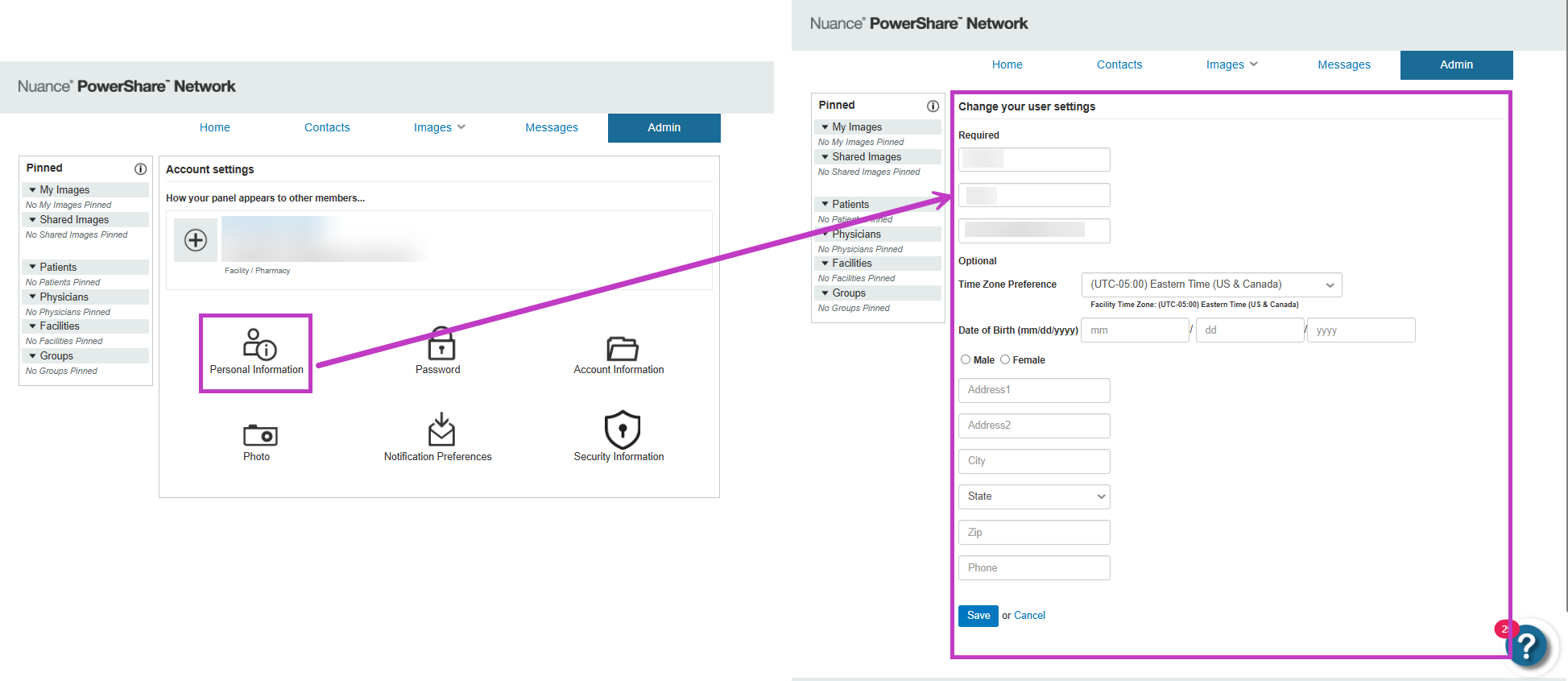
Update your personal information
Edit details such as:
Address
Time zone
Birthdate
Changes apply only to your account and aren't shared with other users.
Select Save after making updates.
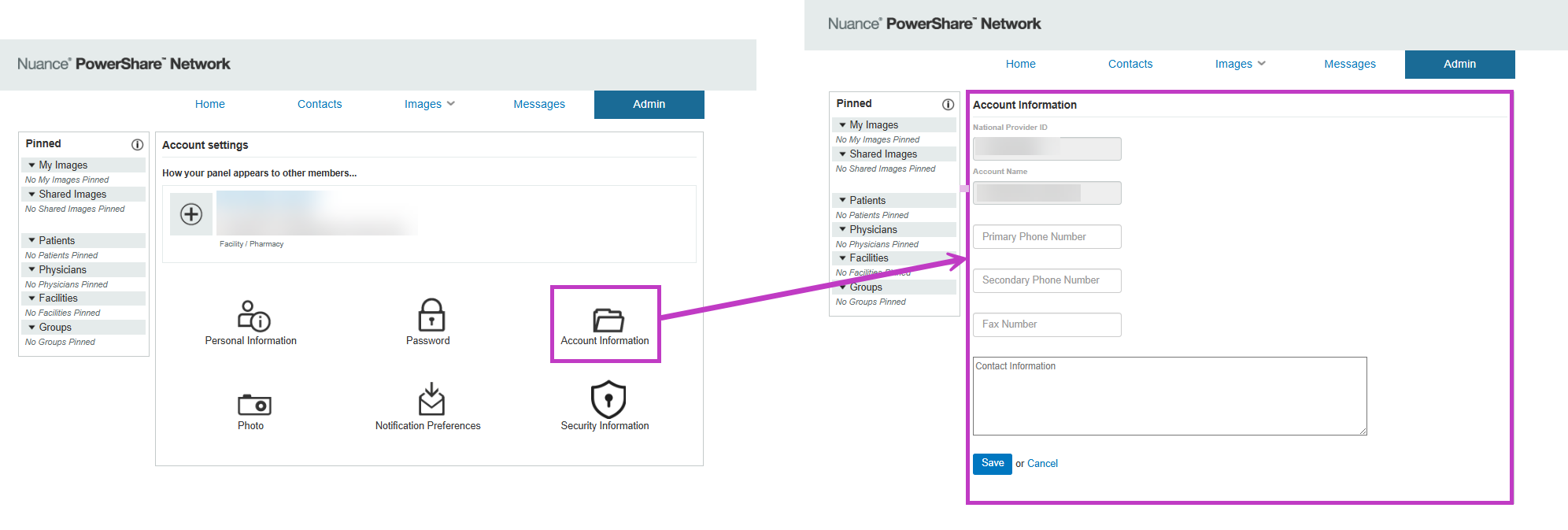
Update account information
Add or update:
Phone numbers
Fax number
Additional contact details
Other PowerShare contacts might see this information.
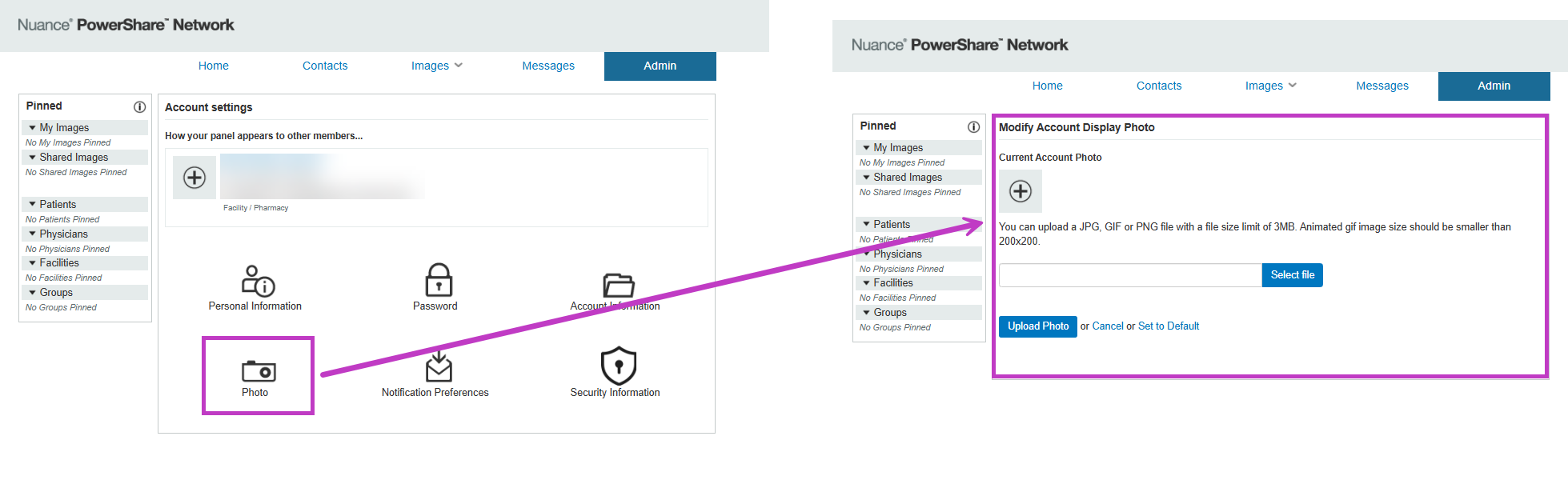
Update your facility display (admin users)
View your facility panel at the top of the settings window.
Admin users can update the facility logo.
To update the logo:
Select Photo.
Select Select file.
Upload a new image. Logo changes apply to the entire facility account (global setting).
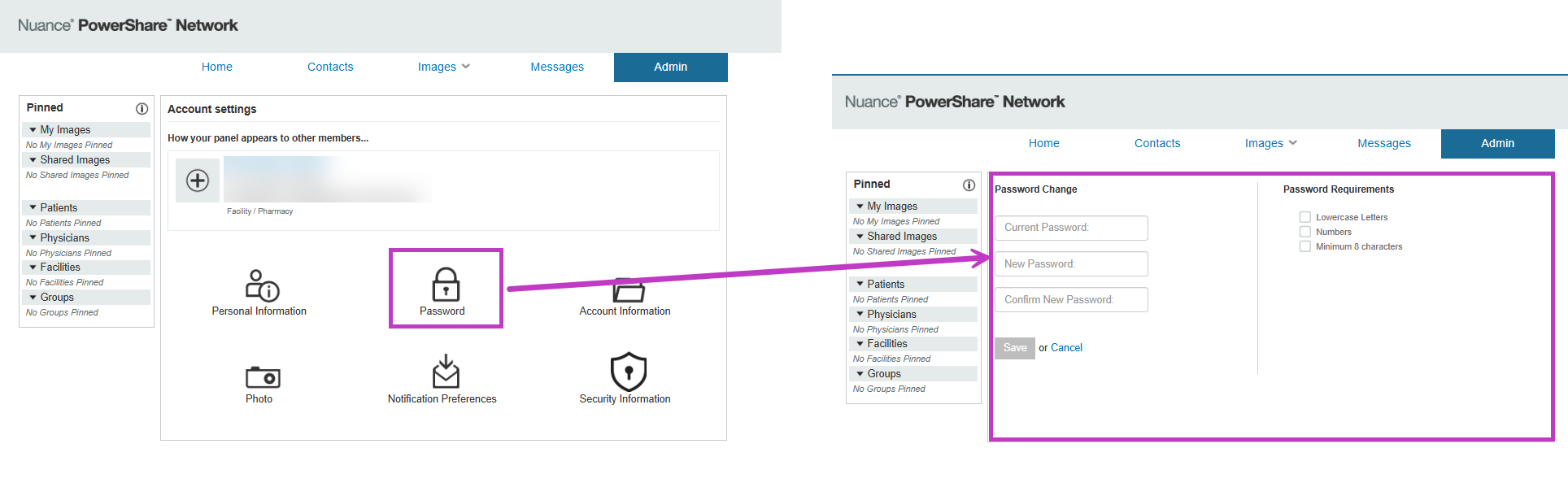
Change your password
Use the Password option to update your password.
Your PowerShare administrator sets the password requirements.
If your organization uses Single Sign-On (SSO), you can't update your password in PowerShare.
Tip
- Review your account settings regularly to keep information up to date.
- Ensure your contact details are accurate for communication and support.
- Contact your administrator if you can't update certain fields.
Next up: Configure notification preferences in PowerShare Image Sharing
Customise notifications so you receive the updates that matter most to your work. Let's go