
Step by Step Instructions
Your patient account allows you to download your radiology images from within your PowerShare account.
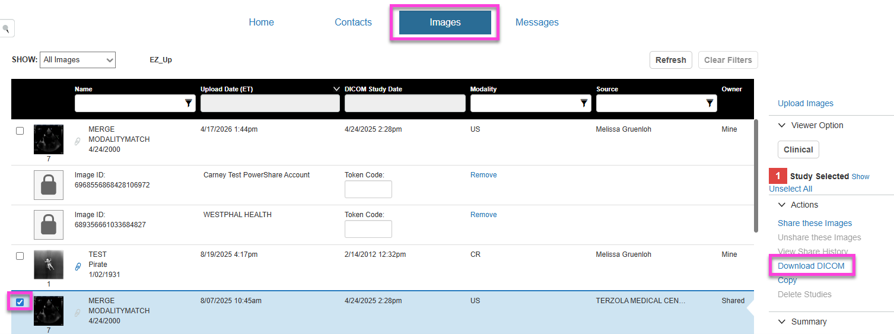
In PowerShare, open the Images tab.
Select the Image(s) you want to download.
Select Download DICOM.
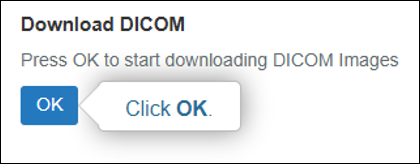
Select OK to start the download process.
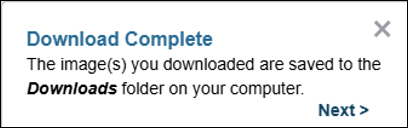
A confirmation message appears when the download is complete.
Next up: Setup Email Notifications
Learn to download DICOM images from PowerShare for easy access to your studies. Let's go