
Use advanced image search in PowerShare to quickly find specific studies by using detailed search criteria. This feature helps you locate images faster when you're working with large volumes of data.
Open Advanced Images Search
Sign in to your PowerShare account.
Select Images from the top navigation bar.
Open the Advanced Images Search option on the Images page. The Images page shows all studies available to you and provides tools to filter and search them.
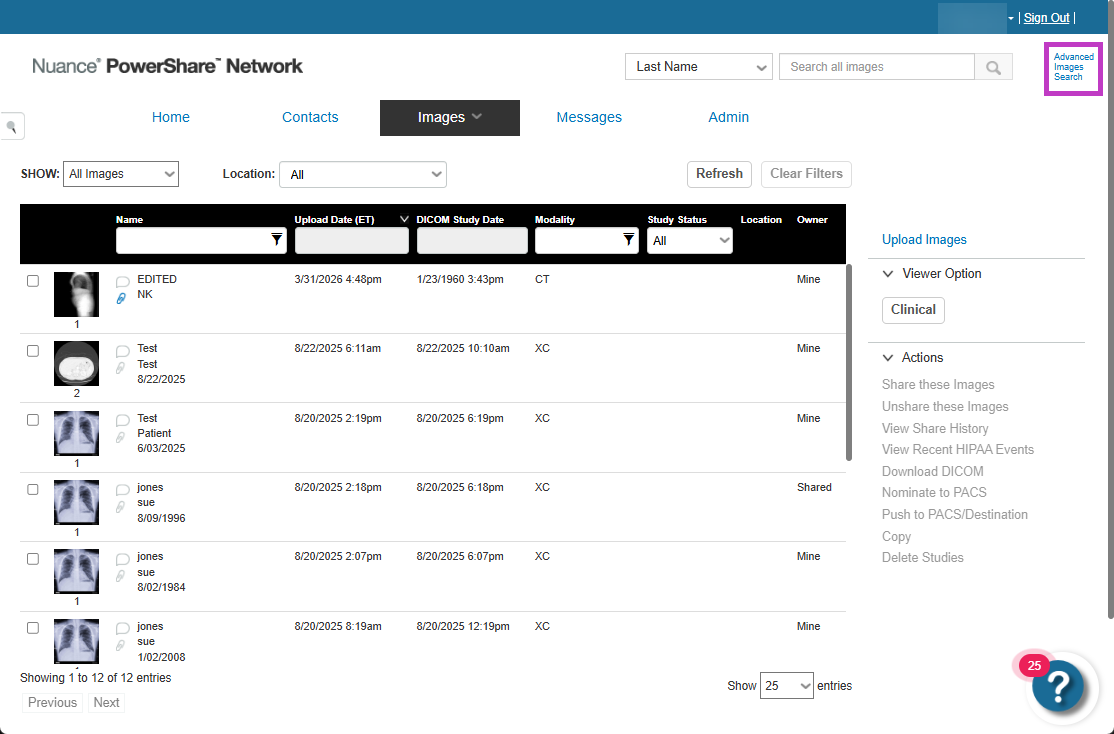
Use advanced Images search filters
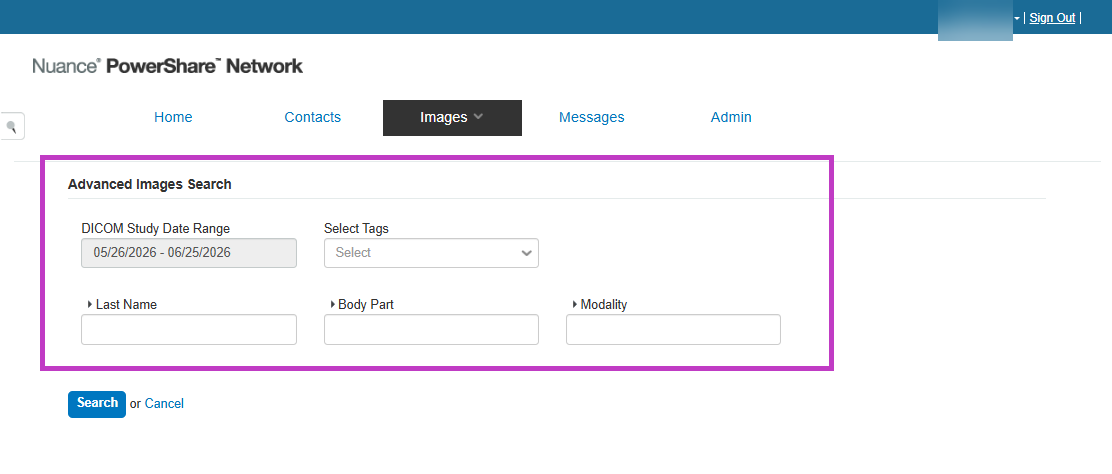
Advanced search allows you to refine results by using multiple criteria.
Enter one or more search details to narrow results, such as:
DICOM Study Date Range
Tags
Facility or provider
Study type or modality
Use multiple fields to find more precise results faster.
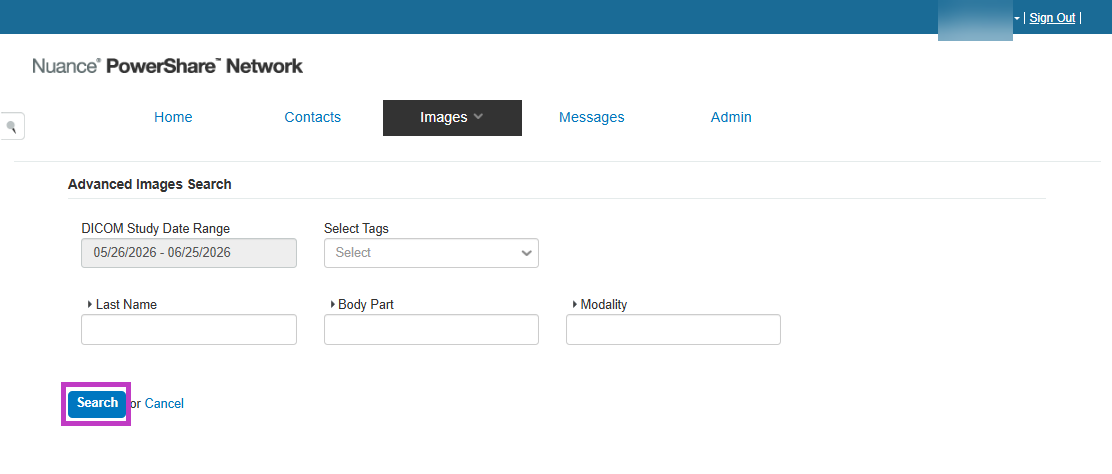
Run and refine your search
Enter your search criteria.
Select Search to view matching studies.
Update or adjust your criteria to refine results.
Next up: Understand Mine vs Shared images in PowerShare Image Sharing
To better manage study ownership and access, learn the difference between Mine and Shared images. Let's go