
Use Contact Notes to record and view internal information about your contacts. This helps you manage communication and streamline image sharing workflows.
What are contact notes?
Contact Notes allow you to store internal details about a contact.
- You can add notes for facilities, providers, or patients.
- Your notes are visible only within your organisation.
- You can use notes to track communication and workflows.
Add contact notes
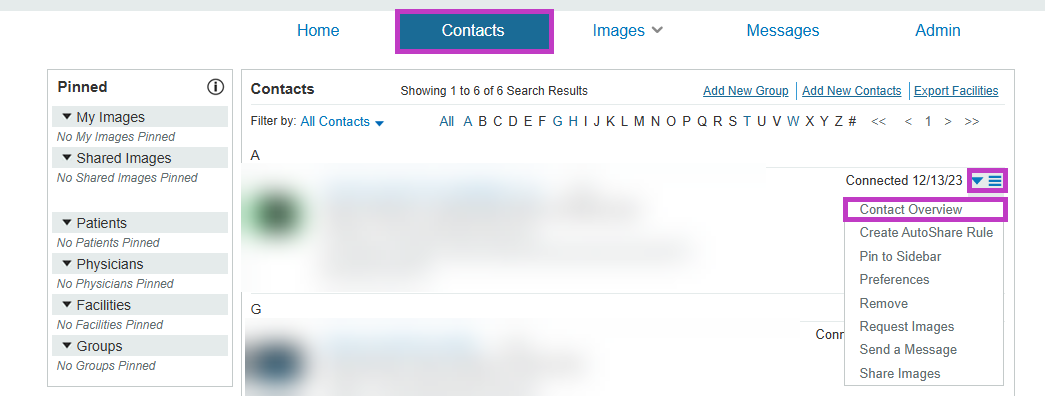
Go to the Contacts tab after you sign in to PowerShare.
Find the contact you want to update.
Select the drop-down menu next to the contact.
Select Contact Overview.
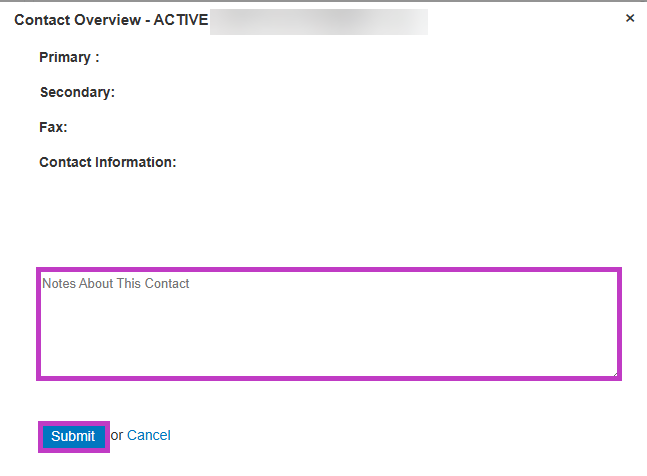
Enter details in the Notes About this Contact field.
Select Submit to save your notes.
What you can include in notes
Use notes to capture useful information about your interactions, such as:
- Names of people who assist with image requests.
- Contacts in other departments or after-hours support.
- Types of studies the contact typically sends.
- Whether the contact account is shared across multiple facilities.
Understand the notes field
- The Notes About this Contact field is limited to 512 characters.
- Notes appear below the contact’s information.
- Contact details (phone, fax, etc.) are provided by the contact, not by you.
Next up: Add new contacts in PowerShare Imaging Network
Add contacts to your network so you can quickly connect, collaborate, and share imaging studies. Let's go