
Share your medical images with providers, facilities, or other contacts so they can review them quickly and securely.
Before you begin
Sign in to your PowerShare account.
Make sure your images are available in the Images tab.
Confirm that the person or facility you want to share with is in your contacts.
You can only share images with connected contacts in PowerShare.
Share your images
Follow these steps to send images to your contacts.
Select the images to share
Go to the Images tab.
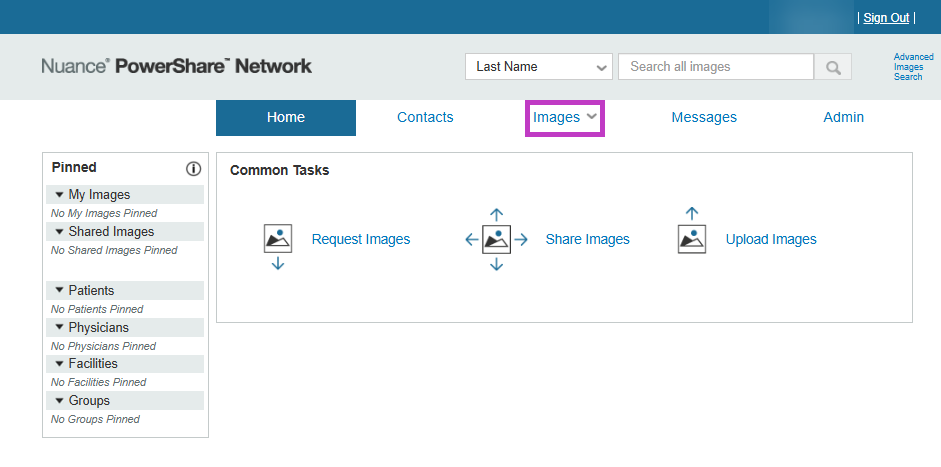
Locate the study you want to share.
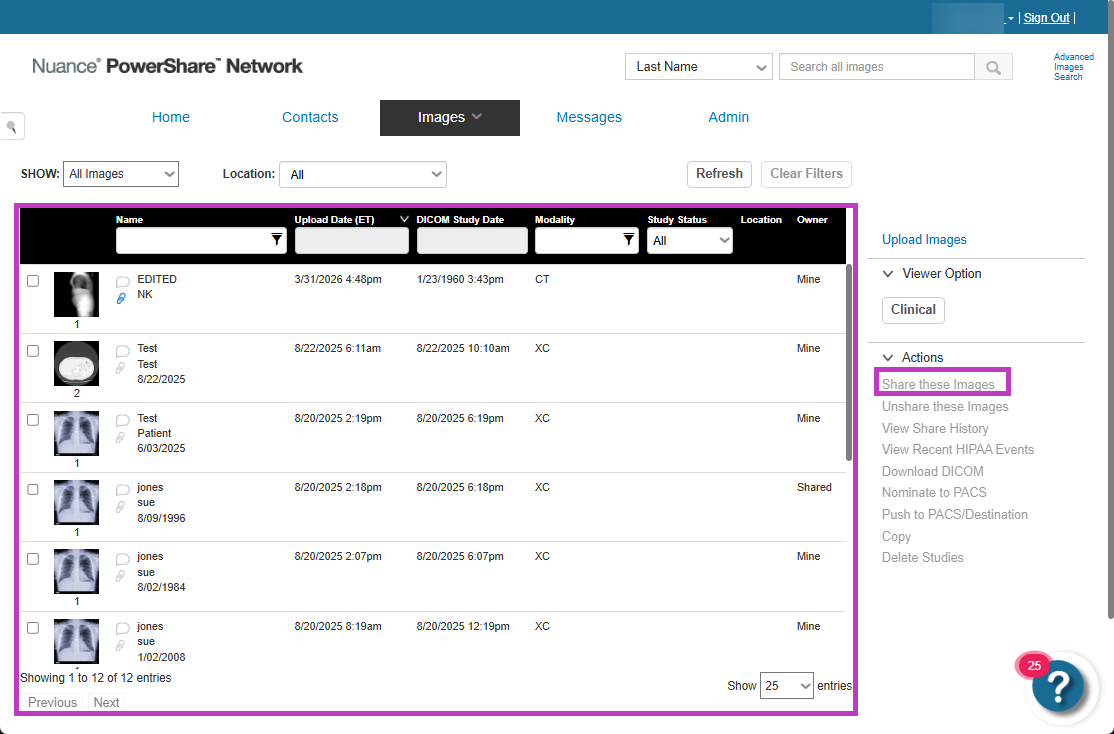
Select the study or image. The Images tab shows all studies available to you.
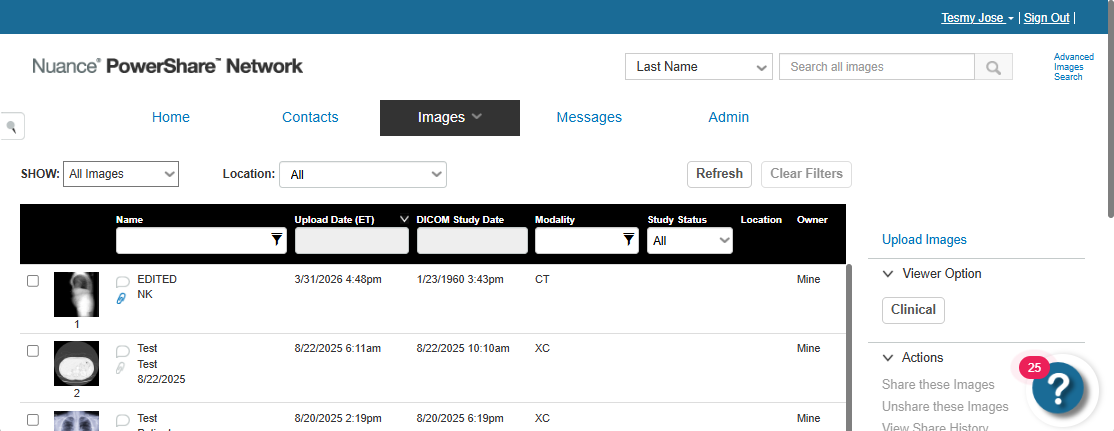
Choose a contact
Select Share Images.
Choose the contact, facility, or provider. You can share images with connected contacts in your network.
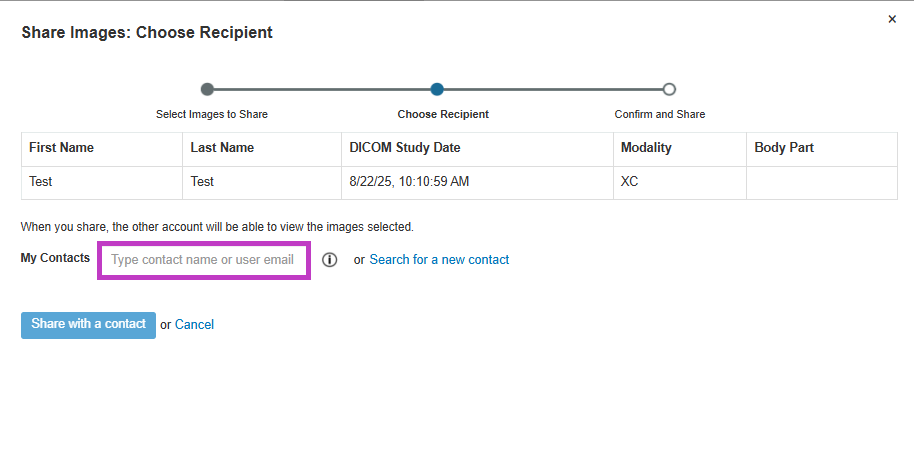
Send the images
Review sharing options and permissions.
Add a message if needed.
Select Send.
- The recipient receives a notification that you shared images.
What happens next
The recipient receives an email or notification.
They can sign in to view or download the images.
You can track activity through notifications or messages.
PowerShare securely delivers images through its network for easy access.
Tip
- Make sure you add your contact before sharing images.
- Use groups to share images with multiple contacts at once.
- Add a message to provide context for the recipient.
- You can send images to contacts, facilities, or patients as part of your network.
If you can't share images
Confirm the contact is connected in your network.
Check that the images are available in your account.
Make sure you have permission to share with that contact.
Next up: Filter and search images in PowerShare Image Sharing
Use filters and search tools to quickly locate the images and studies you need. Let's go