
Add contacts in PowerShare to connect with facilities, providers, and patients so you can securely share and request medical images.
Before you begin
You must be signed in to PowerShare.
You can add contacts from the Contacts tab.
You can connect with:
- Facilities
- Providers
- Patients
Add a new contact
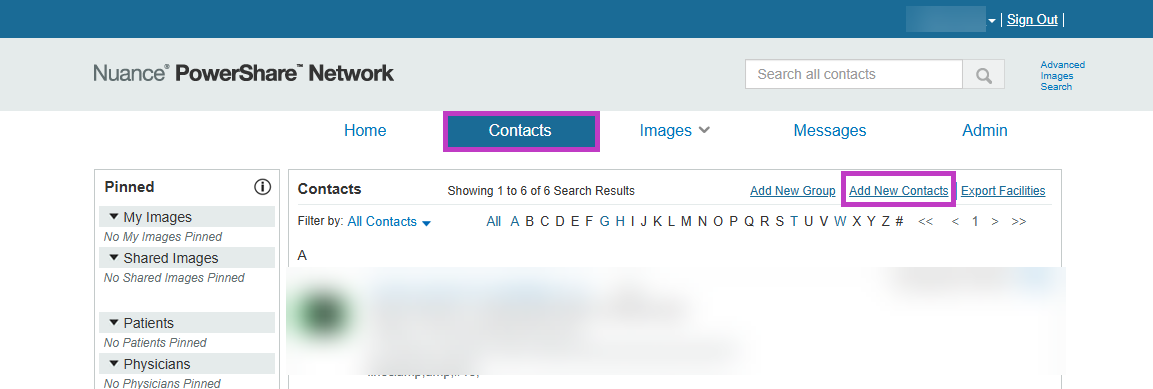
Go to the Contacts tab.
Select Add New Contacts.
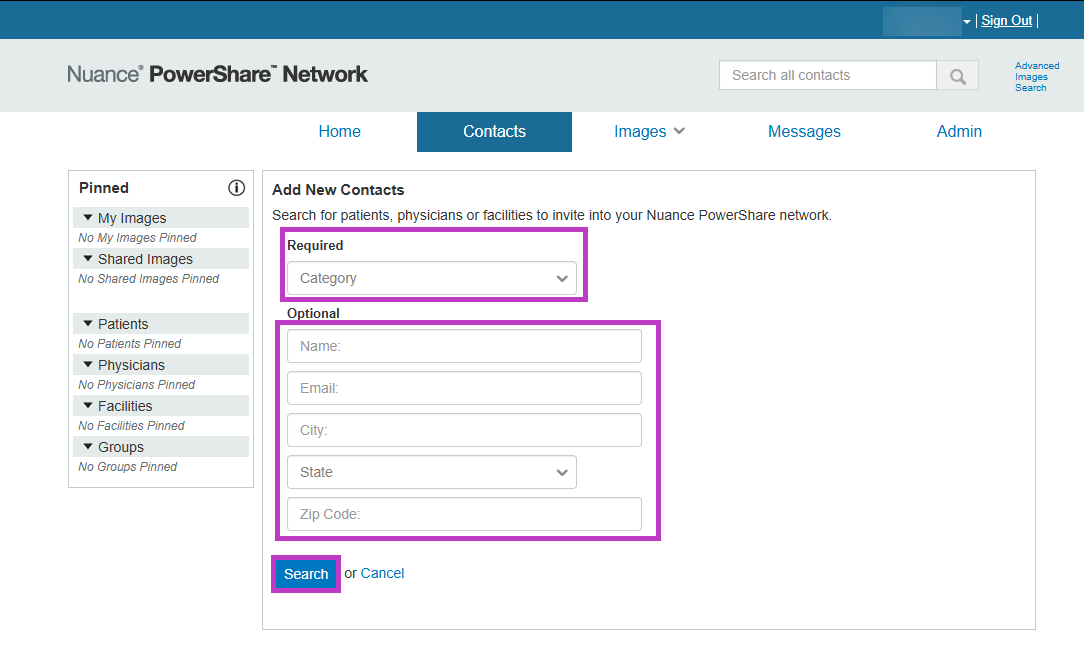
Select a category (required).
Enter search details (optional).
Select Search.
Tip
Use broader search criteria to avoid missing results.
Find and invite a contact
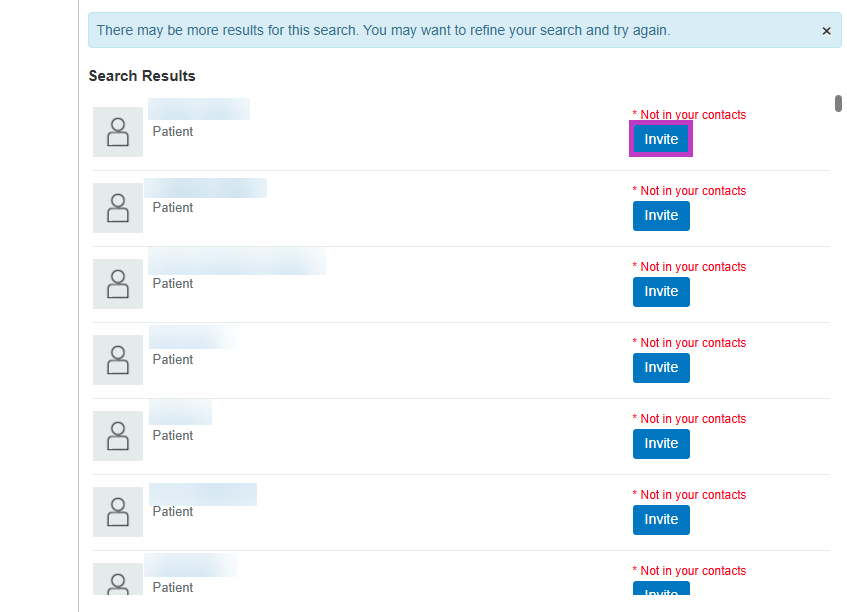
Locate the contact in the Search Results list.
Select Invite.
Complete the invitation form.
Complete the invitation
When you send an invitation, you can:
Add a personal message.
Choose sharing permissions:
Allow contact to upload to your image folder
Allow contact to copy shared images
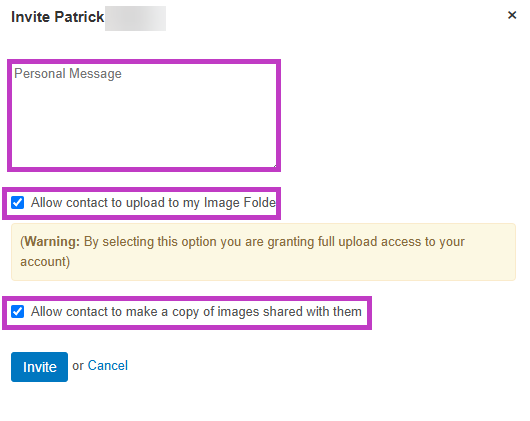
By default, contacts can make a copy of images shared with them.
Understand contact status
Not in your contacts:
- The contact already has a PowerShare account.
- Your invitation is sent directly.
Not in PowerShare:
- The contact doesn't have an account.
- You must enter their email and sign a HIPAA agreement.
What happens next
The contact receives an email invitation to connect.
Once accepted, you can:
Share images.
Request images.
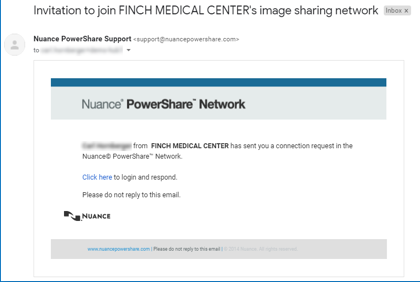
Invitations expire after 45 days if not accepted.
Next up: Manage contact invitations in PowerShare Imaging Network
Send, monitor, and manage contact invitations to expand and maintain your professional network. Let's go