
Use Upload and Share when the study is already in your PowerShare account and the recipient is an existing contact.
Before you begin
Make sure that:
The receiving site is connected to your PowerShare account.
The study is available in your PowerShare account.
Your facility has a PowerShare Accelerator installed.
The PACS destination is configured.
Share the study
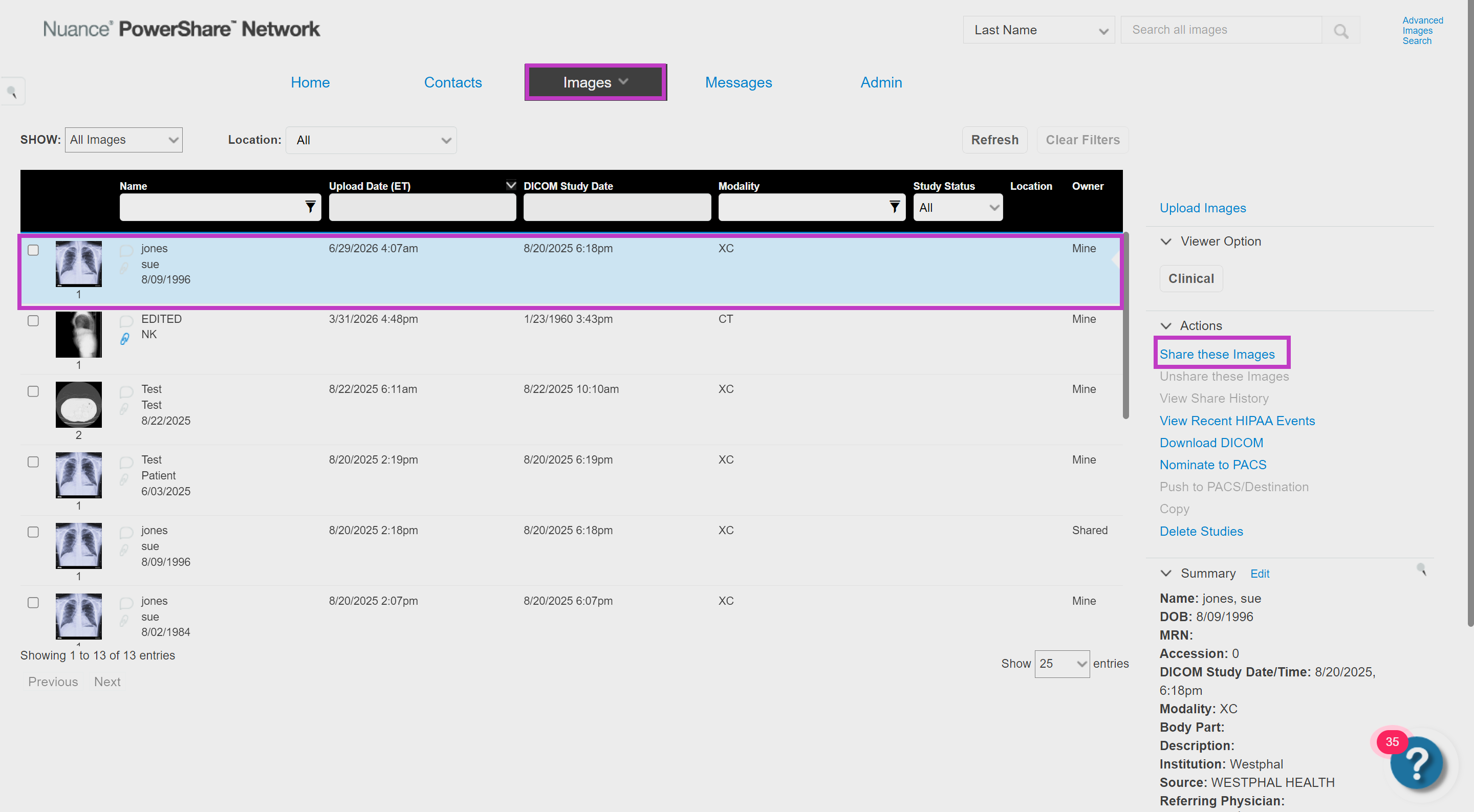
Sign in to PowerShare, and then select Images.
Locate and select the study that you want to share.
On the Actions menu, select Share These Images.
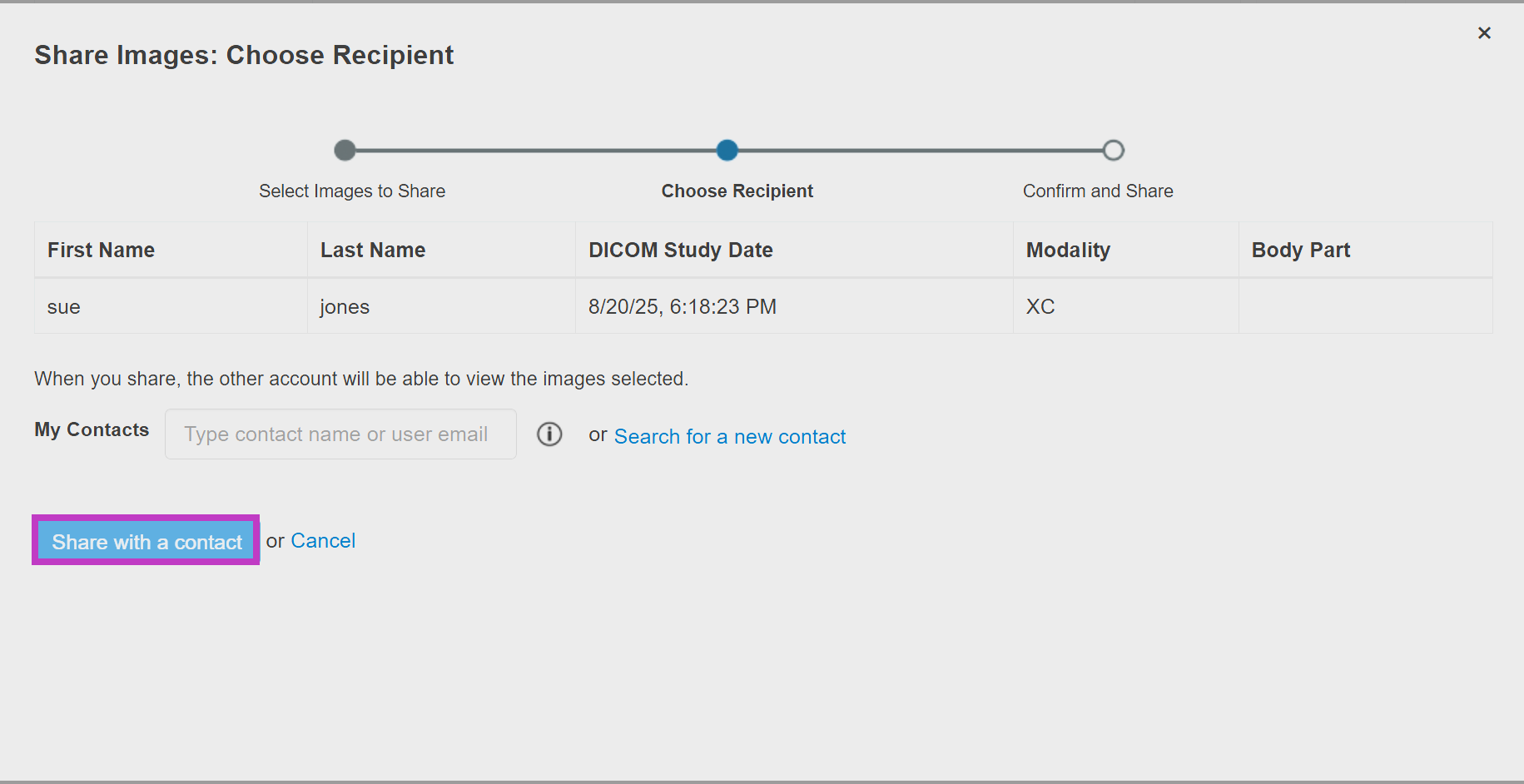
Begin entering the contact’s name, and then select the correct contact from the matching results.
Select Share with a Contact.
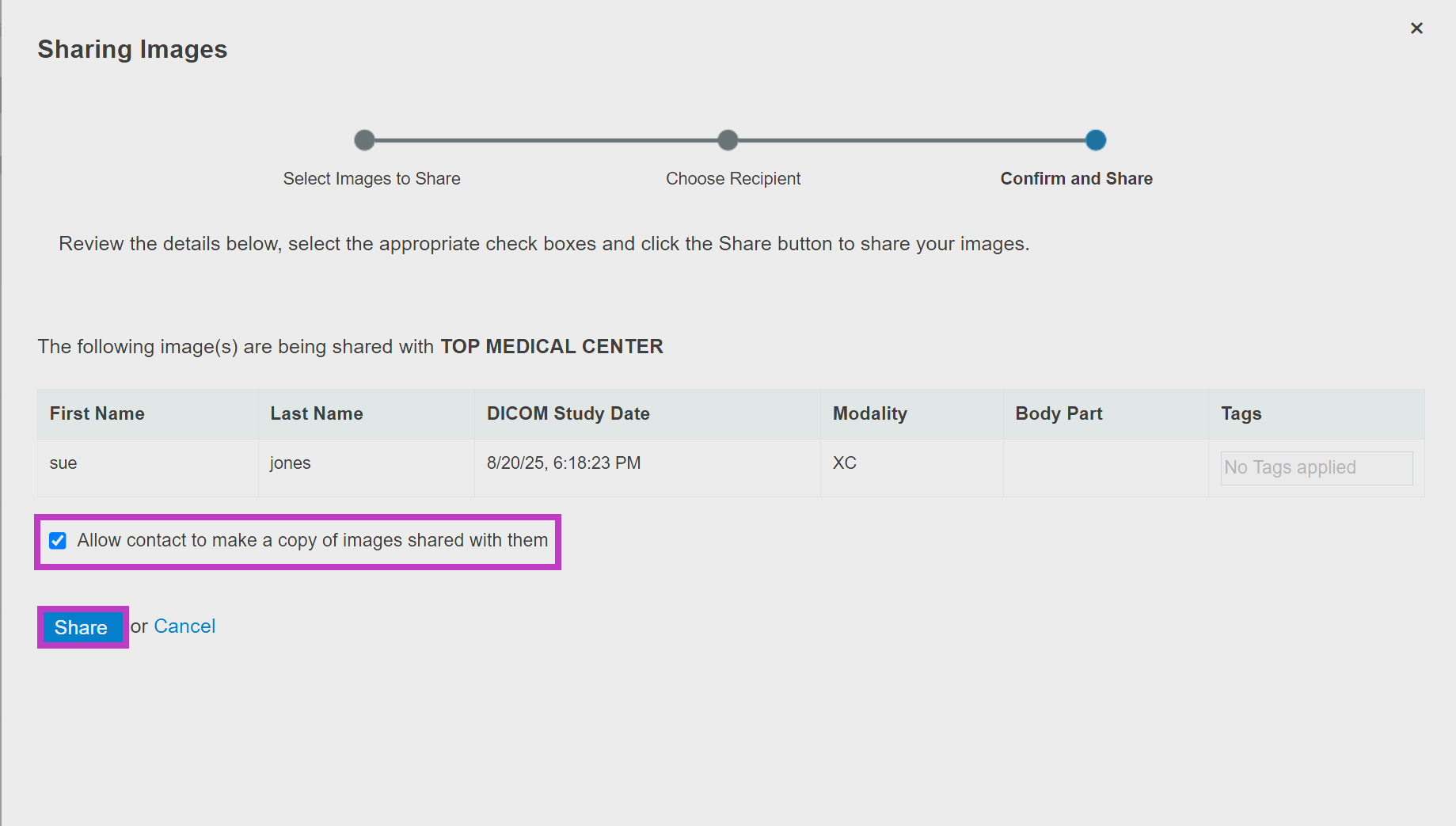
Review the selected study and recipient.
Keep Allow contact to make a copy of images shared with them selected when the recipient needs a local copy.
Select Share.
Tip
Verify the recipient before sharing the study. Regularly review your contacts to make sure facilities, providers, and patients are current.
Next up: Invite a new contact and share a study in PowerShare Image Sharing
Use Upload, Invite and Share to connect new contacts and deliver studies securely Let's go