
Use the Messages tab in PowerShare to stay up to-date with notifications, requests, and communication from your contacts.
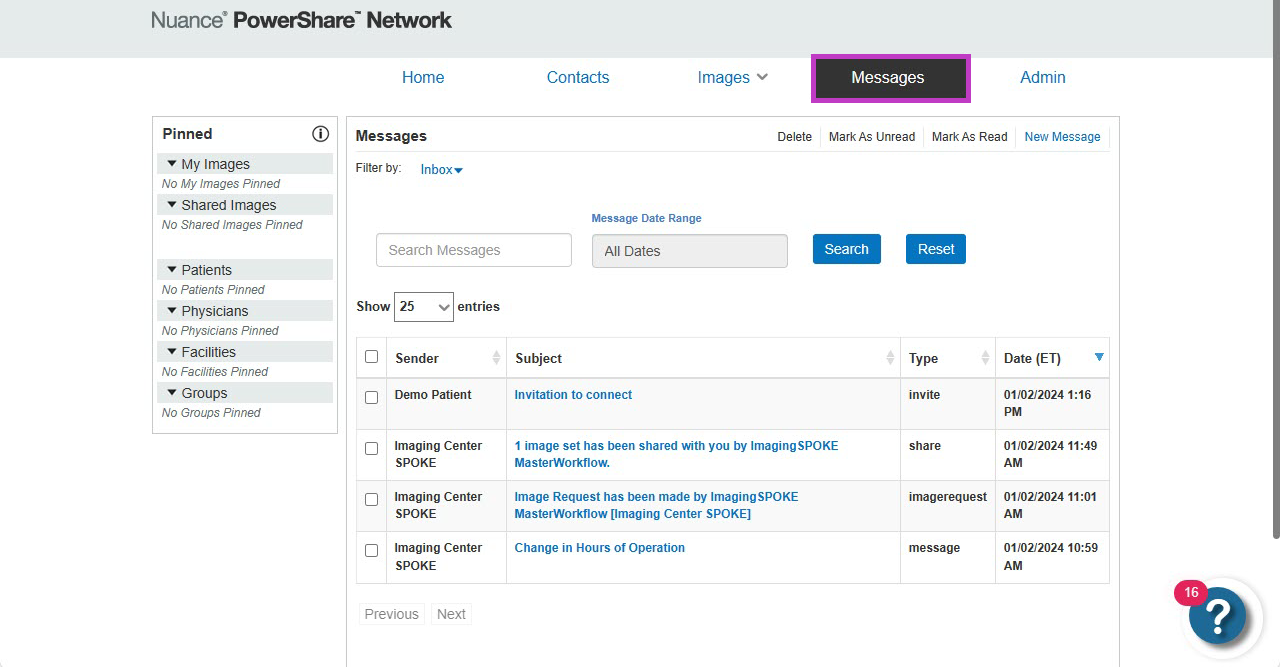
Open the Messages tab
Sign in to your PowerShare account.
From the homepage, select Messages. You access all messages from the Messages tab.
View your messages
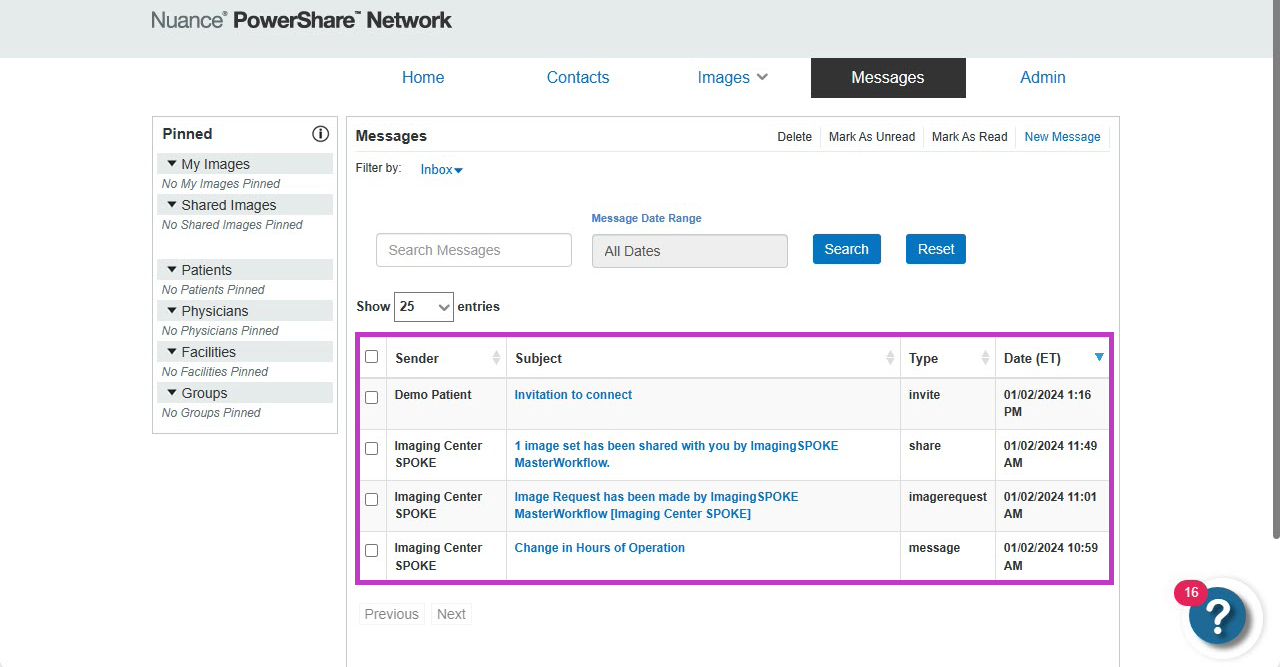
By default, your Inbox displays when you open the Messages tab.
The most recent message appears at the top of the list.
Each message includes:
Sender
Subject
Type
Message date
Types of messages you receive
You might see messages related to:
Invitations to connect
Image requests
Images being shared with you
Updates from connected sites
Switch between inbox and sent messages
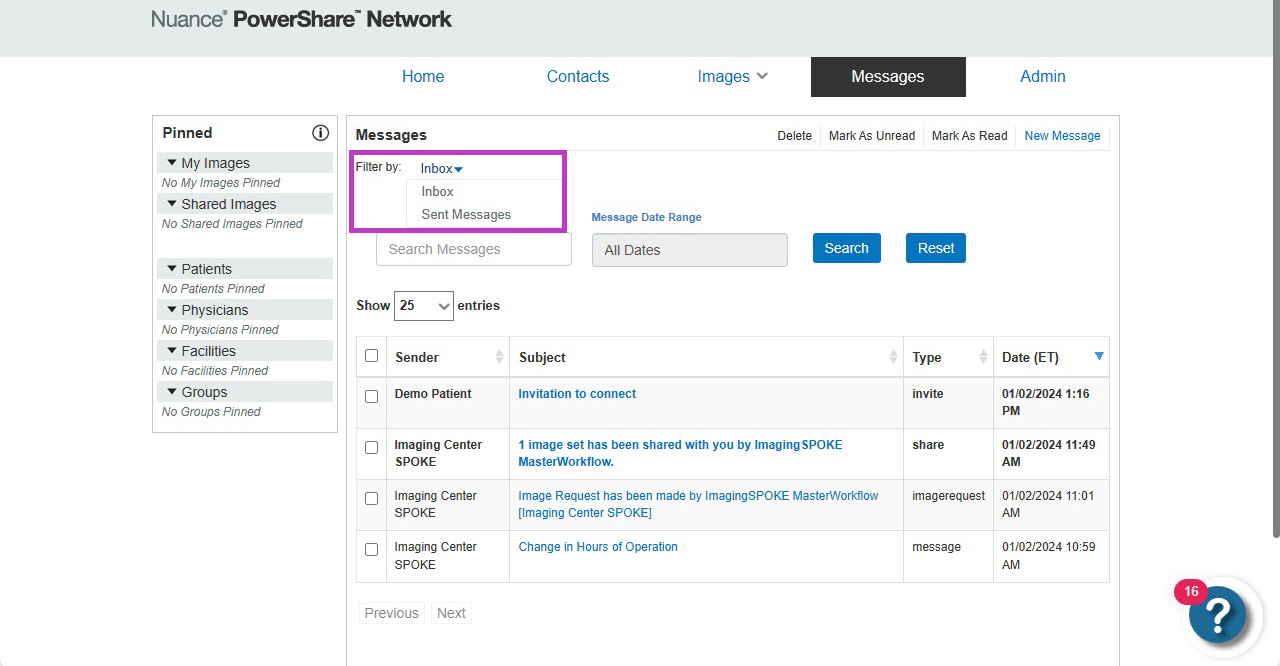
Use Filter by to switch between:
Inbox (messages you receive)
Sent (messages you send)
Sort and search messages
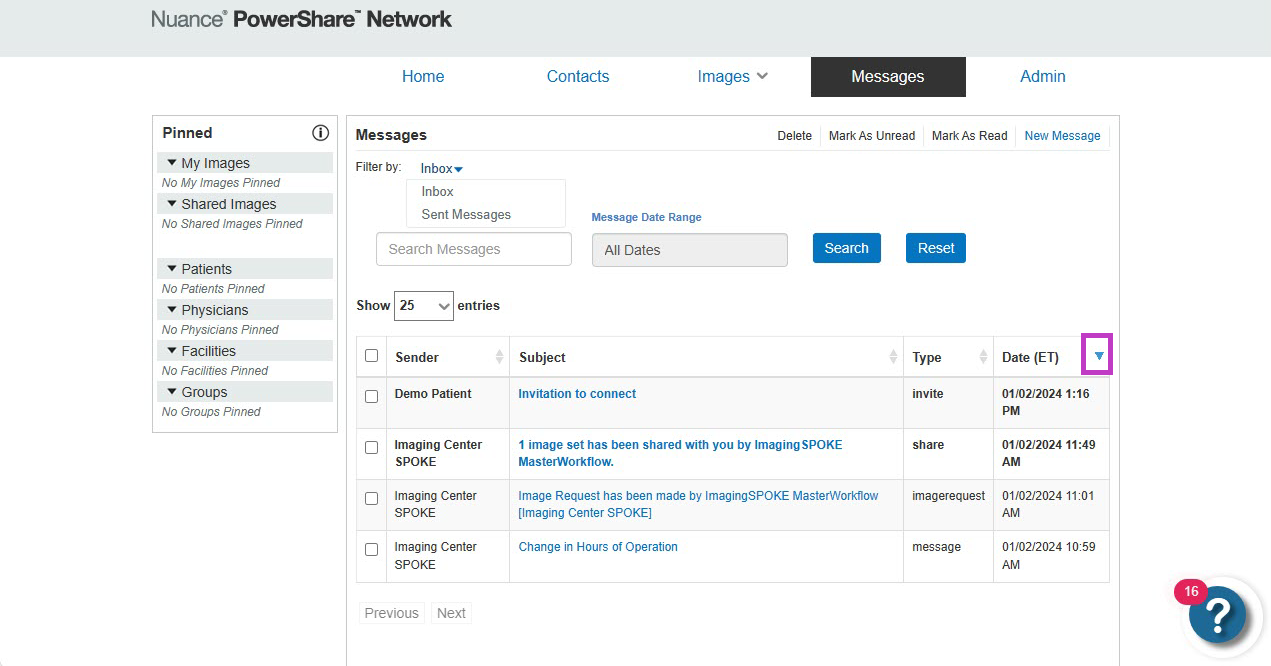
Sort messages
Select a column to sort messages in ascending or descending order.
Sorting helps you quickly find relevant messages.
Search messages
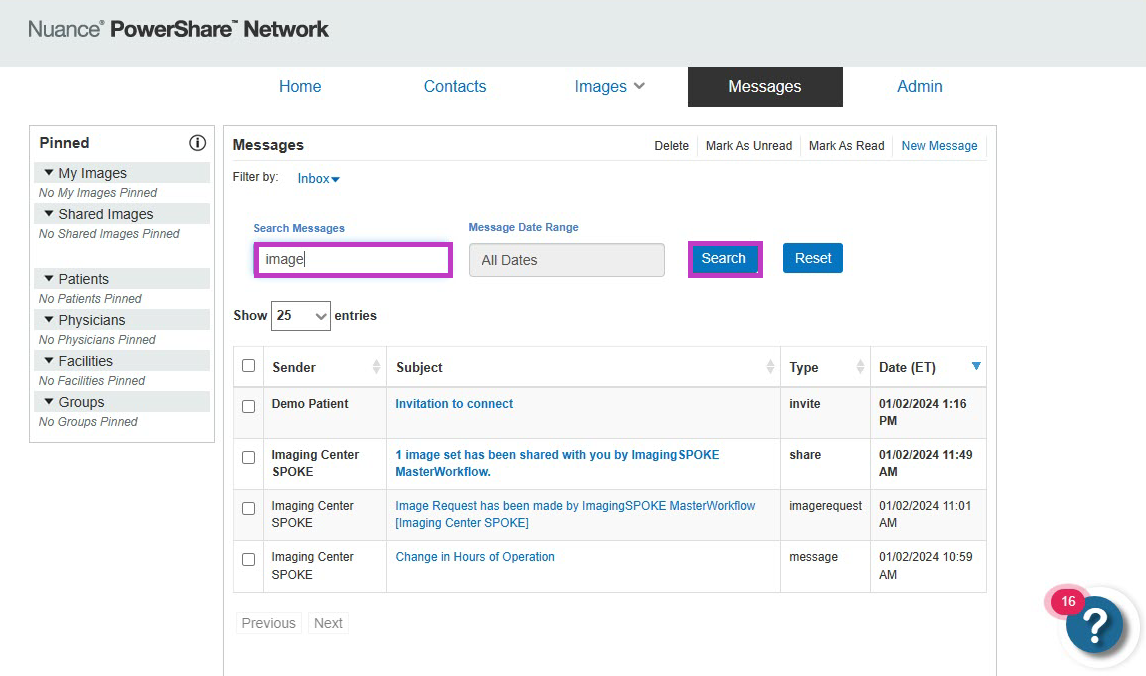
Use the search field to find messages by keyword.
You can also filter messages by date range.
To see results:
Enter your search criteria.
Select Search.
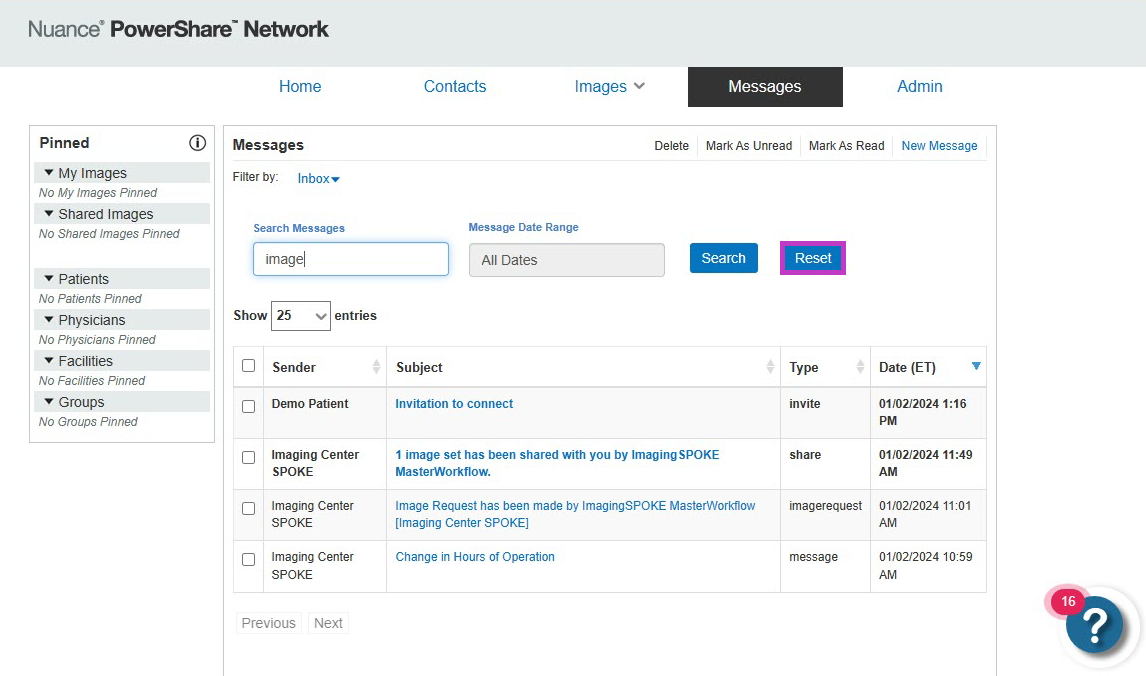
To clear filters:
Select Reset to return to the full message list.
Manage your messages
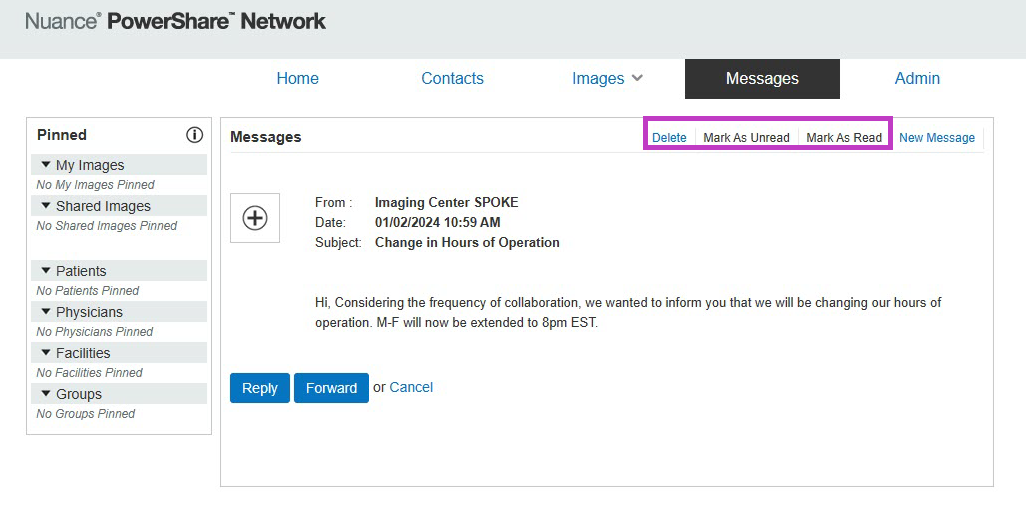
Use the available options to manage your message list:
Mark as Unread – Highlight messages as unread (shown in bold).
Mark as Read – Mark messages as read.
Delete – Remove selected messages.
Create a new message
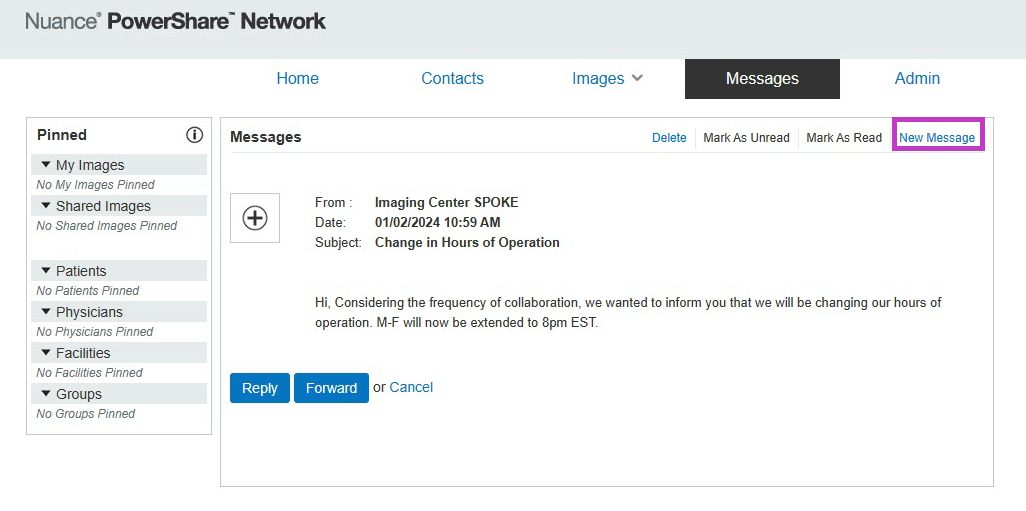
Select New Message to send a message.
You can send messages only to connected contacts in PowerShare.
Tip
- Check the Messages tab regularly for updates.
- Use search and filters to quickly locate important messages.
- Keep your inbox organised by marking messages as read or deleting them.
Next up: Configure admin settings in PowerShare Image Sharing
Add users, enable support access, and manage gateway settings to maintain secure and efficient system operations. Let's go