
Use filters and search tools in PowerShare to quickly find the images you need. This method helps you locate specific studies without scrolling through your entire image list.
Open the Images page
Sign in to your PowerShare account.
Select Images from the top navigation bar. The Images page displays all studies shared with you or uploaded by you.
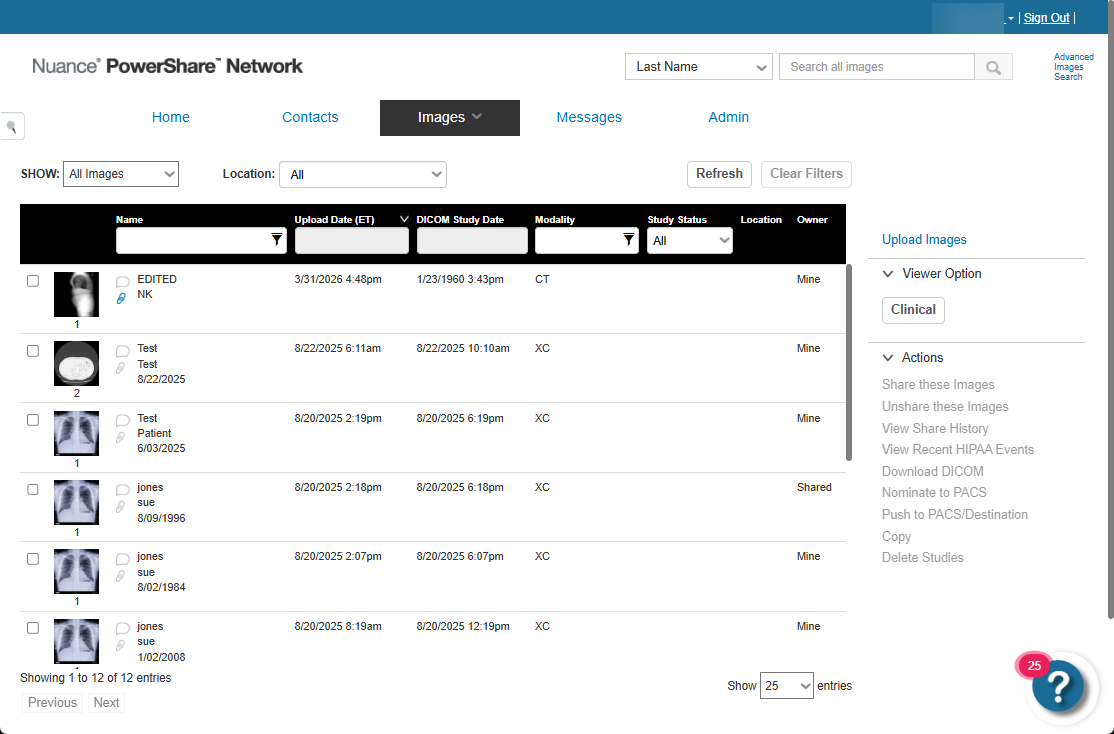
Filter your images
Use filters to narrow your results and focus on specific studies.
On the Images page, apply available filter options to refine your list.
Filters help you limit results based on specific criteria.
PowerShare lets you filter and sort image lists to find the studies you need faster.
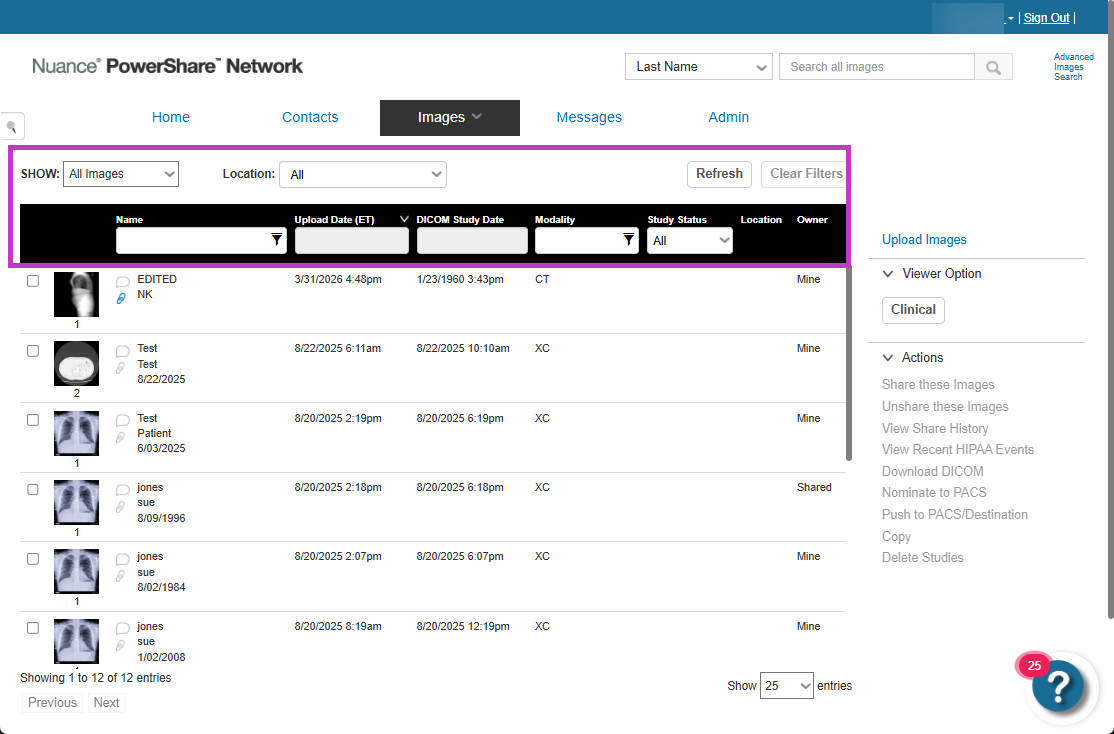
Search for images
Use the search option to quickly locate a specific study.
Enter a keyword or identifier in the search field.
Run the search to display matching results. Search helps you find studies without browsing the full list.
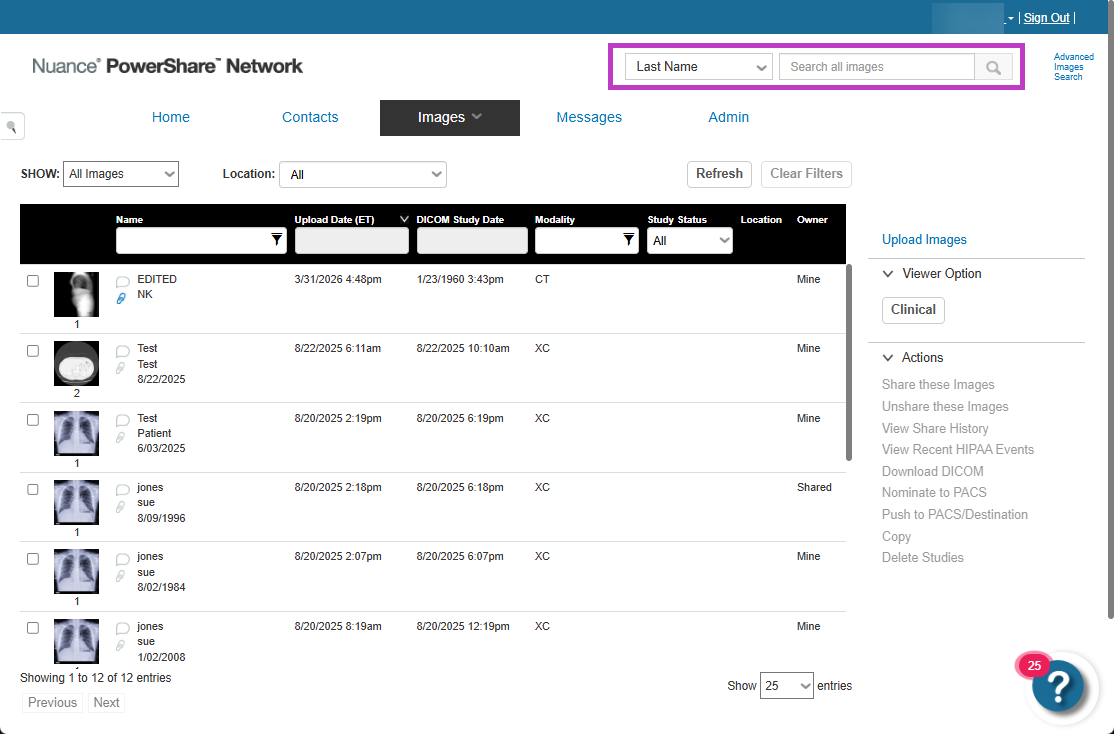
Sort your results
After filtering or searching, sort your results to make them easier to review.
Sort images based on available options, such as date or other attributes.
Sorting helps you organise results and locate the most relevant studies quickly.
Next up: Use advanced image search in PowerShare Image Sharing
Refine searches with advanced criteria to find specific studies faster and more accurately.Let's go