
Use Upload, Invite and Share when the study is in your PowerShare account, but the recipient isn’t an existing contact.
Before you begin
Make sure that:
The recipient isn’t currently connected to your PowerShare account.
The study is available in your PowerShare account.
Your facility has a PowerShare Accelerator installed.
The PACS destination is configured.
Invite the contact and share the study
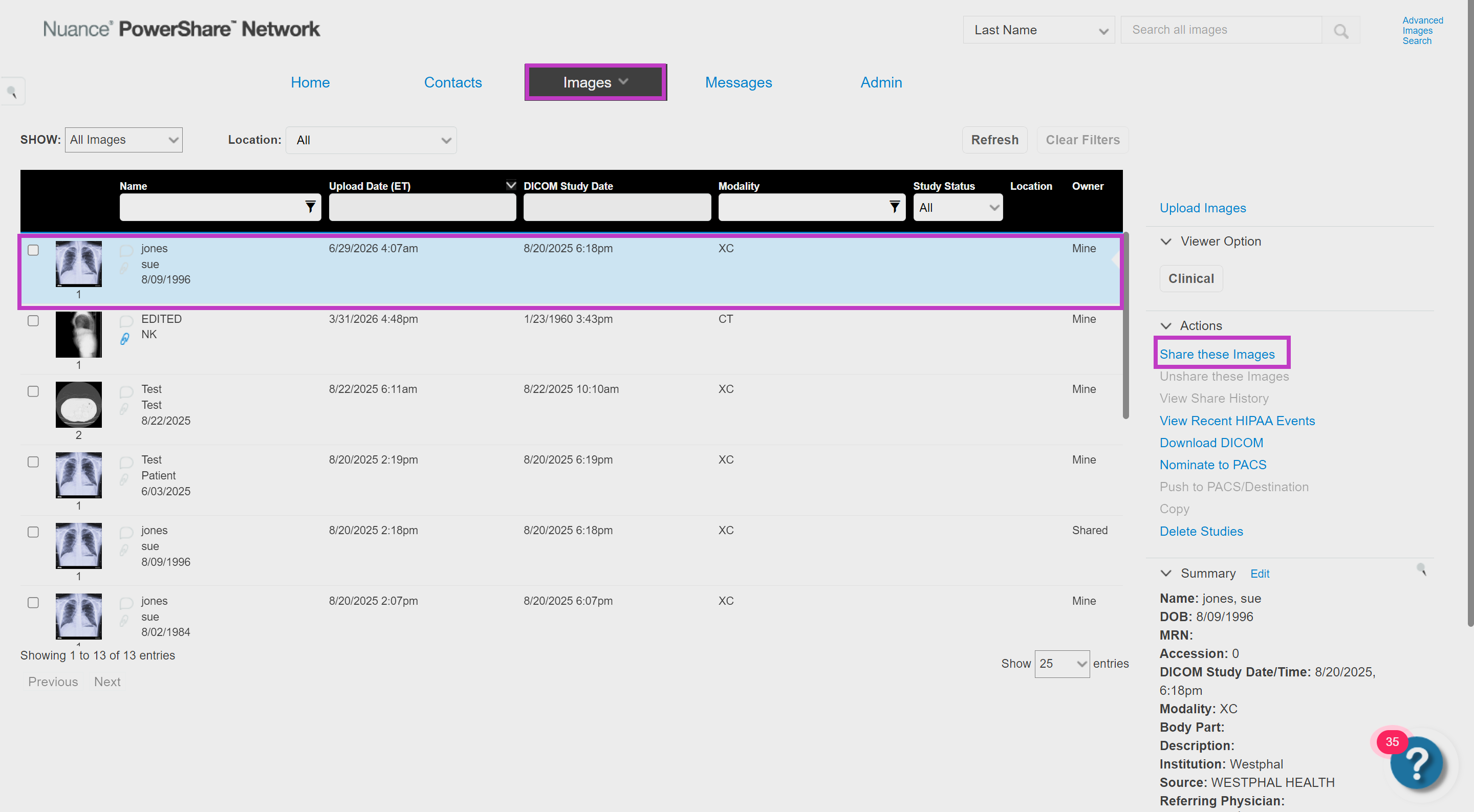
Sign in to PowerShare, and then select Images.
Locate and select the study that you want to share.
On the Actions menu, select Share These Images.
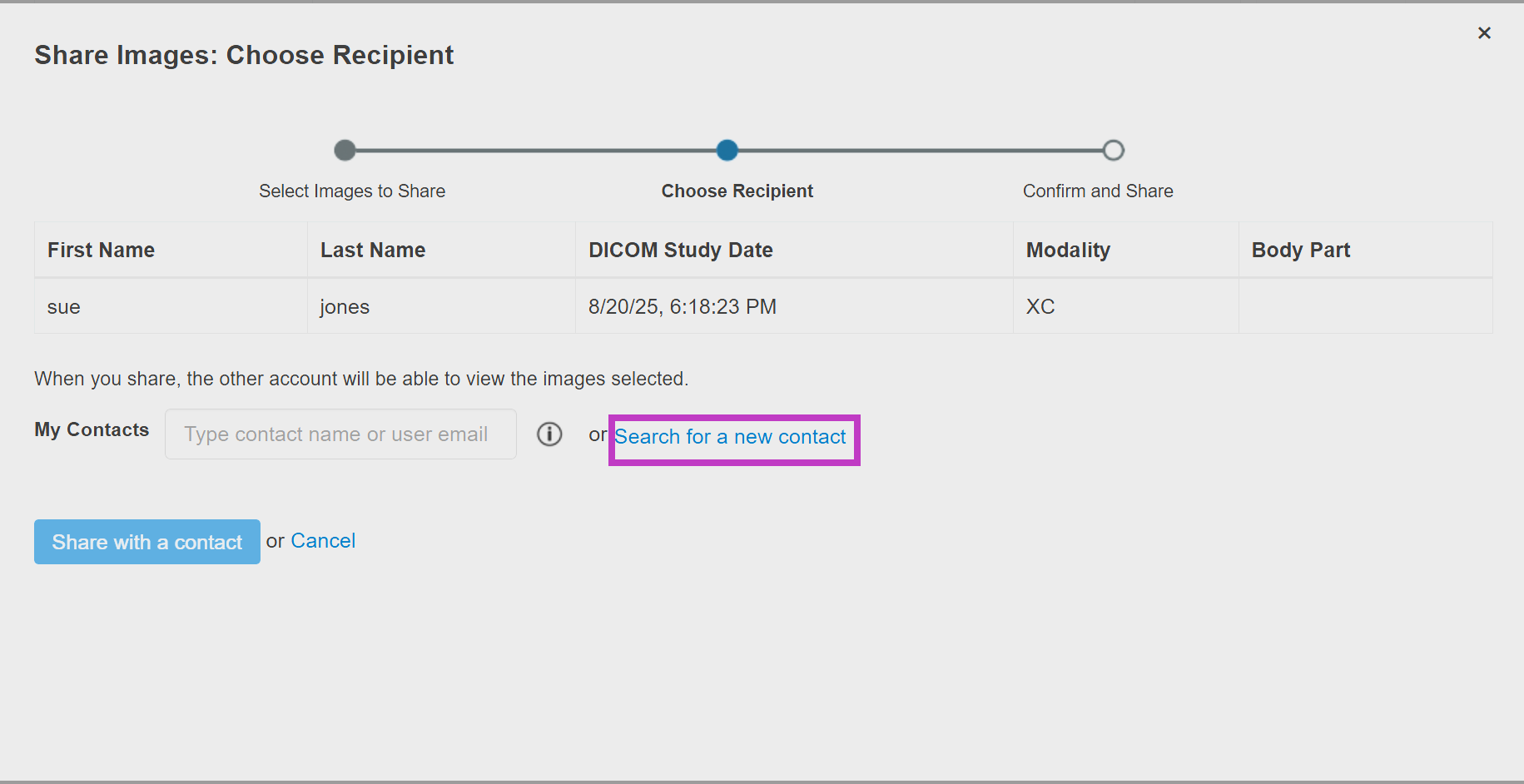
Select Search for a new contact.
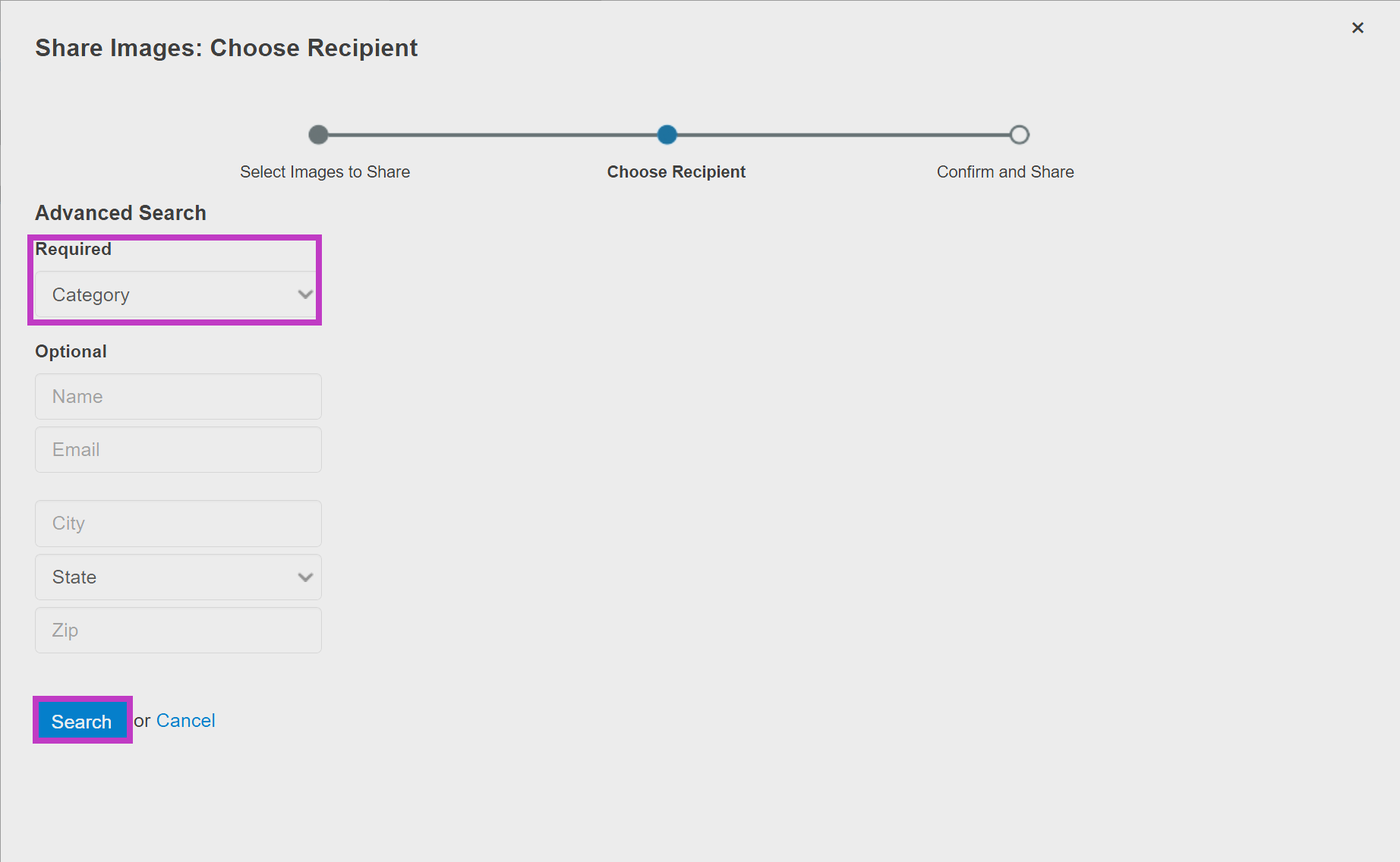
Select Facility, Patient, or Provider, enter the available search information, and then select Search.
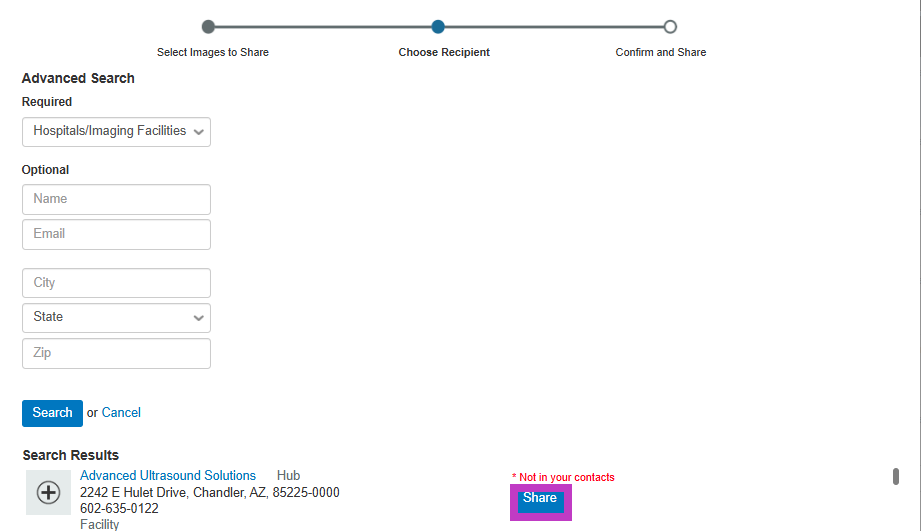
Locate the intended contact in the search results, and then select Share.
Review the recipient options. Keep Allow contact to make a copy of images shared with them selected when the recipient needs a local copy.
Select Invite.
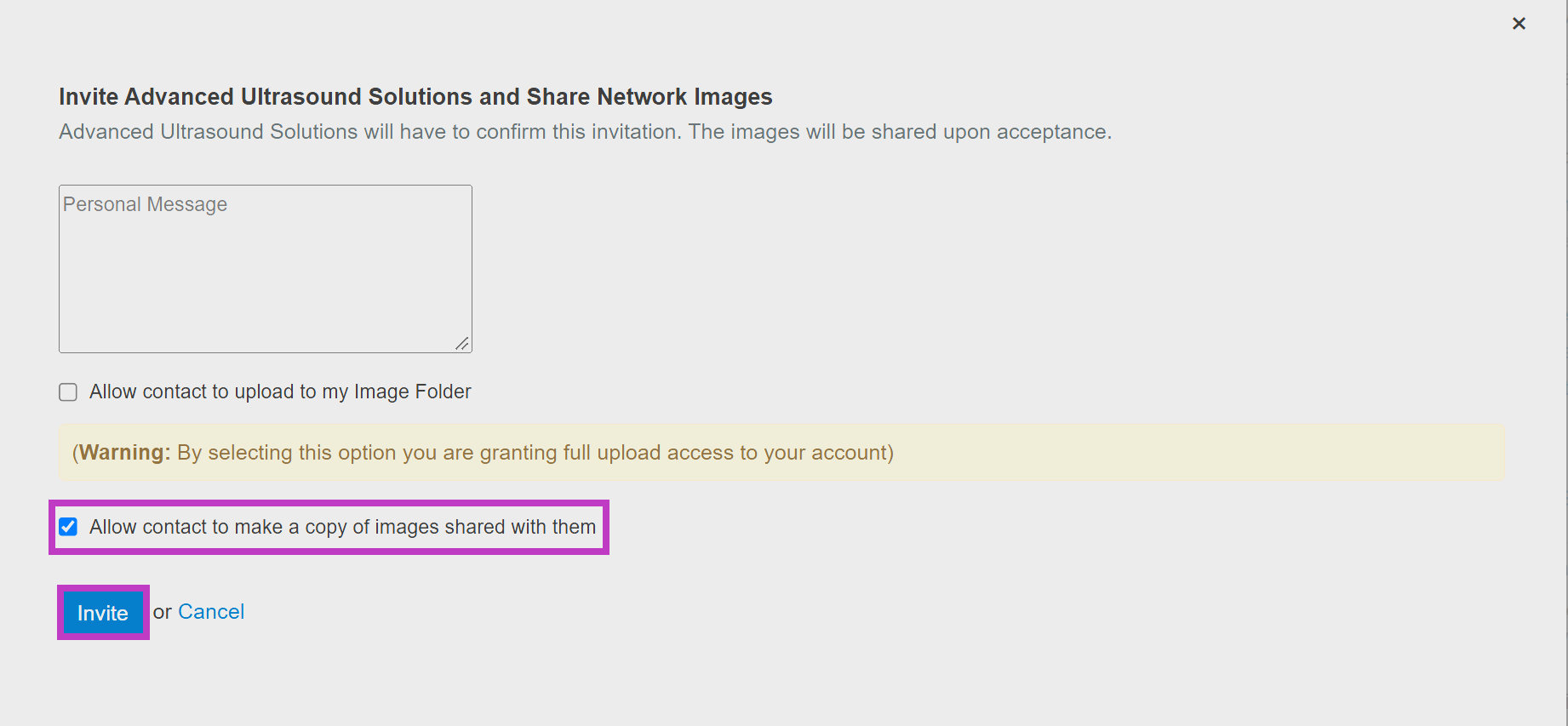
The study becomes available to the recipient after the invitation is accepted. The recipient is also added to your Contacts list.
To monitor invitations awaiting acceptance, select Contacts, and then review Pending Invitations.
Next up: Manually upload a study to a PowerShare Hub
Learn to manually upload and route imaging studies to a PowerShare Hub without PACS. Let's go