
Use Edit and Push to PACS when you need to update study details before sending images to your PACS (Picture Archiving and Communication System).
Use Edit and Push to PACS when:
You need to correct or update study details.
Patient or study information needs to be modified before sending.
You want to ensure accurate data in your PACS system.
What is Edit and Push to PACS?
Edit and Push to PACS lets you update study information and then send the updated study to a PACS destination.
You can edit key study details directly in PowerShare.
The updated study is pushed to PACS with those changes applied.
This workflow is available for studies marked as Mine.
Before you begin
Sign in to your PowerShare account.
Confirm the study is available in the Images tab.
Make sure the study is marked as Mine.
Only Mine studies can be edited directly before sending to PACS.
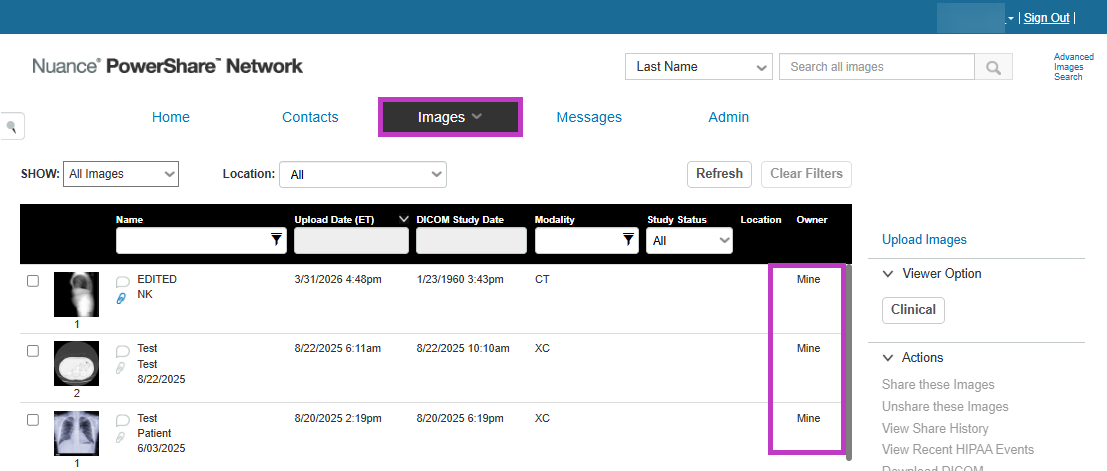
Edit and push a study to PACS
Follow these steps to update and send a study.
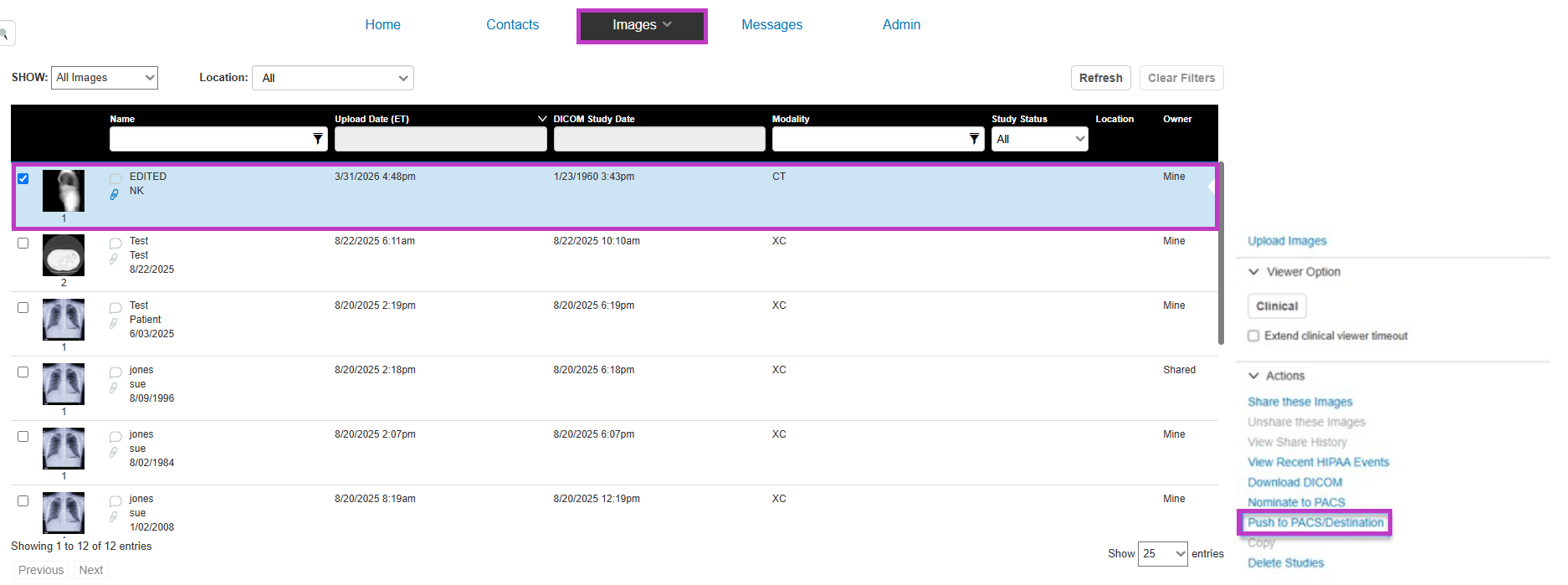
Select the study
Go to the Images tab.
Locate the study you want to update.
Select the study.
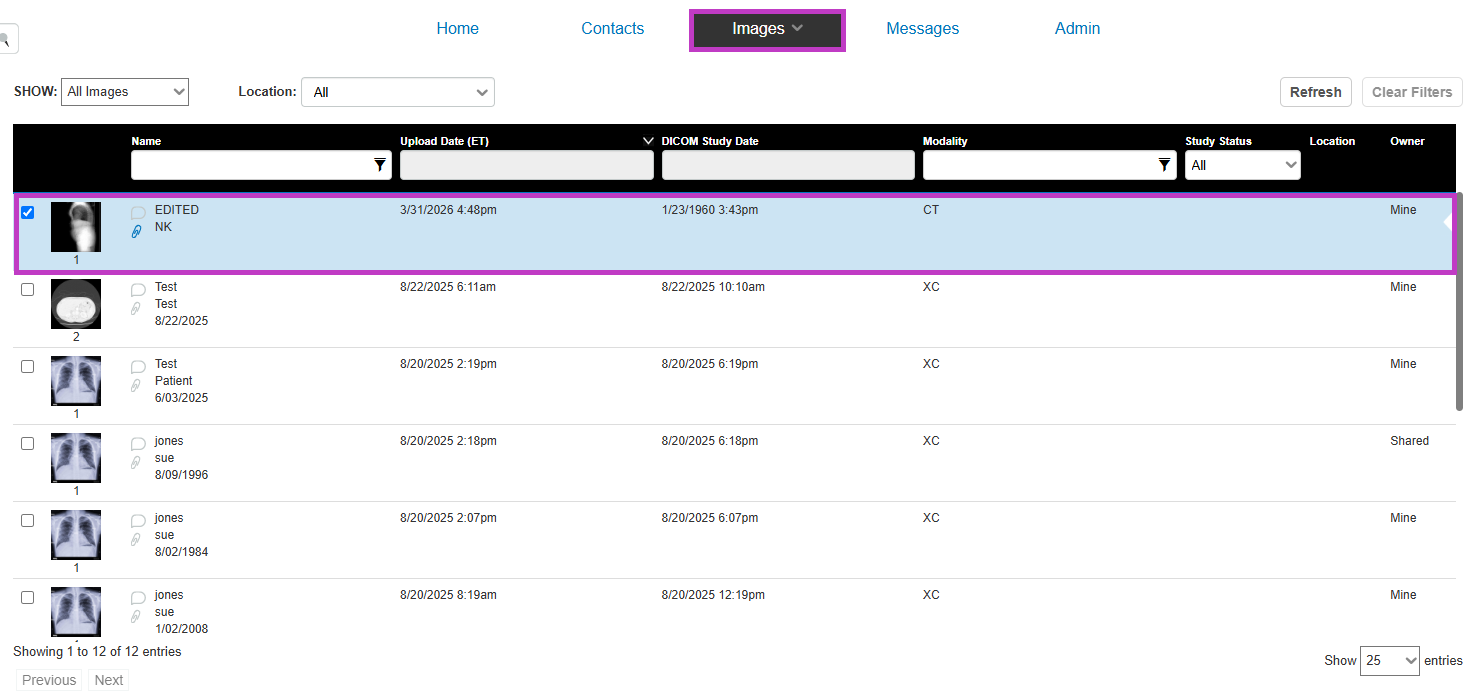
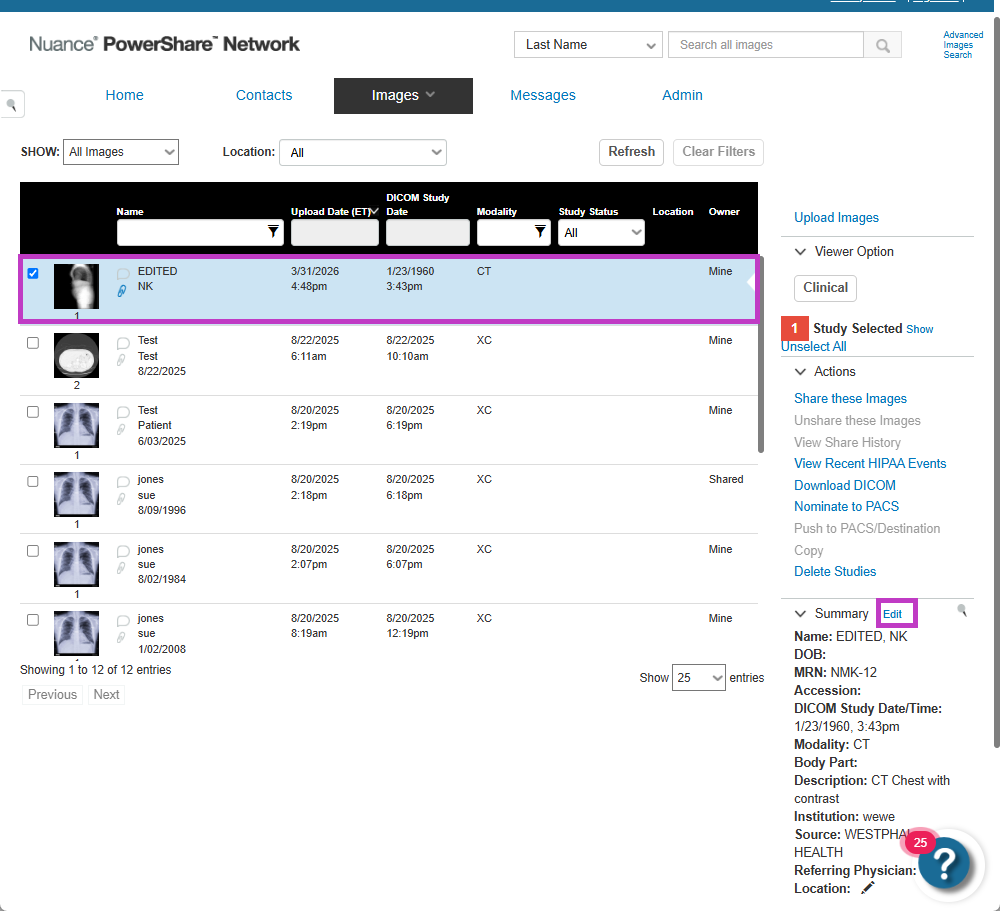
Edit study details
Open the study details.
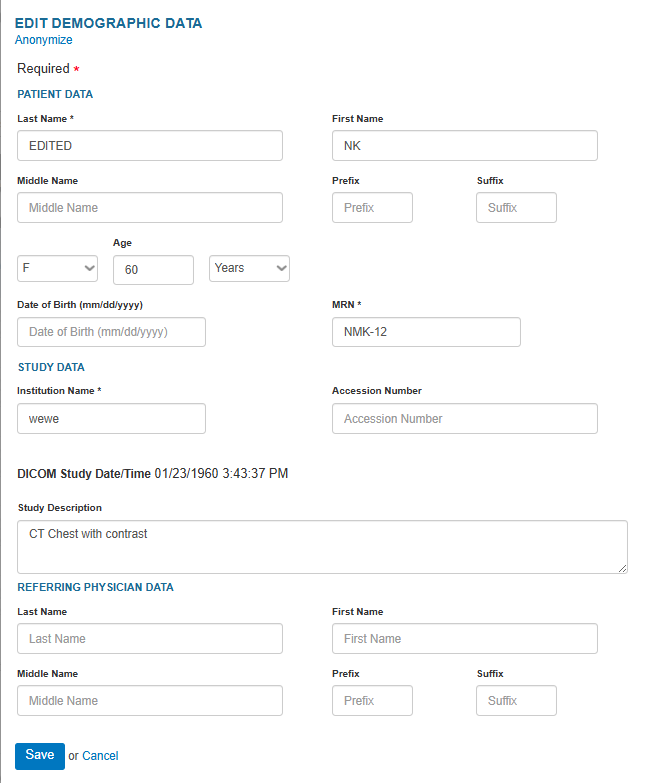
Update the required information, such as:
Patient demographics
Study details
You can make updates directly from the Images tab before sending the study.
Push to PACS
Choose the option to push the study to PACS.
Select your PACS destination, if prompted.
Confirm your selection. You can either save your changes in PowerShare or send the updated study to PACS.
What happens next
The study is sent to PACS with the updated information.
The edits are applied before the study is delivered.
Tip
- Use Push to PACS if you don't need to make any changes.
- Use Copy, Edit, and Push to PACS if the study is marked as Shared.
- Review all updates before sending to avoid errors.
- Editing ensures the correct information is included in your PACS workflow.
Next up: Copy, edit, and push studies in PowerShare Image Sharing
Create study copies, make changes, and send them to PACS to support workflow requirements.Let's go