
Use contact groups to organise your connections so you can quickly share medical images with multiple contacts at once.
What are contact groups?
Contact groups help you organise your contacts into manageable sets.
- You can group facilities, providers, or patients.
- You can share images with a group instead of selecting contacts individually.
- You can simplify repetitive sharing workflows.
Create a contact group
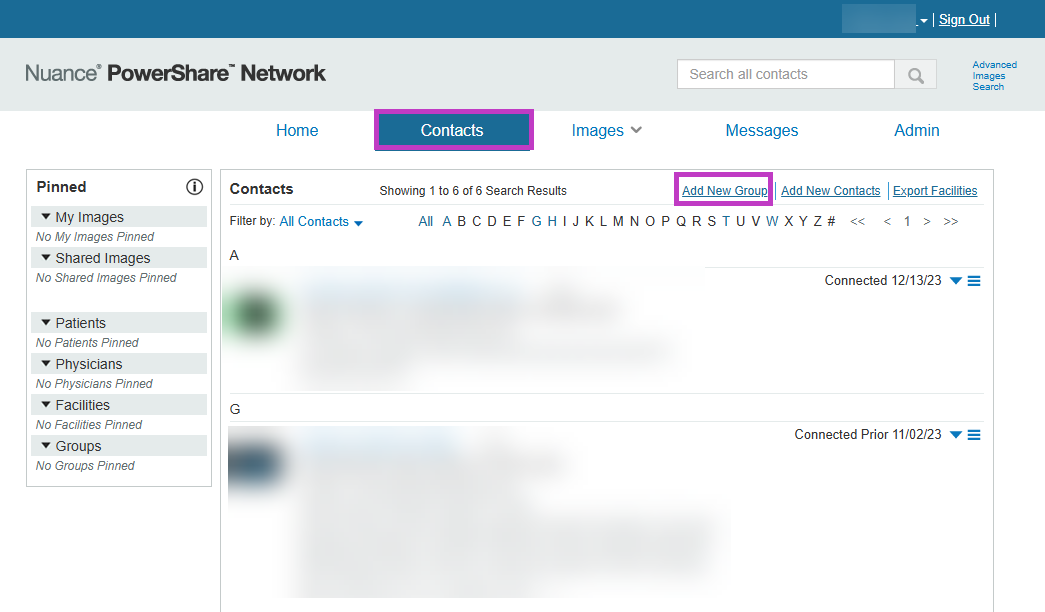
Go to the Contacts tab.
Select Add New Group.
Enter the group name and description.
Add contacts to the group.
Select Save Group.
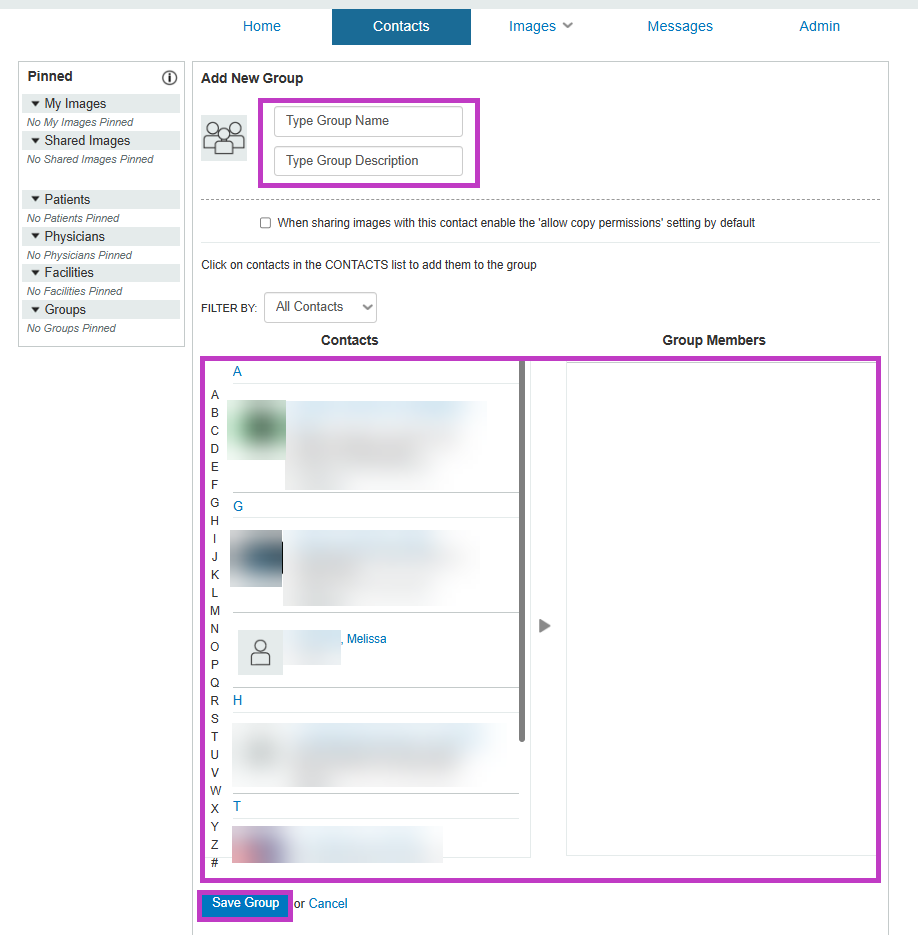
Add contacts to a group
You can include contacts from your existing network.
- Open the contact group.
- Select Add Contacts.
- Search for contacts.
- Select the contacts you want to include.
- Save your changes.
Use a contact group
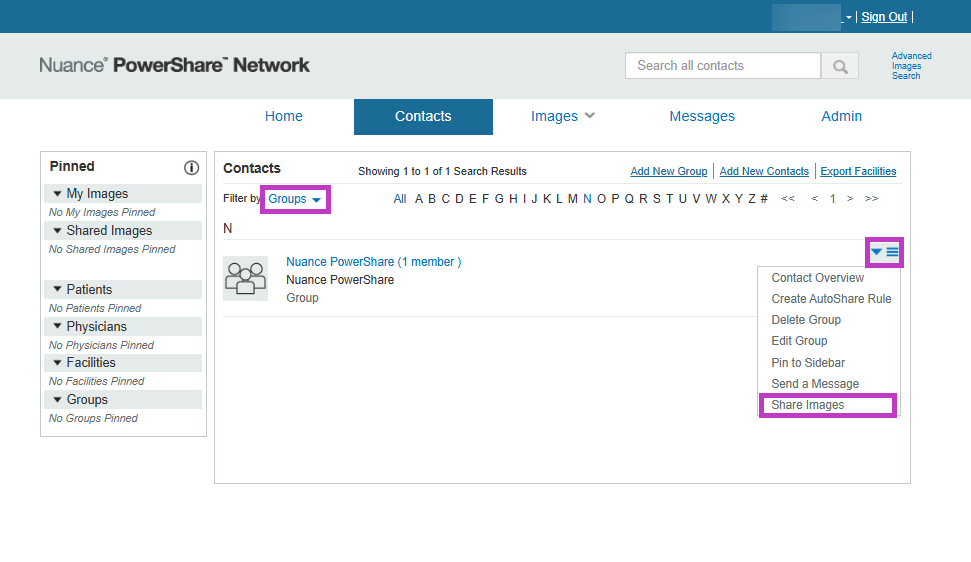
You can use groups when sharing images.
Select the group during sharing.
Send images to all contacts in the group at once.
Reduce the need to select contacts individually.
Edit a contact group
You can update your group at any time.
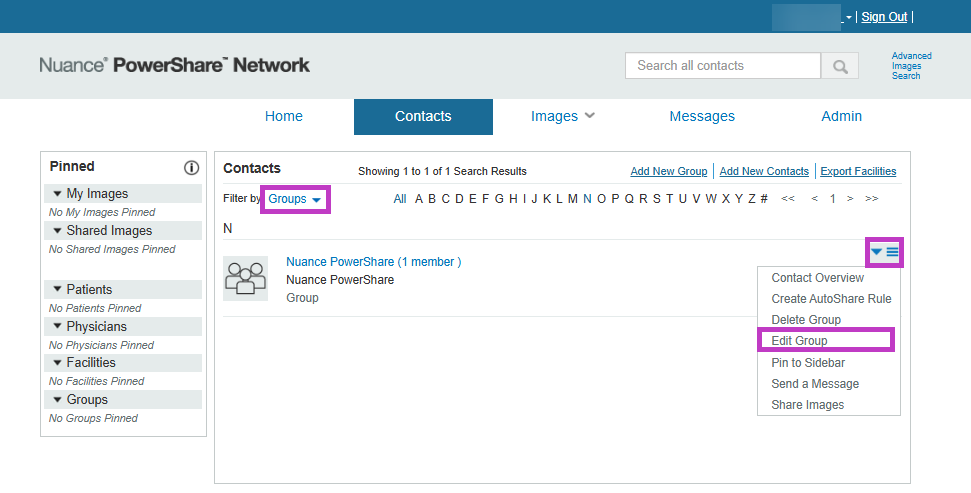
Open the group.
Update the group name or members.
Save your changes.
Remove contacts or delete a group
To remove a contact:
Open the group.
Remove the selected contact.
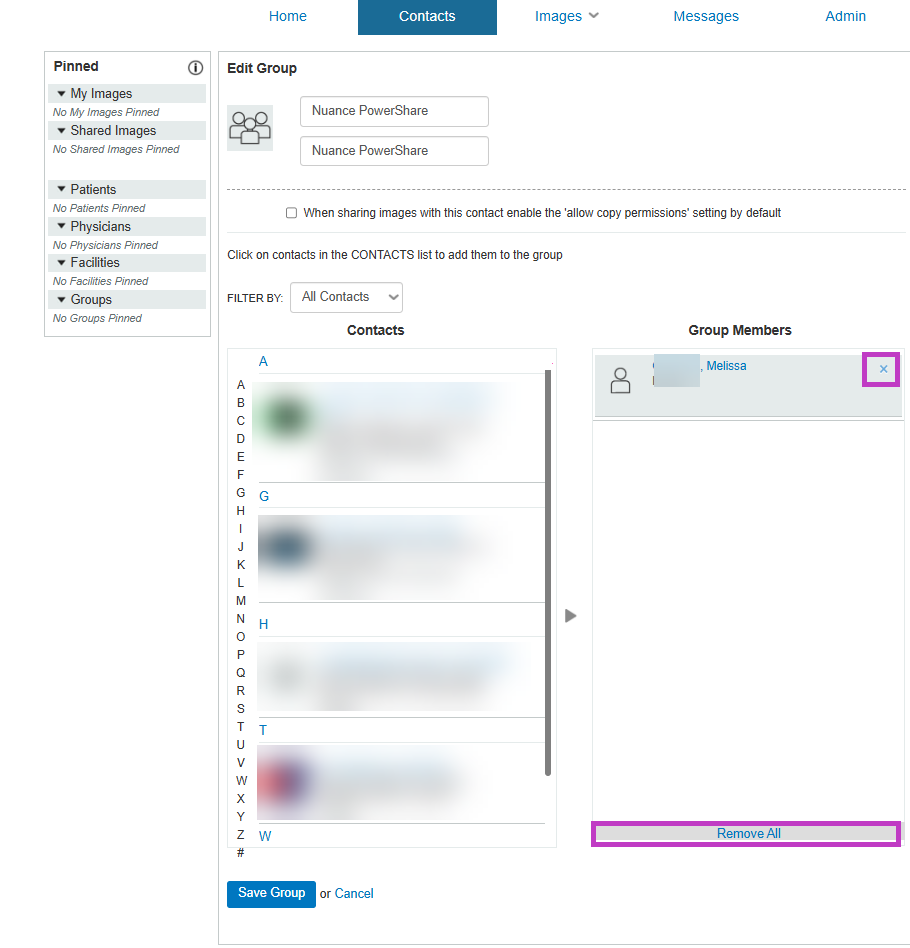
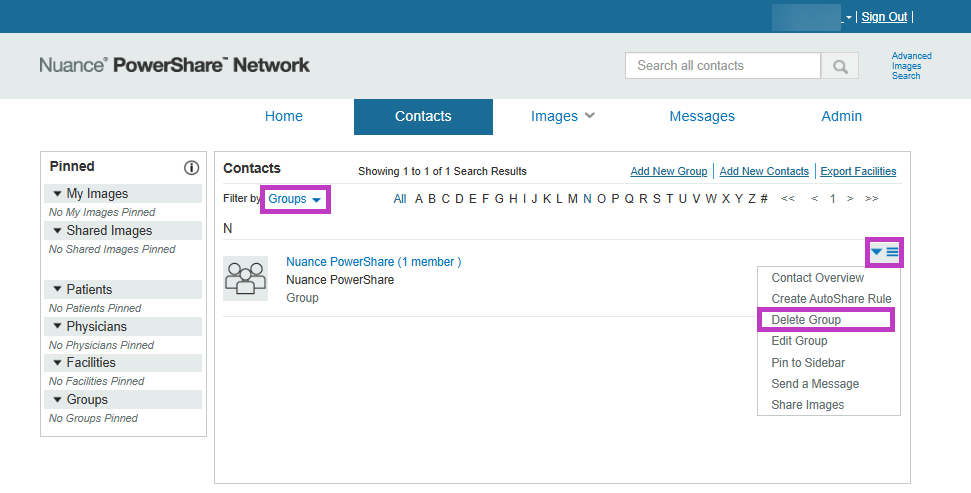
To delete a group:
Select the group.
Choose Delete Group.
Next up: Work with images in PowerShare Image Sharing
Access, upload, share, and search images using filters and advanced tools to quickly find and manage your studies. Let's go