
Receive shared images in PowerShare when another facility, provider, or contact sends you imaging studies. You can access these images securely from your account.
How you receive images
When a contact shares images with you:
You receive an email or notification.
The images are delivered to your PowerShare account.
You can access them from the Images tab.
Images become available for viewing after they're shared and delivered through PowerShare.
Access your shared images
Follow these steps to view images shared with you.
Sign in to your PowerShare account.
Select Images from the top navigation bar.
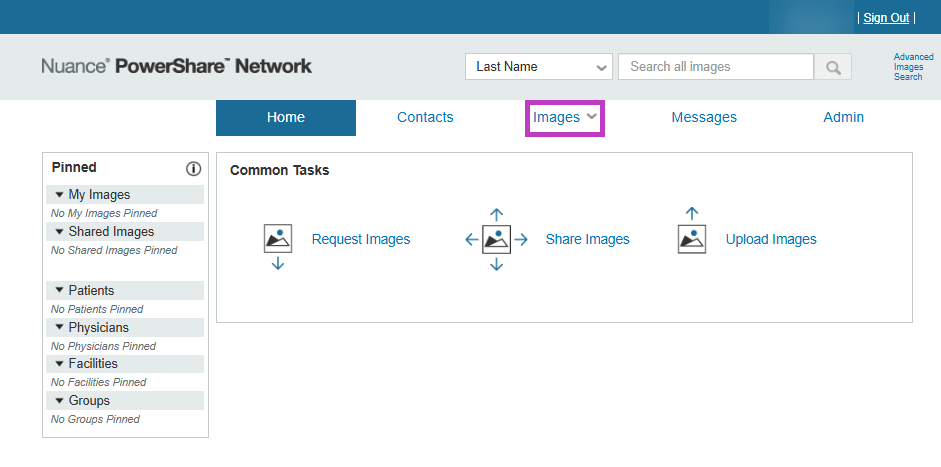
Locate the study you want to view. The Images page displays all studies shared with you in one place.
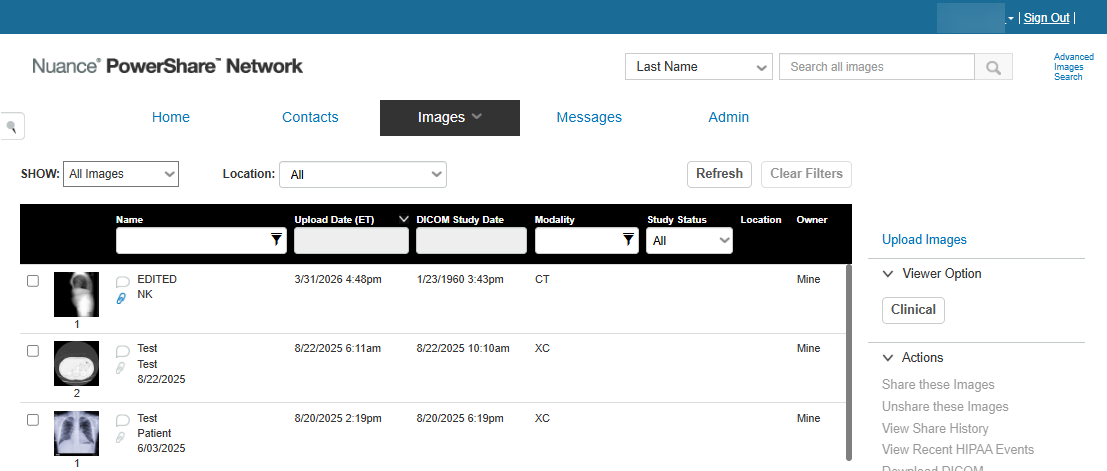
View a shared study
Go to the Images page.
Select the study or image thumbnail.
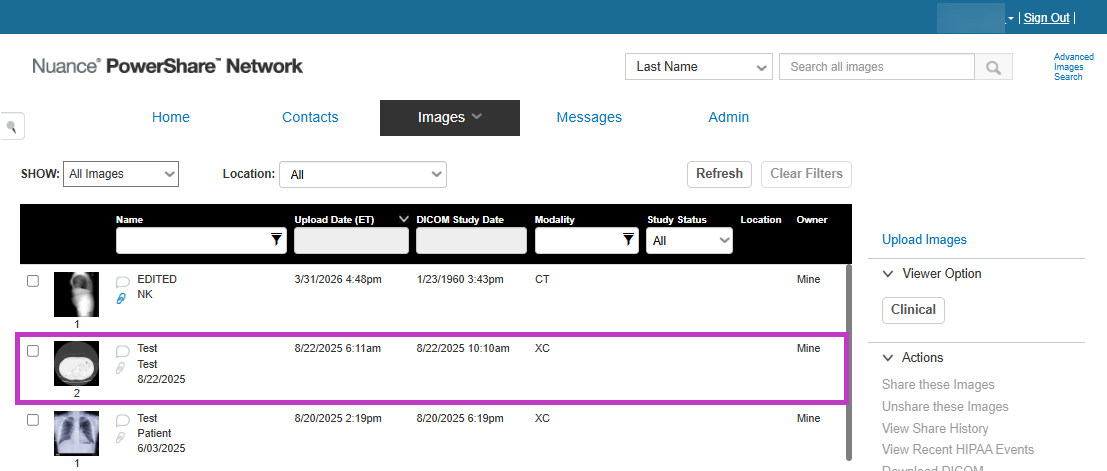
Review the images in the viewer. You can open and review studies any time after they are shared with you.
Track notifications
Check Messages for updates when images are shared.
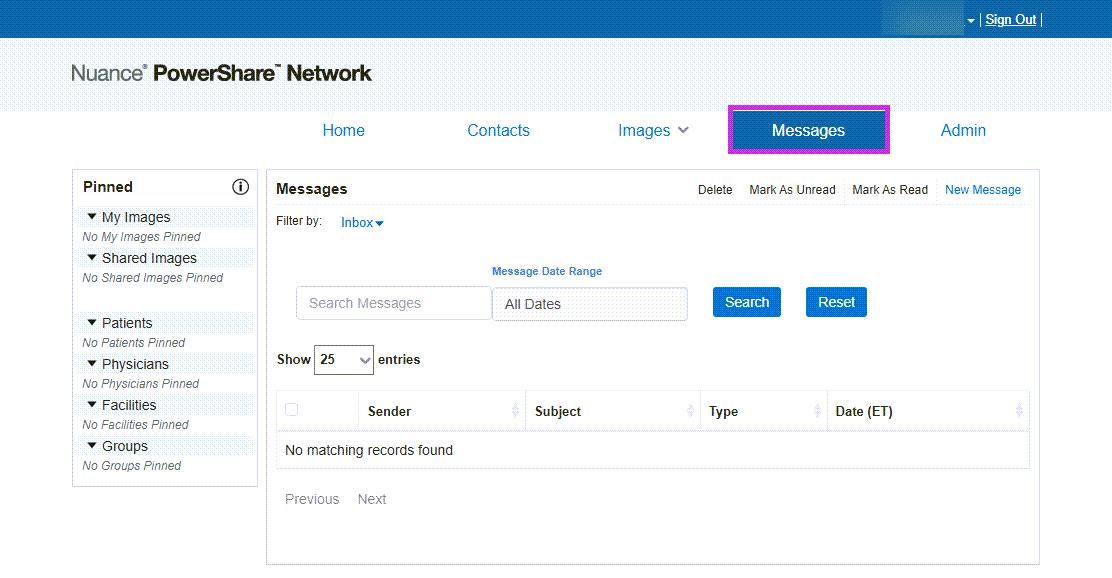
Review notifications for:
New shared images.
Request updates.
Actions required.
The Messages area helps you stay informed when images are shared or requests are completed.
Tip
- Use the Images tab as your primary location to access shared studies.
- Check notifications regularly to stay up to date.
- Use filters and search to find images faster.
Next up: Push to PACS in PowerShare Image Sharing
Send received studies to PACS for storage, review, and integration into clinical workflows.Let's go