
Use Push to PACS in PowerShare to send imaging studies directly from your PowerShare account to your PACS (Picture Archiving and Communication System).
Use this workflow when:
You want to quickly send studies without making any changes.
The study information is already accurate.
You need a fast, direct transfer to PACS.
What is Push to PACS?
Push to PACS lets you select one or more studies and send them directly to a configured PACS destination from the PowerShare image repository.
Studies are sent exactly as they were received in PowerShare.
No edits are applied during this process.
Before you begin
Make sure you're signed in to your PowerShare account.
Confirm the study is available in the Images tab.
Ensure your PowerShare environment is configured with a PACS destination.
If multiple PACS destinations are configured, you can choose the appropriate one when sending the study.
Push images to PACS
Follow these steps to send studies to PACS.
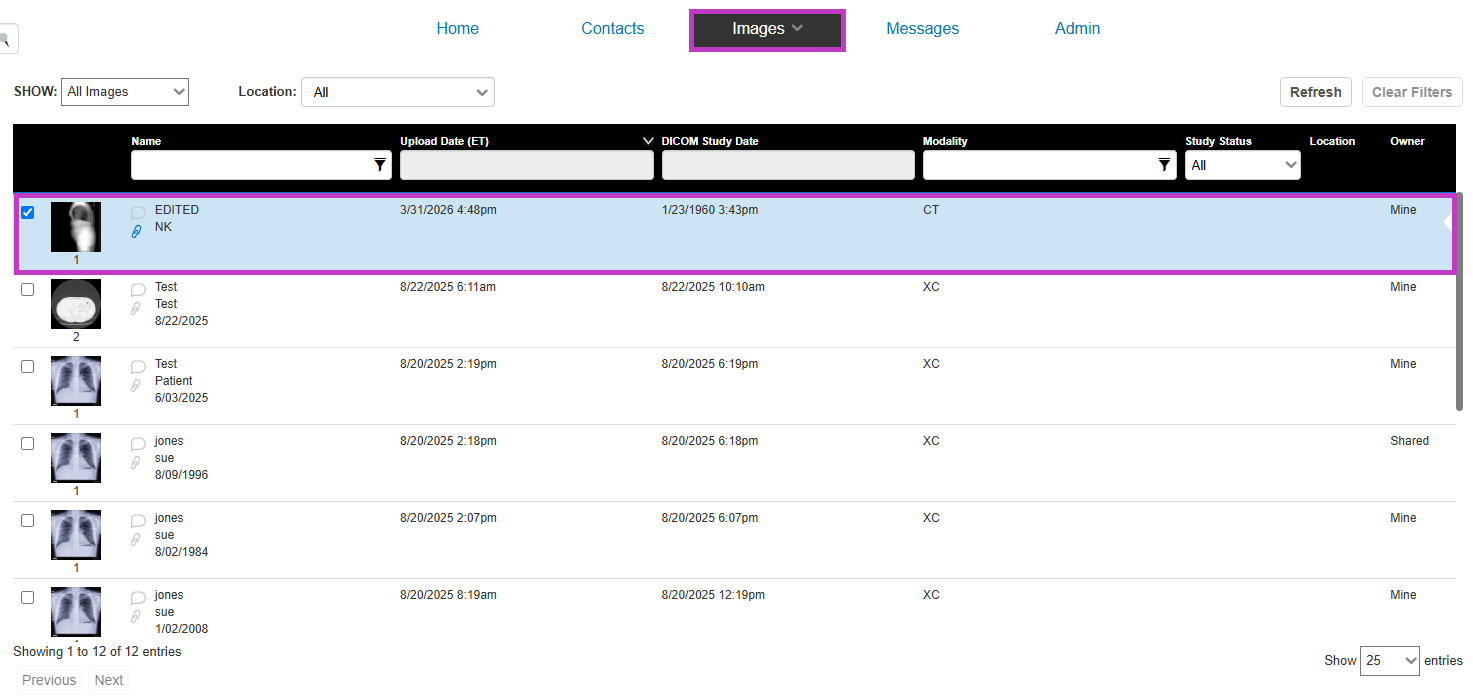
Select studies
Go to the Images tab.
Locate the study you want to send.
Select one or more studies.
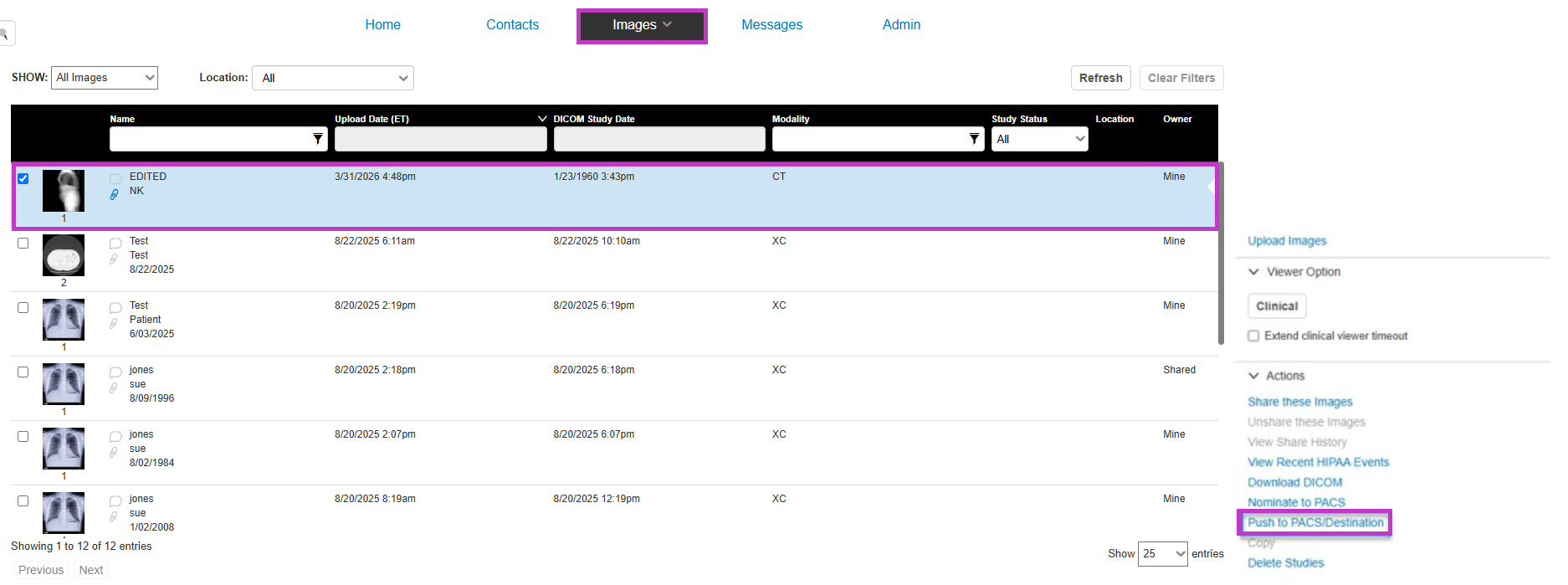
Send to PACS
Select Push to PACS.
If prompted, choose a PACS destination.
Confirm your selection. The selected studies are sent directly to PACS from PowerShare.
What happens next
The studies are delivered to the selected PACS destination.
The images remain unchanged from how they were originally received.
Tip
- Use Edit and Push to PACS if you need to update study details before sending.
- Use Copy, Edit and Push to PACS if the study is marked as Shared and requires edits.
- Use Push to PACS for the fastest transfer when no changes are needed.
These workflows are part of the available inbound options in PowerShare.
Next up: Edit study and push to PACS in PowerShare Image Sharing
Update study information and push images to PACS to ensure accurate records and accessibility.Let's go