
Configure notification preferences in PowerShare to control how you receive updates about your account, images, and activity.
What are notification preferences?
Notification preferences let you choose the types of communication you receive from PowerShare.
You can receive notifications through:
Email
Messages in the Messages tab
Notifications are sent to the email address linked to your account.
Your settings apply only to your account and do not affect other users.
Open notification preferences
Sign in to your PowerShare account.
Select your name in the top-right corner.
Select Account Settings.
Select Notification Preferences. The notification settings are available within the Account Settings window.
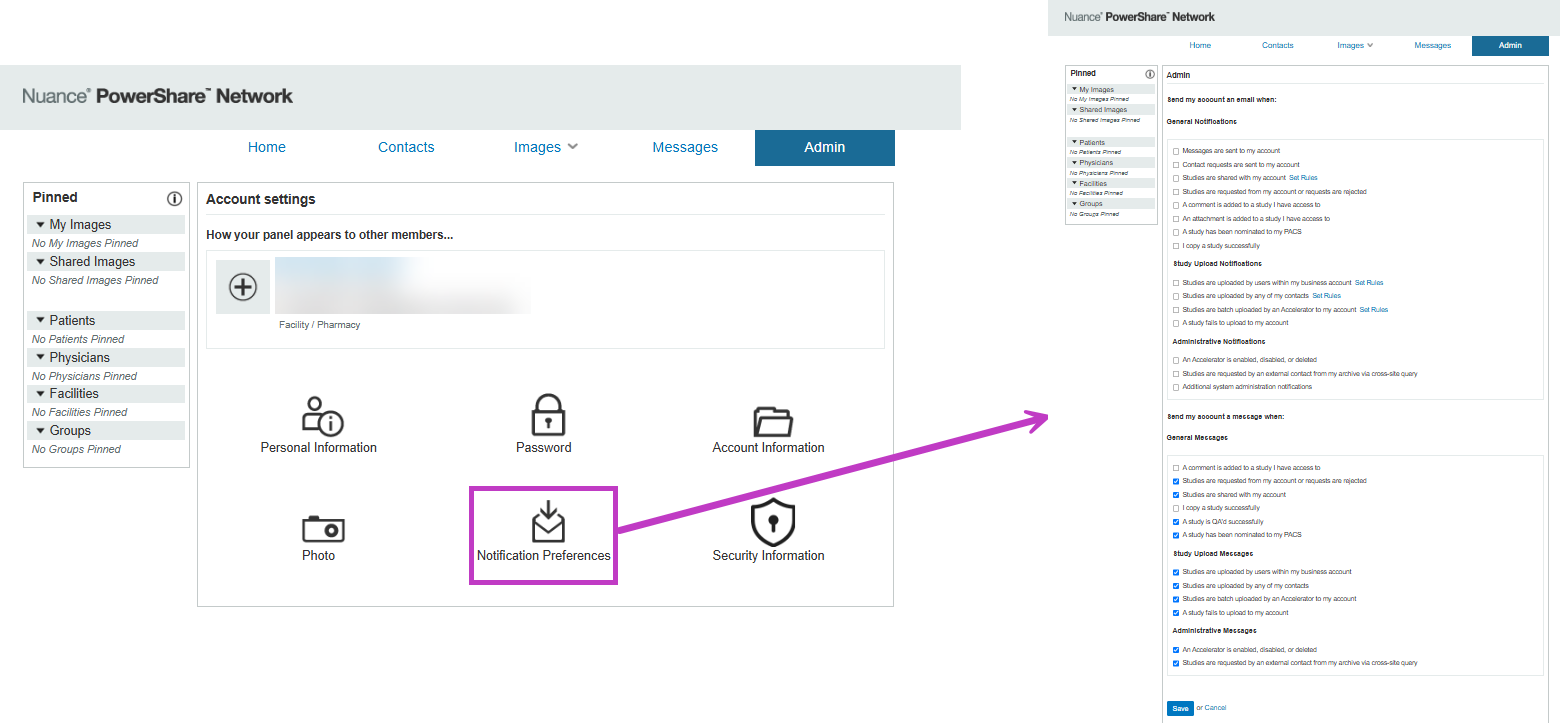
Choose your notification settings
Select or clear checkboxes to enable or disable specific notifications.
Some notifications are enabled by default and can be adjusted based on your needs.
Available notifications may vary depending on your role and permissions.
Create notification rules
Some notifications support rules that control when to send emails.
Set up a rule
Select Set Rules next to a notification.
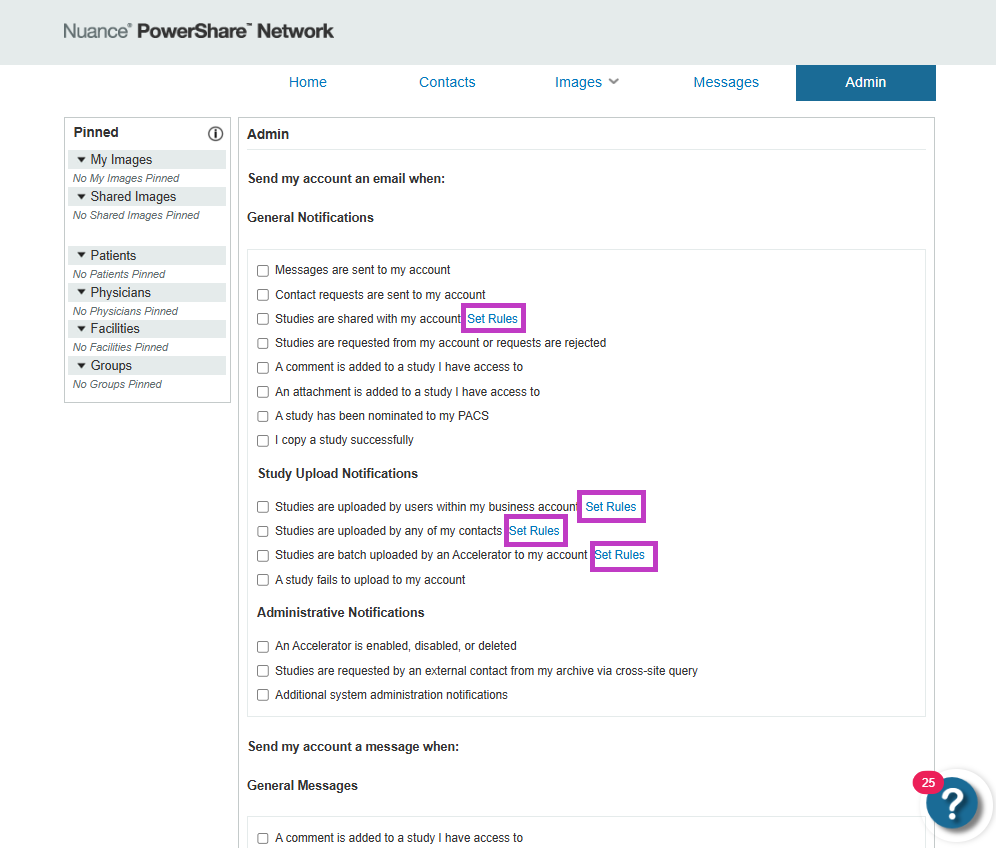
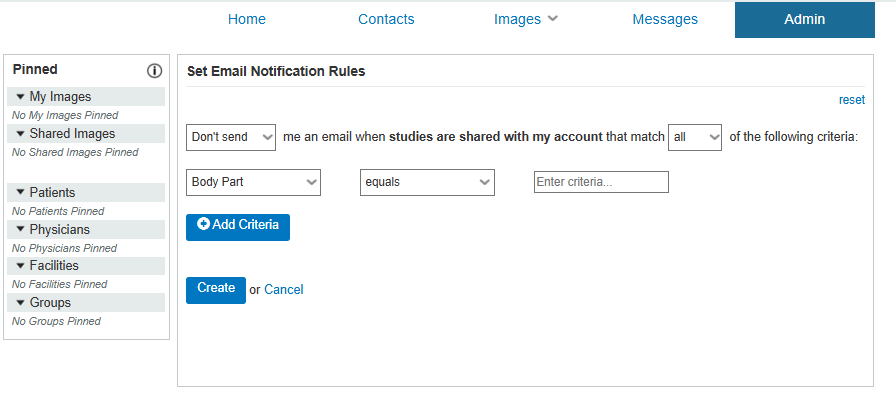
Choose your criteria, such as:
Send or don't send emails
Apply to any or all conditions
Select a subject, such as an institution name
Enter the required condition values.
Save your rule. You can customize notifications based on specific conditions.
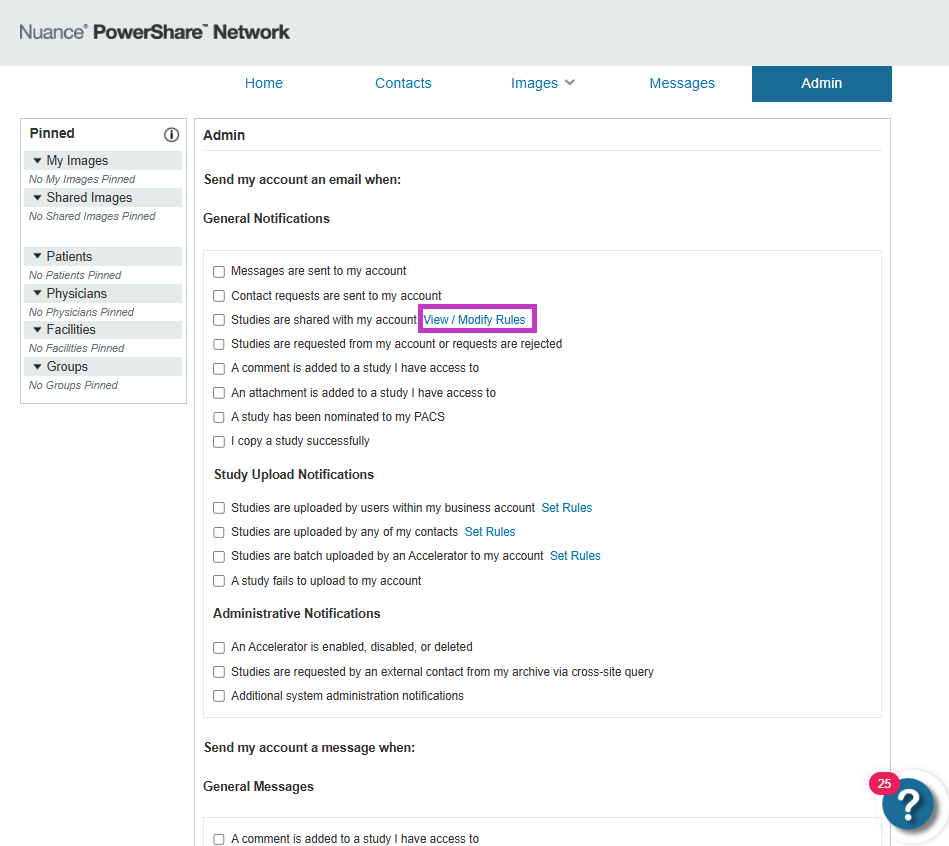
Manage existing rules
Select View/modify rules to update an existing rule.
You can edit or remove rules at any time.
Types of notifications
You can configure different categories of notifications:
General notifications
- Receive updates about overall system activity and events.
Image upload notifications
Get notified when new images are uploaded to your account.
Notifications can be based on different contact types or sources.
Administrative notifications
- Receive alerts about system or administrative events, such as accelerator activity.
Message notifications
Choose to receive messages in the Messages tab.
For example, when a comment is added to an image set.
Tip
- Enable only the notifications you need to avoid unnecessary alerts.
- Use rules to filter notifications based on your workflow.
- Review your settings regularly to keep them aligned with your role.
Next up: Use analytics and insights
View analytics to monitor usage and gain insights that help you improve workflows and performance. Let's go