
The Contacts page helps you connect with facilities, providers, and patients so you can securely share and request medical images.
What are contacts?
In PowerShare, you can only share or request images with connections in your network.
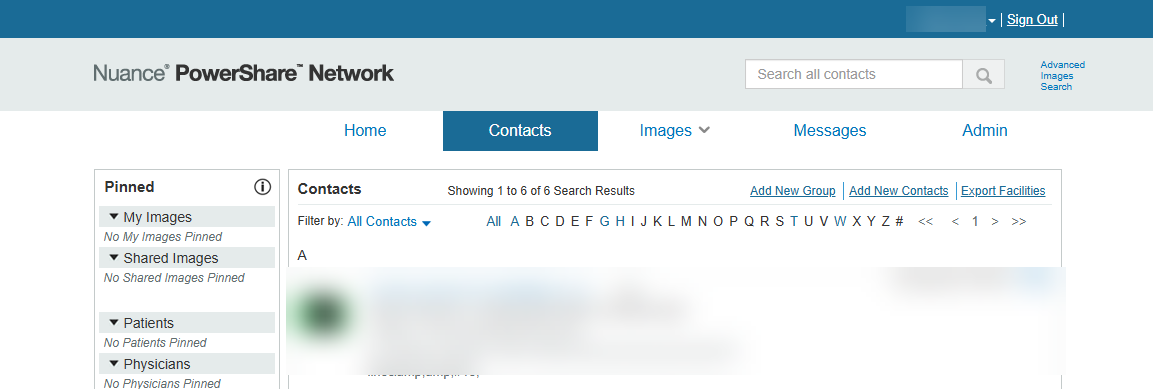
Use the Contacts tab to view and manage your connections.
Your contacts include:
- Facilities (including imaging centers, healthcare organizations, law firms, and more)
- Providers (physicians)
- Patients
The Contacts tab shows both:
- Established connections
- Pending invitations -Invitation requests
Access the Contacts tab
After you sign in to PowerShare:
Go to the Contacts tab.
View your connections.
Before you begin, learn about managing contacts and connections in PowerShare Image Sharing Network
Contact task list in PowerShare
Use contact tasks to track activities, manage follow-ups, and stay organized when working with contacts.
Use contact notes in PowerShare
Add and manage contact notes to capture important details and improve communication with your network.
Add new contacts in PowerShare
Add contacts to your network so you can quickly connect, collaborate, and share imaging studies.
Manage contact invitations in PowerShare
Send, monitor, and manage contact invitations to expand and maintain your professional network.
Create and manage contact groups
Organize contacts into groups to simplify communication and streamline image sharing workflows.
Next up: Work with Images in PowerShare Image Sharing
Access, upload, share, and search images by using filters and advanced tools to quickly find and manage your studies. Let's go
Explore more
Already using PowerShare? Explore Additional resources to quickly find what you need and start learning today.