
When you sign in to PowerShare, you see a few key areas that help you manage images and contacts.
Overview
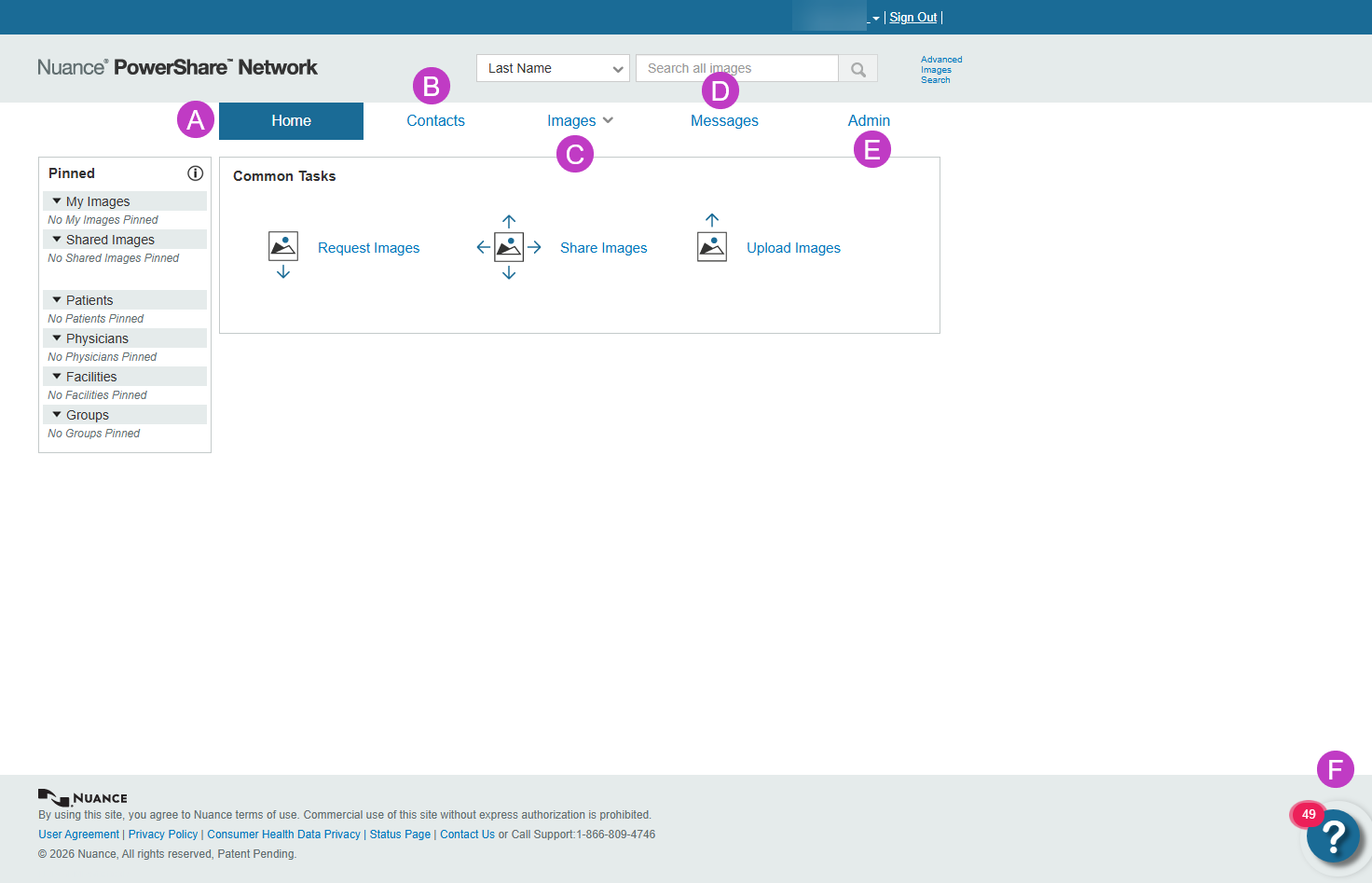
At the top of the screen, the navigation bar helps you move between the main areas of PowerShare:
A. Home: The Home page provides quick access to frequently used actions under Common Tasks, including:
- Request Images – Easily request imaging studies from a PowerShare contact.
- Share Images – Easily share studies with PowerShare contacts, including facilities, physicians, and patients.
- Upload Images – Easily add imaging studies from CDs and other external sources to your PowerShare account or a connected PowerShare Hub.
B. Contacts: Use the Contacts page to manage, expand, and send imaging to PowerShare recipients - including facilities, patients, and physicians.
From Contacts, you can:
- View and manage your PowerShare contacts.
- Grow your PowerShare network and connect with additional facilities, physicians, and patients.
- Request imaging studies from a PowerShare contact.
Contacts help streamline image requests and sharing.
C. Images: The Images page serves as your central location for viewing and managing all inbound imaging studies.
From Images, you can:
- See all available images.
- Filter and sort image lists.
- Access a range of study management features, including image viewing, study sharing, PACS delivery, and workflow actions.
If images don’t appear, verify that the correct filters are selected (or that no filters are applied) and confirm that the sending facility successfully sent the study with your PowerShare account.
D. Messages: The Messages page notifies PowerShare users when:
- Images are sent to your PowerShare account.
- Imaging requests are sent to your PowerShare account.
- Invitation to connect requests are accepted.
- Action is required on your account.
Checking messages helps you stay up to date without navigating to each section.
E. Admin: Available for all users.
F. Resource Center (?): This icon in the lower‑right corner provides:
- Training tools and resources to ensure your staff feel comfortable and confident using PowerShare.
- Helpful resources designed to support the successful adoption and use of your PowerShare account.
- Quick access to support resources, user guides, and technical documentation.
Use Resource Center anytime you need assistance while working in PowerShare.
Next up: Set up your account in PowerShare Image Sharing
Create your account, sign in securely, and manage invitations to access PowerShare quickly and start working. Let's go