
The Accelerator Gateway (also called the Accelerator) helps you securely send and receive imaging studies between your local systems and the PowerShare cloud.
What is the Accelerator Gateway?
The Accelerator Gateway is software you install on a local PC or server at your facility.
It receives imaging studies (DICOM) from your PACS or imaging devices.
It securely sends those studies to the PowerShare cloud.
It can also receive studies from the cloud and send them to your local systems.
How the Accelerator works
When you use the Accelerator:
Studies are temporarily stored on your local system.
The Accelerator:
Encrypts and compresses the data.
Sends it securely to the PowerShare cloud.
Deletes the local copy after transfer.
When receiving images:
The Accelerator:
Downloads the study from the cloud.
Decrypts and decompresses the data.
Sends it to your PACS using DICOM.
Supported workflows
The Accelerator supports both sending and receiving workflows.
Send studies to PowerShare
Send studies from your PACS or imaging devices to PowerShare.
Send studies to connected PowerShare contacts.
Receive studies from PowerShare
Receive studies from the PowerShare cloud.
Automatically send them to your local PACS or DICOM device.
Automate image workflows
The Accelerator can automate many manual processes.
It helps streamline how studies are sent and received.
Using automation improves efficiency and reduces manual steps.
Where to find Accelerator settings
Go to the Admin tab.
Select Manage Accelerator. The Accelerator configuration is managed from the admin area.
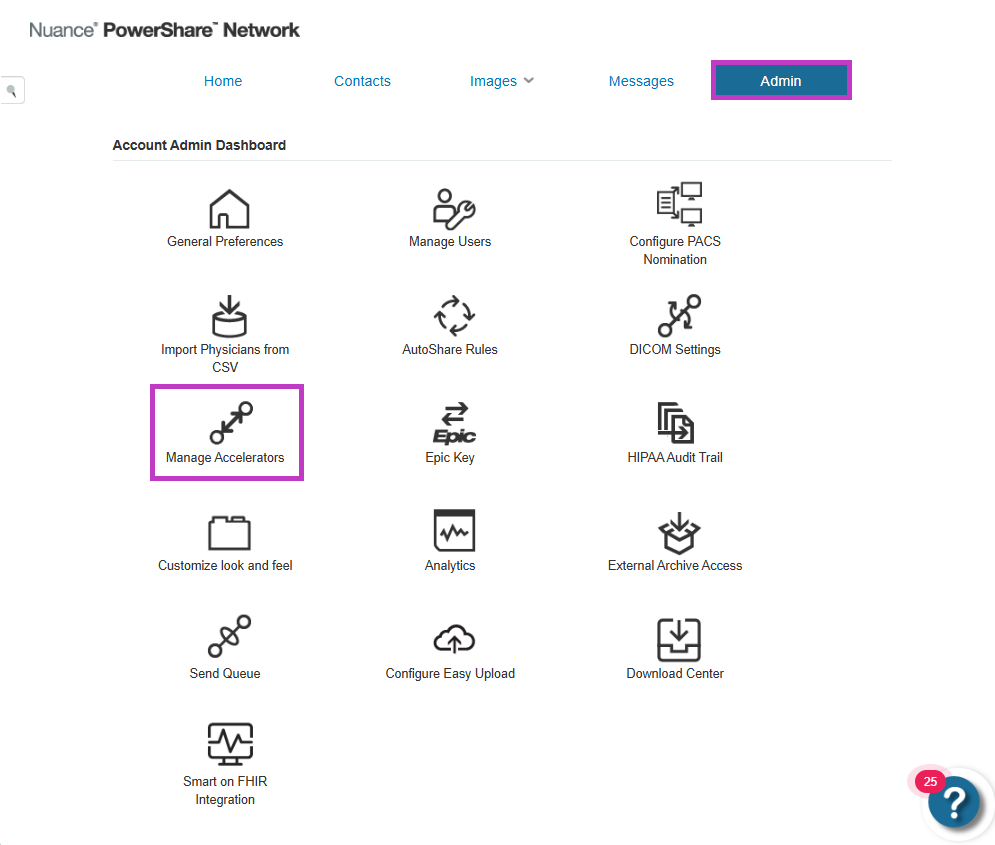
Manage the accelerator
The PowerShare team manages accelerator setup and configuration.
Contact PowerShare support or your Customer Success Manager for updates or changes.
The PowerShare team handles any changes or maintenance.
Important
- You can use PowerShare without installing an accelerator.
- Use the accelerator for advanced or automated workflows.
- Access and configuration depend on your organisation’s setup.
Tip
- Use the accelerator for high-volume or automated image workflows.
- Work with your PowerShare team to configure routing and automation.
- Use standard PowerShare tools if you don't require automation.
Next up: Manage account preferences in PowerShare Image Sharing
Update your account settings and configure notifications to personalise your PowerShare experience. Let's go