
Note
The features and functionality available to you might vary based on your organization's configuration, language settings, and platform (web, mobile, or desktop).
Get a quick overview of how to create your first recording in Dragon Copilot, including tips for capturing high-quality recordings.
Create your first recording
With Dragon Copilot open, follow these steps to make your first recording:
Select the patient session you want to record. If it's a new session, select the Create patient session button in the lower left corner of the Dragon Copilot application.
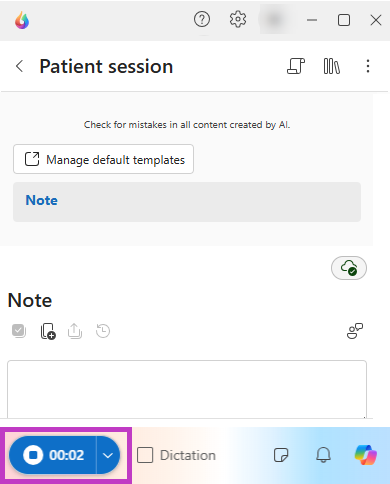
When you're ready to record, select the ambient recording button to start recording.
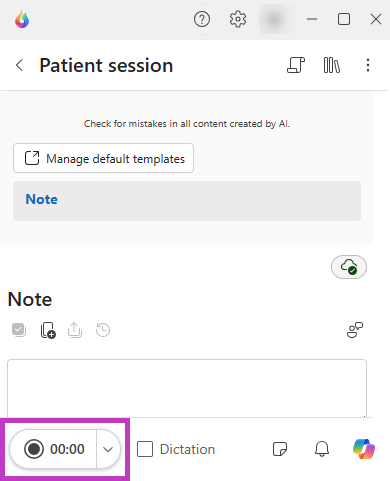
Select the ambient recording button again to stop recording.
Tip
While you can record sessions on web, desktop, or mobile, use the mobile app for optimal results as it's optimized to record patient sessions.
If you see a microphone instead of the ambient recording button, uncheck the dictation box to the right.
Microphone mode is remembered when switching between existing sessions on your worklist.
When a new session is created, the microphone mode defaults to ambient for the session.
Create a recording from the patient session list
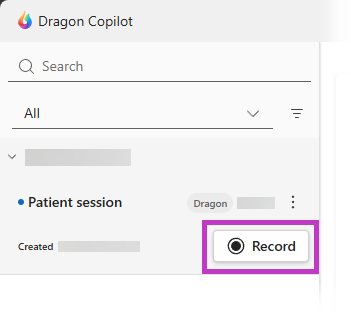
You can also create a recording directly from the patient session list. Hover over the patient session you want to record, and select the record button to start recording.
Note
Availability of the record button might vary based on your organization's configuration and language settings. The record button is available for web and desktop only.
Best practices for ambient recordings
Follow these best practices to get the best results from your recordings:
- Obtain patient consent before recording, following your organization's guidelines.
- Place your recording device where Dragon Copilot can hear the conversation between you and your patient.
- Start with an introduction. Start by stating two patient identifiers, the reason for the visit, and patient demographic information. For example, "I'm about to see Jane Doe, a 42-year-old woman. She is attending today for a follow-up review of ongoing lower back pain which started six months ago." If the patient is new, ask, "What brings you in today?"
- Speak naturally. Dragon Copilot understands without needing robotic speech, commands, or punctuation.
- Use verbal cues. The AI only includes information that you speak aloud, so verbalize the details you want in the note. Because the AI can't understand gestures or nonverbal cues, specify location and laterality, and detail the exams you're performing. This specification helps ensure symptoms and findings are documented accurately.
- State clearly what you want the AI to capture. The AI only includes information that you speak aloud, so verbalize the details you want in the note including diagnoses, exam findings, and subjective details. Avoid vague phrases such as “blood pressure medication." Instead, say the specific medication, such as "lisinopril."
Note
If your phone screen locks or goes to sleep, Dragon Copilot continues recording.