
After recording your encounter, use the AI-powered capabilities and clinical insights available in Dragon Copilot to ensure that your clinical documentation for that encounter is as accurate and complete as possible.
Review your clinical summary
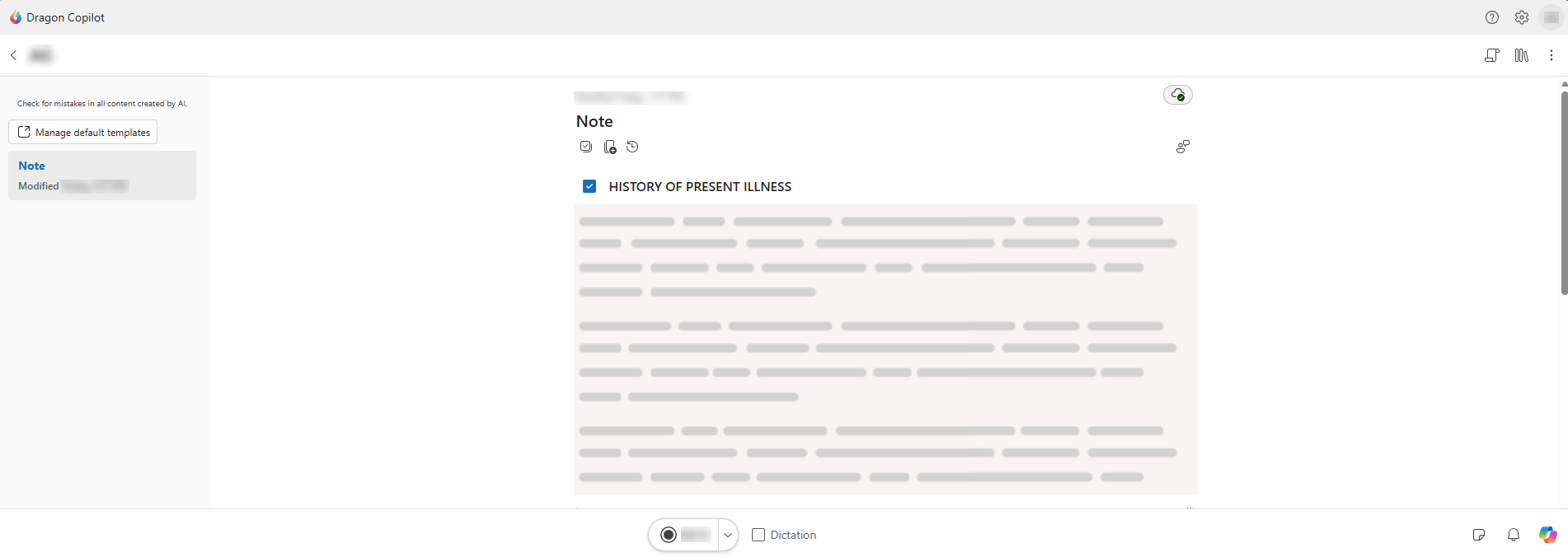
Dragon Copilot generates clinical summary sections to include in your note. These summaries appear in the Note section.
- Dragon Copilot generates clinical summaries tailored to your clinical specialty from the combined transcripts of ambient recordings you create for the encounter.
- The current note regenerates every time you add another recording or apply an AI prompt to reformat one or more of the note sections.
Edit your note in Dragon Copilot
You can edit your note in a way that works best for you. Dragon Copilot supports manual actions, voice edits, and use of AI. Here are some ways to edit in Dragon Copilot:
- Keyboard and mouse - Make direct edits by typing, selecting, and navigating within note sections.
- Voice commands - Use voice commands to move through the note, select text, and make revisions hands-free.
- Dictation - Dictate directly into any note section to quickly add or update content.
- Library menu
 - Apply a note section template, use an AI prompt, or insert a saved Text into any note section.
- AI prompts - Use prompts to reformat, refine, or enhance content across one or more sections.
- Dragon Copilot Chat
 - Ask questions, make targeted edits, gain insights, and more by leveraging AI in Dragon Copilot.
Important
- The dot beside the heading in the Note section indicates that the section was generated by AI and disappears when you make edits.
- Some sections might be empty if your recordings don't include relevant information for that section.