
Note
The recording language options, features, and functionality available to you in Dragon Copilot might vary based on your organization's configuration, regional settings, and whether you're using the web, mobile, or desktop app.
Do you have conversations with your patients in different languages?
Your administrator sets the default recording language and the available recording language options in Dragon Copilot. If both you and your patient speak a language that's different from the default setting, select that recording language from the Ambient recording language list. If the language you speak doesn't appear, select the Multilingual recording option.
Multilingual recordings can include a mix of the selected language and English, and the conversation doesn't need to stay in one language. You can change the recording language between recordings within the same encounter to match what's most comfortable. The selected language applies to the next recording and remains in place until you change it.
Supported languages
| Afrikaans | Arabic | Armenian | Azerbaijani | Bangla (Bangladesh) | Bengali (India) | Bosnian | Bulgarian | Catalan | Chinese Mandarin | Chinese Cantonese | Croatian | Czech | Danish | Dutch | English | Estonian | Filipino (Tagalog) | Finnish | French | Galician | German | Greek | Hebrew | Hindi | Hungarian | Icelandic | Indonesian | Italian | Japanese | Kannada | Kazakh | Korean | Latvian | Lithuanian | Macedonian | Malay | Marathi | Nepali | Norwegian | Persian | Polish | Portuguese | Punjabi | Romanian | Russian | Serbian | Slovak | Slovenian | Spanish | Swahili | Swedish | Tamil | Thai | Turkish | Ukrainian | Urdu | Vietnamese | Welsh |
To record conversations with a patient in their native language
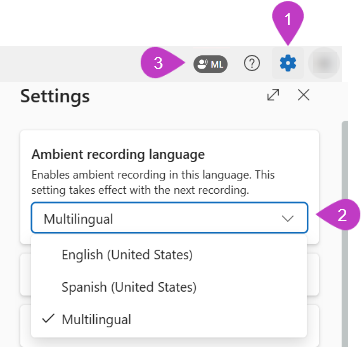
- Select Settings
 .
. - Under Ambient recording language, select an available language from the dropdown menu.
- If you choose a language other than your default language, a recording icon appears to the left of the Resources icon
 .
. - Record your patient conversation as usual.
Important considerations
- Dragon Copilot supports multiple recording languages. Dragon Copilot captures conversations and assists with documentation workflow. It doesn't translate conversations or provide AI-assisted translation.
- Recording language options depend on your regional and organizational settings. Check the list of available recording languages in the dropdown menu and select accordingly.
- Ensure you and your patient are fluent in the selected language. If multiple languages are used during a conversation, ensure you're fluent in all used recording languages to avoid any misunderstanding or inaccuracies in the documentation.
- Transcripts for multilingual recordings don't indicate who is speaking. The transcribed conversation appears as one continuous block of text in the recording language, and isn't translated into the default recording language.
- Documentation appears in the default note or document language. The clinical documentation that Dragon Copilot generates from your recordings appears in the default language set by your administrator.
- Check for accuracy. The clinical documentation that Dragon Copilot generates from multilingual recordings might not be as accurate as documentation generated from conversations recorded in your default language. Review the documentation carefully and make any necessary edits to ensure it accurately reflects the patient encounter.