
Use mobile mic to dictate and use voice commands by turning your mobile device into a microphone for an active Dragon Copilot session.
Before you begin
- Sign in to Dragon Copilot on your workstation.
- Install the Dragon Copilot mobile app.
- Sign in to the mobile app by using the same account.
Connect mobile mic
To use mobile mic, you must:
- Enable it on your workstation.
- Start it on your mobile device.
1. Enable mobile mic on your workstation
In Dragon Copilot, you can enable mobile mic in either of these ways:
Option 1 (Settings):
- Open Settings
 .
. - Select Mic.
- Select Mobile mic.
- Select Connect.
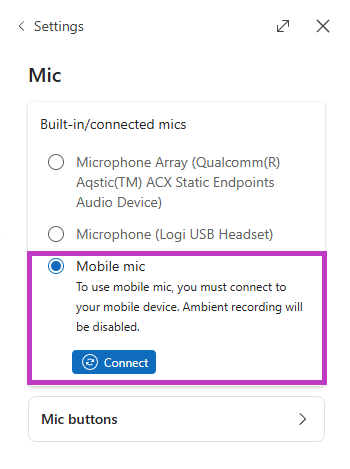
Option 2 (microphone menu):
- Select the drop-down menu next to the microphone icon.
- Select Mobile mic.
- Select Connect.
Dragon Copilot then waits for a connection from your mobile device.
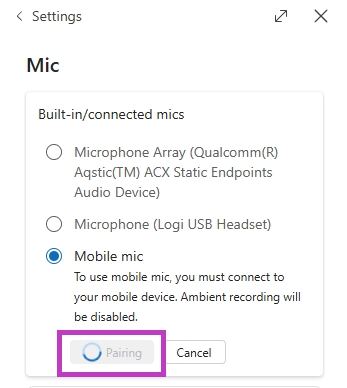
2. Start mobile mic on your mobile device
In the Dragon Copilot mobile app:
- Tap the drop-down menu next to the microphone.
 .
. - Select Mobile mic.
- Tap Connect.
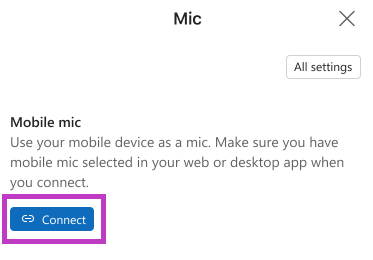
Your mobile device becomes the microphone for your active Dragon Copilot session.
What you can do with mobile mic
When connected, you can:
- Dictate text.
- Use voice commands.
- Move between fields in notes and documents.
Mobile mic provides the same capabilities as a workstation microphone.
About the mobile mic screen
When active, the mobile app shows a dedicated microphone screen. Use this screen to control microphone input for your workstation session.
Return to the mobile app
Close the Mobile mic screen to disconnect and return to the app.
This action doesn't sign you out of Dragon Copilot.