
Templates streamline your workflow and help you save time.
You can create two kinds of templates:
Note section templates: Define the output for an individual section of your note. This option is available for the History of Present Illness, Allergies, Physical Exam, Procedure, Results, and Assessment & Plan sections.
Document templates: Generate documents alongside your note, such as a referral letter or a document that comprises the whole note.
Create templates for:
Whole note templates: Create templates that define the structure, formatting, and required sections for an entire note to support consistent documentation across encounters, such as SOAP note, APSO note, and more to match your target documentation recipient.
Documents: Create templates for complementary clinical documents such as referral letters, patient instructions, care plans, and other frequently used clinical communications.
Different encounter types: Acute visits, follow‑ups, annual exams, and post‑procedure check‑ins might each have particular formatting or style requirements.
Specific conditions: Create condition-specific templates, for example diabetes follow‑ups, COPD exacerbations, or pediatric well‑checks.
Patient populations: Your different patient populations might require different output. Create templates for geriatrics, pediatrics, prenatal care, or behavioral‑health visits.
Procedures and workflows: Store templates for wound care, device checks, infusion reactions, medication teaching, or discharge counseling.
Documentation styles: Create concise templates for high‑volume shifts or detailed templates for comprehensive assessments.
Departmental requirements: Create templates that support your specialty, departmental needs, or organizational documentation standards.
Create a template to streamline your workflow. There are two ways to create a template:
Use the AI assistant. Let AI draft the template based on information you provide.
Create a template manually. Build the template and formatting based on default templates you already have.
How to create a template using AI assistance
Go to (A) Settings
 > (B) Templates.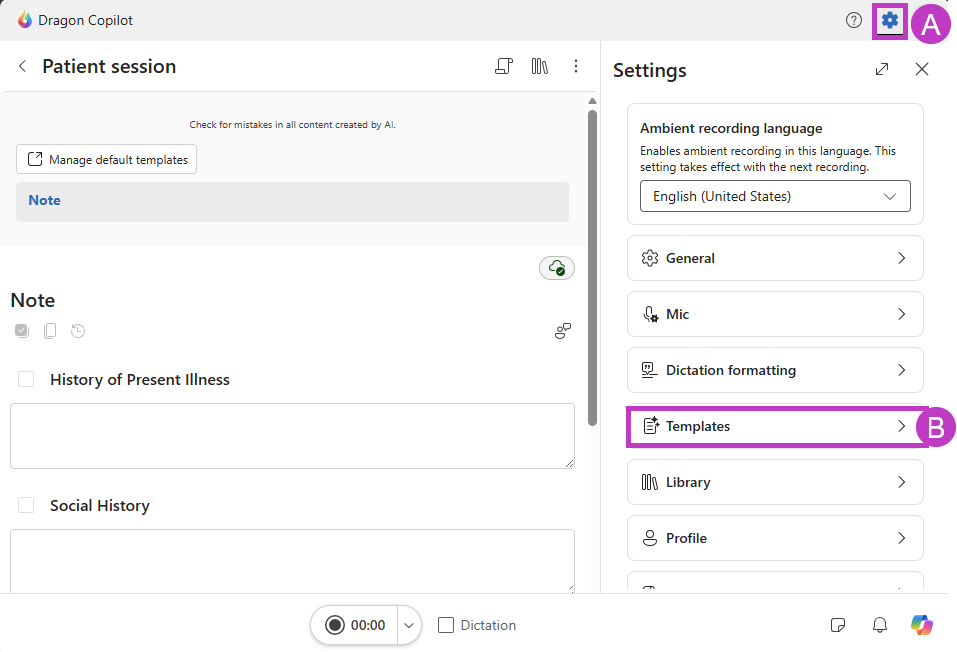
Tip
Use a voice command to create templates, such as Dragon create template.
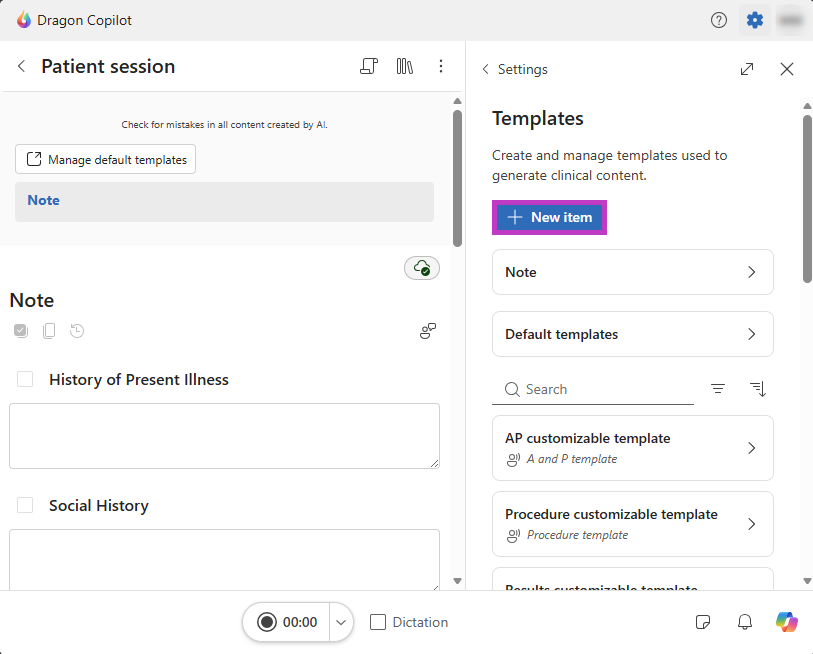
Select New item.
Tip
Select the expand icon
 to expand the note style panel and work with settings in a larger view. Select the icon
  again to make the view smaller.
In the new template screen, type or dictate your request into the prompt box. Describe what you want the template to look like, and what it should include. For example, you might type or dictate "Create a cardiology referral letter template including patient information from the encounter and my credential information" or "Create an HPI template following this example: insert example of HPI". You can also provide sample content such as an existing note section template, document, or letter.
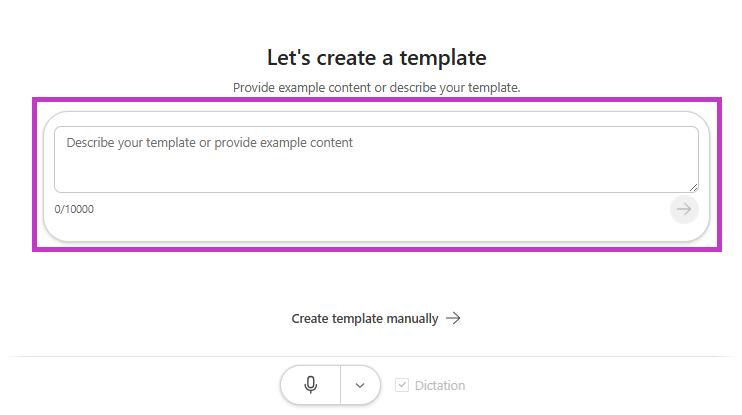
Select Send
 .
.Important
If you provide the AI assistant with sample content, ensure there's no protected health information (PHI) or other confidential information present.
Select Send
.Tip
AI processes your request and creates the template for you. It suggests a name, spoken form, the type of template (document or specific note section), a description, and the template content. Then AI generates a preview for you to check an example of what the outcome of the template could look like. The preview uses a sample note based on your specialty, and not Dragon Copilot patient notes.
Use AI to refine your template as many times as needed until you reach the expected outcome. For example, "re-order the HPI to start with Patient information" or "Add a placeholder at the end for my credential information".
Tip
If the Dragon Copilot AI assistant minimizes, select the chat icon
 to open the assistant again.
How to create a template manually
Go to (A) Settings
> (B) Templates.
Tip
Use a voice command to create templates, such as Dragon create template.
Select New item.
Tip
Select the expand icon
to expand the note style panel and work with settings in a larger view. Select the icon
again to make the view smaller.Select Create a template manually.
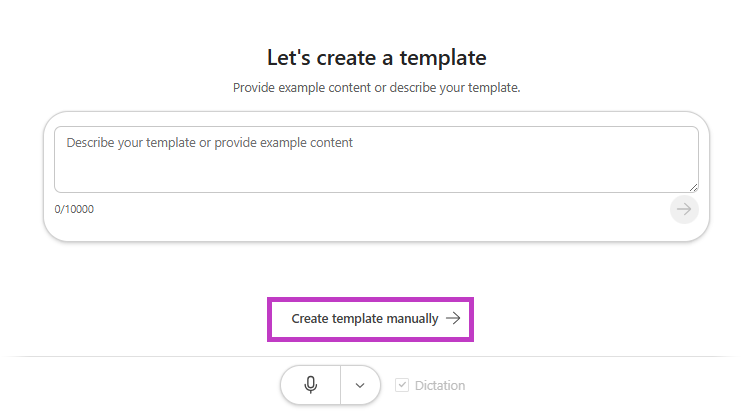
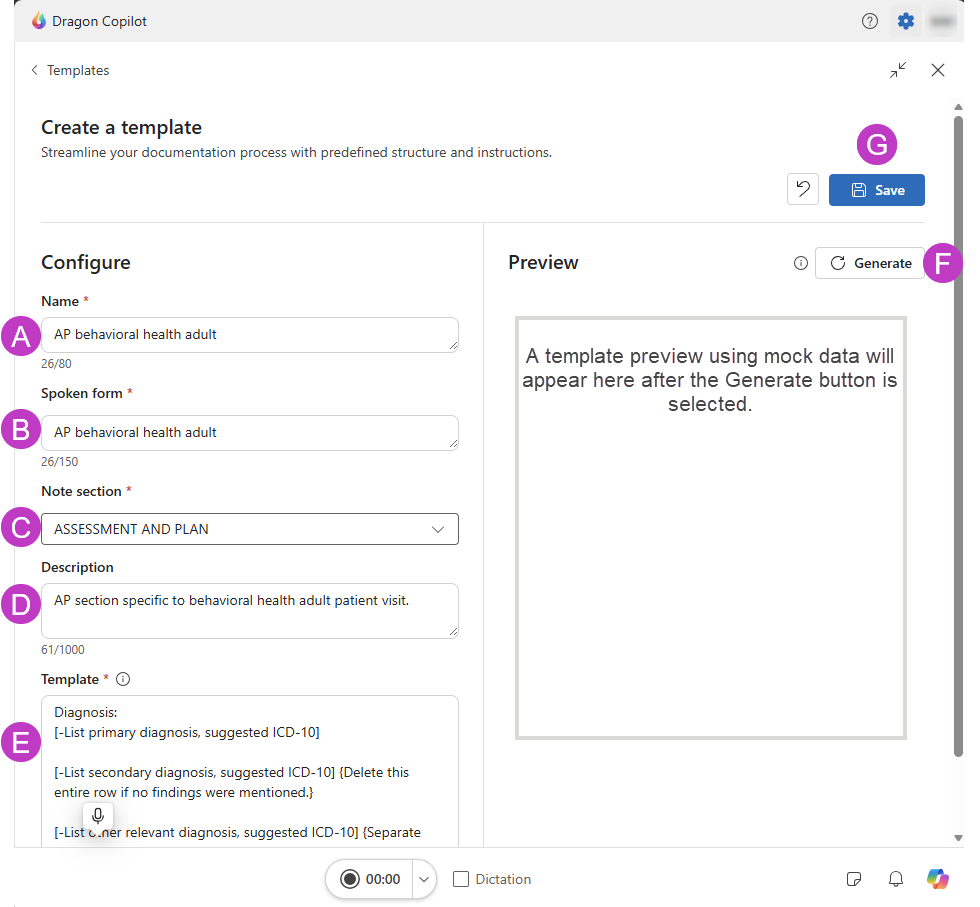
In the new template screen, complete the required fields.
(A) Enter a name for the note section template.
(B) Review or edit the Spoken Form (voice command).
(C) Select the applicable note section.
(D) Add a brief description (optional).
(E) Enter or paste the template content.
(F) Select Generate to preview the output of the template using mock data.
(G) Select Save.
Tips for creating templates
After saving your template, you can duplicate
 or delete
  a template.
You can create multiple note section templates for each of the six supported sections and multiple document templates.
If you manually create the template, keep each template under 8,000 characters for best results.
Select Generate when you finish manually editing the template to see a preview of the template with mock data.
Use AI assistance to edit your template as needed. AI automatically regenerates the template field and refreshes the preview. For more information, see Use AI to build and edit templates.
Use the preview feature regularly while building templates to verify formatting, content placement, and overall structure.
Keep templates focused on a specific workflow or use case to make them easier to use consistently.
If you create multiple templates for the same note section, use naming conventions that clearly differentiate their purpose. For example, Follow-up Visit, New Patient Visit, or Discharge Summary.
When using AI, provide specific instructions to help generate more accurate template content and formatting.
Remove unnecessary instructions or repetitive content to keep templates clear and concise.
Arrange the sections in the template in the order you want them to appear in the generated note. Dragon Copilot generates the output using the same section order as the whole note template.
Add headings and subheadings as needed to add more structure to your output, such as Diagnoses, Clinical Findings, Management Plan, or Assessment and Plan.
Update templates periodically to reflect workflow changes, documentation requirements, or best practices.
Related topics
Use default note section templates
How to edit default note section templates