
Dragon Copilot includes a default template for each note section that supports templates: History of Present Illness, Allergies, Physical Exam, Results, Procedure, and Assessment and Plan. If the generated note doesn't meet your needs after you select your primary specialty and use the default template, you can modify the template.
Edit a default template
Go to Settings
 > Templates > Note.
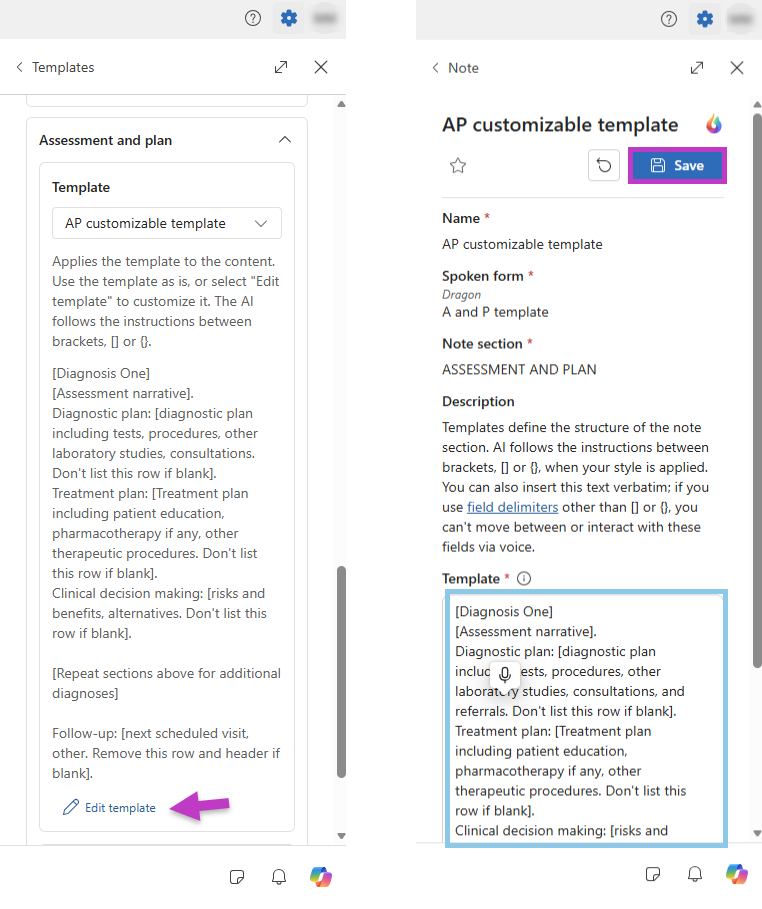
Scroll to one of the six supported note sections. Select the chevron
 next to the section name to expand it. Select the default template from the Template drop-down list.
To modify the default template, scroll to the bottom of the template, and select Edit template.
In the new window, make changes to the template content manually or with the AI assistant.
Select Save.
How to edit templates using AI assistance
The AI assistant can help you make edits to your templates.
Open the template you want to edit.
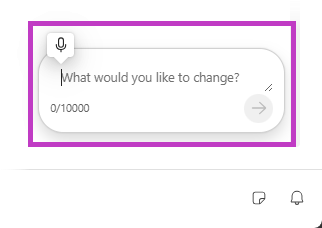
Select the AI assistant
 .
.In natural language, type or dictate into the text field the edits you want made.
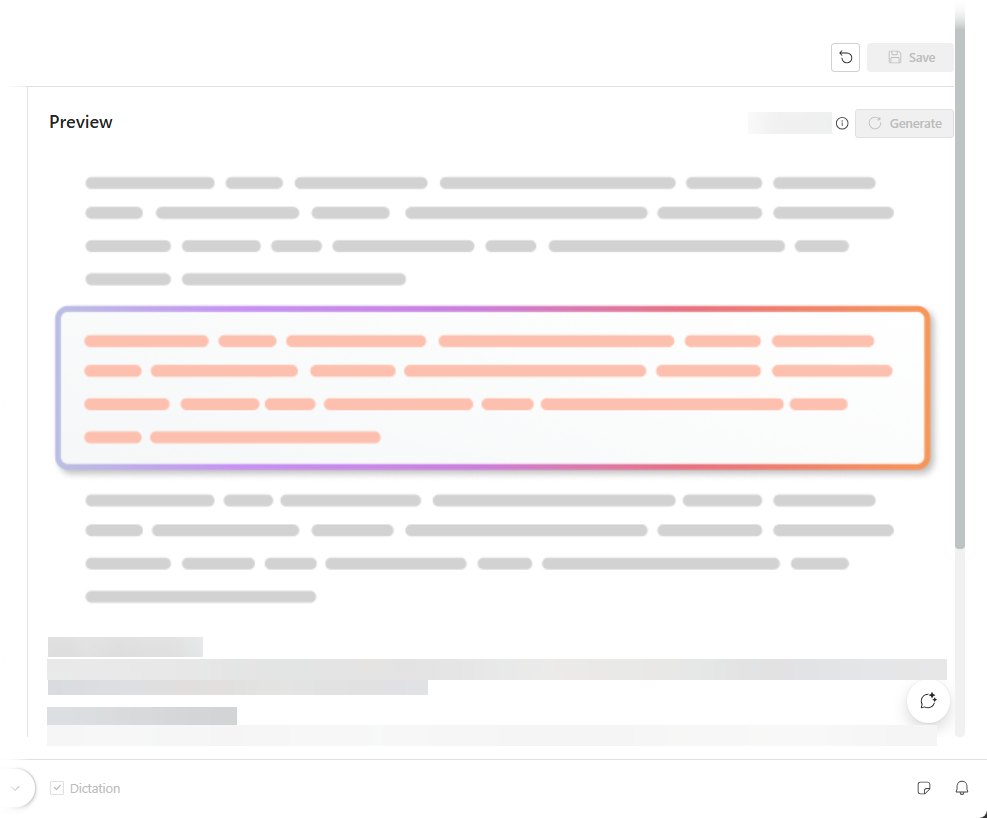
AI regenerates the template content and refreshes the preview automatically.
Review the Preview that's automatically generated using mock data to see how your template output might look.
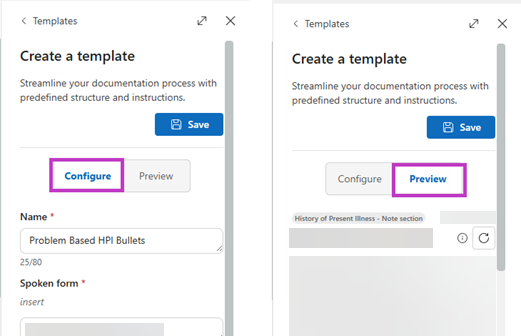
Note
If Dragon Copilot is in narrow view, select the Configure and Preview tabs for each section.
- Continue to refine the template as needed and then select Save.
Best practices for note section templates
- Start with the default note. Review the note generated without a template to understand how your specialty-specific AI model performs. Apply templates only where you need extra customization.
- Use default note templates and then modify as needed. If you need extra customization from the specialty-specific AI model, use the default note section templates. If the output doesn't meet your documentation needs, modify the default note section templates. Use AI to help modify templates or build new templates. For more information, see Use AI to build and edit templates.
- Review the generated note. Because templates use generative AI, results can vary. Always review and edit content as needed.
- Use Auto‑Style for consistency. Auto-Style automatically applies your style preferences, including note section templates, whenever you add a recording.
Note
As with all Dragon Copilot AI features, templates are built on a responsible AI framework, ensuring a foundation of trust.
Typical scenarios for note section templates
Use templates to tailor generated content for your workflow. The following examples show common ways to improve note output.
Add titles or subheadings to a note section
To include titles or subheadings in a note section, add them as plain text in your template. Examples:
| Note section | Subheading example |
|---|---|
| Physical Exam | General appearance: |
| History of Present Illness | Symptoms: |
| Assessment and Plan | Clinical decision making: |
Note
Enter titles and subheadings as plain text. Don't place them in brackets or quotation marks, as shown in the following examples.
General appearance: [List findings] {if not mentioned put "Normal."}. Vital signs: [List findings] {if not mentioned put "Within normal limits"}. HEENT: [List findings] {if not mentioned put "Within normal limits"}.
Add fixed or boilerplate text
To include fixed text in a note section, place the text in quotation marks within your template. Examples:
- "Risks and benefits have been discussed with the patient."
- "Further diagnostic therapeutic intervention will be based on patient response to treatment."
When you apply the template, text enclosed in quotation marks is included in the note each time.
Add AI-generated content with placeholders
Use placeholders to tell the AI where to add information from the recorded conversation. The AI replaces placeholder text with relevant details from the note and transcript.
Note
Place placeholder text in square brackets ([]), as shown in the following examples.
- "Follow-up: [next scheduled visit, other]"
Placeholders can be as detailed as needed to guide the AI's output. For example:
- "Treatment: [Briefly describe any related treatments like lifestyle counseling, medications, or referrals. Don't include the name and location of the pharmacy.]"
Add conditional instructions
Use instructions to tell the AI how to modify template content after it fills in placeholder information. Common uses include:
- Delete rows without content.
- Replace missing content with a specific word or phrase.
Write instructions as if/then statements and place them as close as possible to the content they apply to.
Note
Place instructions in curly brackets ({}), as shown in the following example.
- "Food allergies: {If none specified, then delete this entire row and its heading.}"
Combine template elements
A template can include subheadings, placeholders, instructions, and fixed text. Dragon Copilot uses all of these elements together when generating a note. Example components:
- Subheading: HEAD, FACE, EYES:
- Placeholder: [List findings.]
- Instruction with canned text: {If HEAD, FACE, EYES is unremarkable use the statement "Normocephalic, atraumatic; PERRLA.", then append any noted exceptions. Delete this entire row if no findings were mentioned.}
Combined example:
- "HEAD, FACE, EYES: [List findings] {If HEAD, FACE, EYES is unremarkable use the statement "Normocephalic, atraumatic; PERRLA.", then append any noted exceptions. Delete this entire row if no findings were mentioned.}"
Include standard text for sections not discussed
Use the {empty section} instruction at the beginning of your template to include standard text for body systems that aren't mentioned during the recording. Add the standard text you want for each body system and enclose the text in quotation marks. Example:
- "{empty section}"
- "General Appearance: [List findings] {if not mentioned put "Normal"}."
- "Vital signs: [List findings] {if not mentioned put "Within normal limits"}."
- "HEENT: [List findings]..."
Repeat instructions with a looping command
Use a looping command to repeat the same template structure for multiple items, such as diagnoses. Looping commands help ensure consistent formatting for each repeated item. In some cases, you might also need to identify where the repeated section ends.
Note
Place looping commands in curly brackets ({}) at the beginning of the section they apply to, such as shown in the following example.
- "{Repeat for each diagnosis}"
- "[Diagnosis] {Do not number the diagnoses}"
- "-Monitoring: [Briefly describe symptoms, signs, or testing to be followed as evidence of disease progression or evidence of disease regression] {if none specified, then delete this entire row and its header}"
- "-Evaluation: [Briefly describe any analysis and interpretation regarding the patient's condition to determine how well the current treatment plan is working and to identify any necessary adjustments. This could include reviewing medical test results or describing the patient's response to treatment] {if none specified, then delete this entire row and its header}"
- "-Assessment: [Briefly describe any clinical judgments and decisions based on the evaluation to address the patient's needs by planning and implementing appropriate interventions. This could include ordering new tests or procedures, discussing the patient's treatment options, or reviewing previous treatments] {if none specified, then delete this entire row and its header}"
- "-Treatment: [Briefly describe any related treatments like lifestyle counseling, medications, or referrals. Do not include the name and location of the pharmacy] {if none specified, then delete this entire row and its header}"
Choose a template content source
By default, note section templates use both the transcript and the AI-generated note to generate content. You can also configure a template to use only one source. For example:
- Use the transcript only for sections such as Physical Exam when you want to capture additional details discussed during the encounter.
- Use the note only when you want less detail than the transcript provides.
Use the transcript only
Add the following instruction at the beginning of your template:
- "{Transcript only}"
Use the note only
Add the following instruction at the beginning of your template:
- "{Disable transcript}"
Related topics
How to use default note section templates