
Note
The features and functionality available to you might vary based on your organization's configuration, regional settings, and whether you're using the web, mobile, or desktop app.
Dragon captures any instructions you verbalize in your ambient recordings and presents them as suggested orders - making it easy to initiate or update orders directly in your EHR.
Dragon Copilot can identify orders for:
- Medications.
- Immunizations.
- Follow-up appointments.
- Consults or referrals.
- Procedures.
- Imaging and diagnostic tests.
- Labs.
- And more...
Orders in Dragon Copilot
If Dragon Copilot identifies potential orders based on the combined transcript of your encounter, the orders section appears in the patient session.
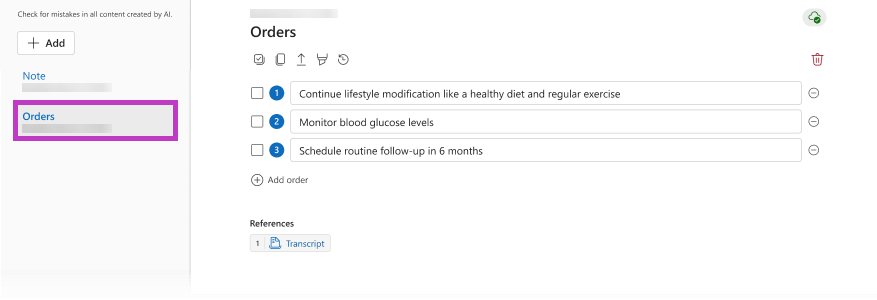
Review your order suggestions
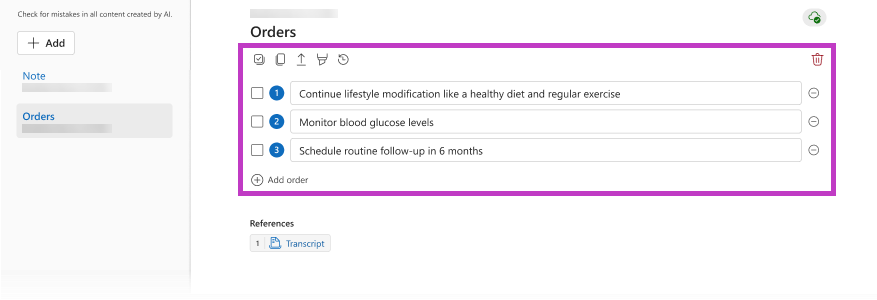
Select the Orders section. Each order that Dragon identifies appears in a separate row in the Orders section.
You have several options when working with suggested orders:
- Modify the text in the order field with additional details.
- Copy the text in the order field by using keyboard commands, the Copy icon
 , or a voice command.
 - Use the contents of the suggested order as search terms to find the correct order in your EHR.
- Add an order.
- View order history
 .
. - And more!
Note
- The AI generates order suggestions that appear in the Orders section as memory aids to help ensure accuracy and improve efficiency.
- Dragon Copilot uses specific criteria to identify order suggestions from your ambient recordings. Verbalize a clear intent to place an order during ambient recording to ensure Dragon Copilot generates the appropriate order suggestions for your encounter.
Integrated order suggestions
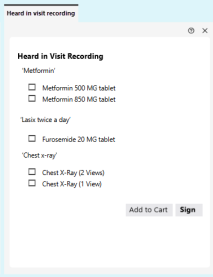
Dragon sends information about each order to your EHR. Your EHR matches the suggested order to one or more order options in your system. These orders appear as a list of suggested orders in a separate screen or tab in your EHR according to your organization's guidelines.
Important
Integrated orders are only available if your EHR support team enables and configures the feature. Please confirm availability with your designated EHR representative. If you expect to see matching orders in your EHR, and they do not appear, please contact your EHR admin or support team.