
Use templates to apply your preferred documentation style to AI-generated content such as note sections, full notes, or documents.
Note
The features and functionality available to you might vary based on your organization's configuration and regional settings.
What is a template?
A template is a set of instructions that tell Dragon Copilot how to structure and format the output and what to include.
There are two kinds of templates:
Note section templates: Define the output for an individual section of your note, such as Physical Exam or Assessment and Plan.
Document templates: Generate documents alongside your note, such as a referral letter or a document that comprises the whole note.
Why use a template?
When you create multiple document templates and note section templates in your library, you save time and see these benefits:
Your documentation is more consistent. Every note and document follows your preferred structure, headings, and phrasing.
Your documentation is streamlined. Default templates generate automatically when your note is created, so your note is generated to your preferred style automatically, and routine documents are ready as soon as you are.
Your output is personalized. When you tailor templates to your specialty, and your own documentation style and workflow, your notes look and feel the way you want them every time.
You spend less time editing. Templates let you capture your format and style once so you can reuse it every time you document, instead of reformatting after each encounter.
You want to consolidate your work to a single template. If you have multiple note section templates or different document templates, create a document template to capture all of your preferences with one command.
You often edit documents to include specific headers or standardized text. A document template can add the same block of text to all your documents or output.
You have a standardized document that you want produced after every encounter. Set up a document template for patient instructions, referral letters and more. Dragon Copilot writes the documents so you can focus on your patients.
Once set up, templates can be applied automatically or manually as needed. Learn how to create a template.
Set a note section template as your default
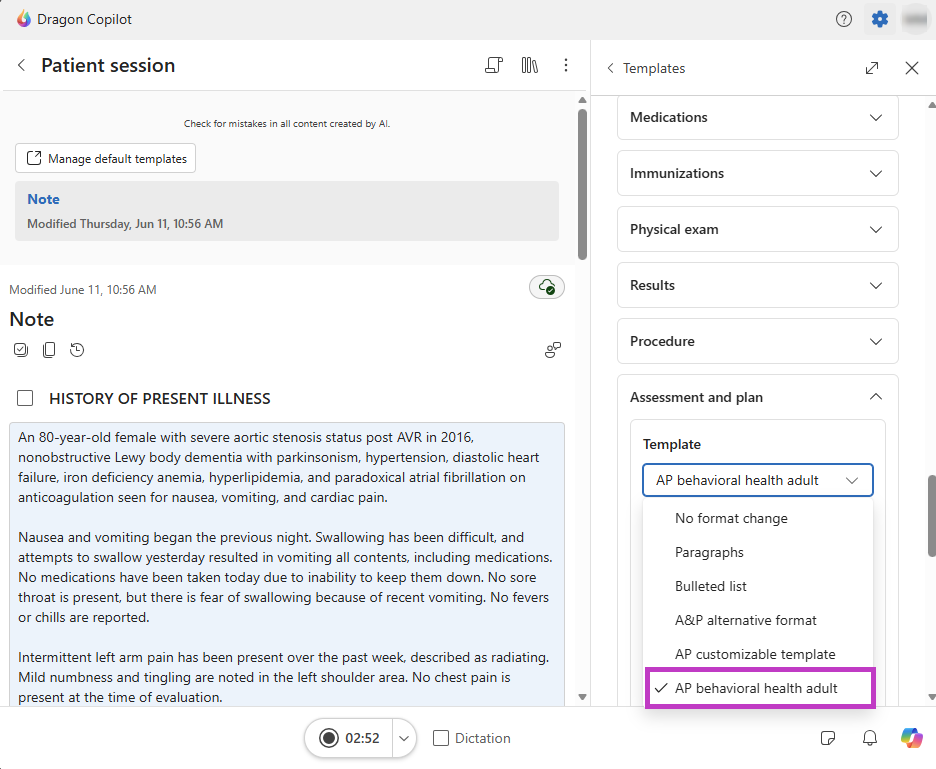
Change your note settings by applying a note section template as your preferred style. Dragon Copilot then uses the template for that section of every note.
- Go to Settings
 .
. - Select Templates.
- Select Note.
- Go to the note section. Choose the template you want to use from the drop-down menu.
Set default templates
You can assign up to nine document templates to generate automatically alongside your note.
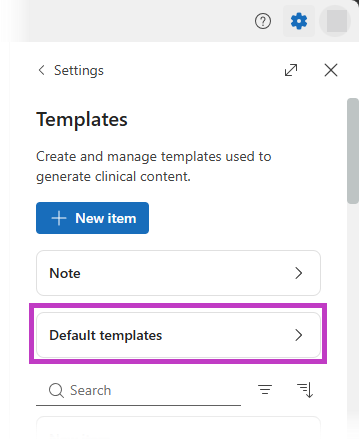
Select Settings
> Templates.Select Default Templates.
- Select the templates you want to generate automatically.
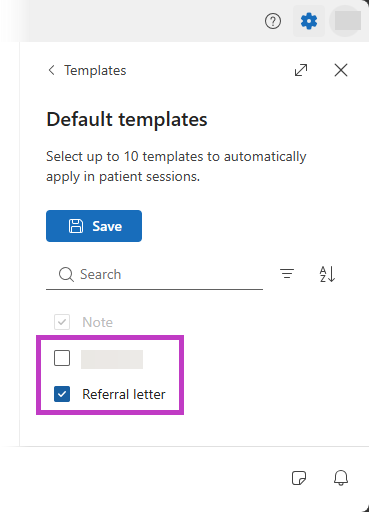
- Select Save.
Note
The features and functionality available to you might vary based on your organization's configuration and regional settings.
Apply a template
After you set up your templates, streamline your documentation workflow. Place your cursor in the note section where you want to apply a template, and use one of the following methods:
Apply your template from the library. Select the Library icon
 . Select the template from the list.
Use a voice command for note section templates. Say the spoken form for the template.
Type into Dragon Copilot Chat. Apply a template by typing a prompt or using a voice command with the template's assigned spoken form. For example, if the template's spoken form is "after visit summary," dictate Dragon generate after visit summary.
Related topics
Use default note section templates
How to edit default note section templates