
Use memos to capture clinically relevant pre-charting details and questions to discuss with the patient. They're also a place to document personal reminders for the encounter, lab results, or notes you want to modify before adding to your clinical summaries. You can use memos to capture a sentence or paragraph of text to add to your Library, and more.
To create a memo:
Select Memo
 in the lower right of your application.
Select New.
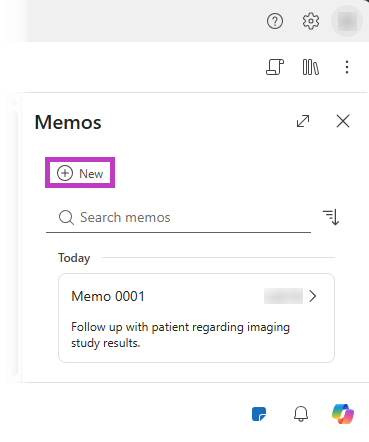
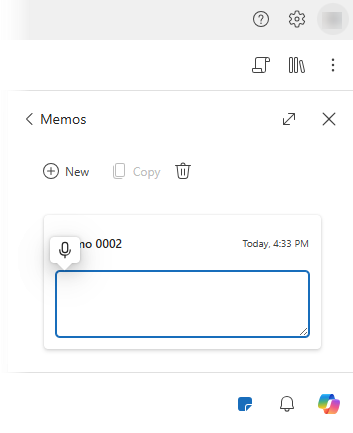
Type or dictate the content for your memo. If you're in a Dragon Copilot text field like memos, you have a quick way to dictate at the cursor. Select the Microphone icon
 and start talking.
The memo content is automatically saved.
Note
You can create memos in patient sessions or outside of them.
Edit memos
You might need to edit a memo when you want to add information, change details in the memo, or remove content from the memo.
To edit a memo:
- Select Memo
in the lower right of your application.
- Select the memo you want to edit.
- Use your voice or the keyboard and mouse to make updates.
- Changes are automatically saved, so there's no need to manually save your work.
Manage memos
Dragon Copilot provides flexible options to manage your memos and keep documentation organized throughout your workflow.
You can:
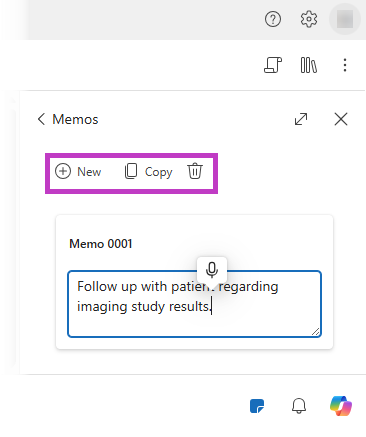
- Create new memos to capture extra notes or separate documentation.
- Copy memos to reuse content or build from an existing template.
- Delete memos that you no longer need.
Note
Outside of a patient session, you can access all memos, including patient session memos, dictation memos, and memos that aren't associated with a session.
Transfer memo content to the patient record
You might want content from your memos to be part of the patient's medical record. To transfer memo content to the patient chart, copy and paste it into the appropriate section of the patient's medical record.
Note
- Memos don't become part of the medical record unless you copy and paste them into a note section or your EHR.
- After a memo is open, you can use the voice command Transfer memo in Dragon Copilot on the desktop to transfer content from the memo to your cursor location in the EHR. The voice command is available only in the Dragon Copilot desktop application.
These options help you efficiently organize information and ensure the right content is included in the patient record at the appropriate time.