
Use this article to select a microphone input device for dictation or ambient recording in Dragon Copilot. You choose which microphone Dragon Copilot uses, and your selection is saved per platform (web, desktop, embedded, or mobile) each time you sign in.
Note
For ambient recording, using the Dragon Copilot mobile app directly on your phone provides optimal audio quality by using the device’s built‑in microphone.
View your microphone options
You can access your microphone options and choose your microphone source by using either of these methods:
Select the drop-down menu next to the microphone icon and select your preferred microphone source.
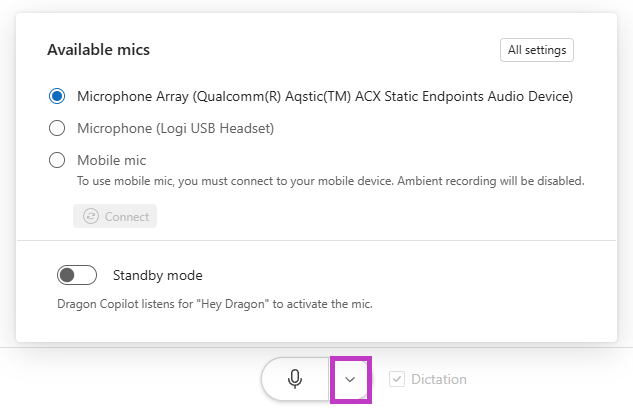
Select Settings
 > Mic and then select your preferred microphone source.
Dragon Copilot automatically saves your selection for the current platform.
Note
If the selected device isn't available when you relaunch the application, Dragon Copilot uses the system default microphone. If you change the system default microphone outside of Dragon Copilot, refresh or restart the application to reflect the change.
Use Mobile mic (use your phone as a microphone)
If you don't have a microphone connected to your device, you can use your mobile device as a microphone for your Dragon Copilot web or desktop session.
See Use Mobile mic with Dragon Copilot.
Microphones with configurable options
If your microphone supports programmable buttons to perform specific actions, see Configure your microphone buttons.
Note
If you select a microphone that has configurable buttons and also have another Dragon product such as Dragon Medical One open, Dragon Copilot displays an alert icon  noting the potential conflict. To avoid potential conflicts, either close the other Dragon product or select a different microphone.