
Welcome to Dragon Copilot
This quick start guide shows you how to get started using Dragon Copilot. Learn how to move around Dragon Copilot, start recording, review your note and transcript, and discover best practices for using Dragon Copilot in your clinical workflow.
Get oriented
Dragon Copilot includes two main work areas:
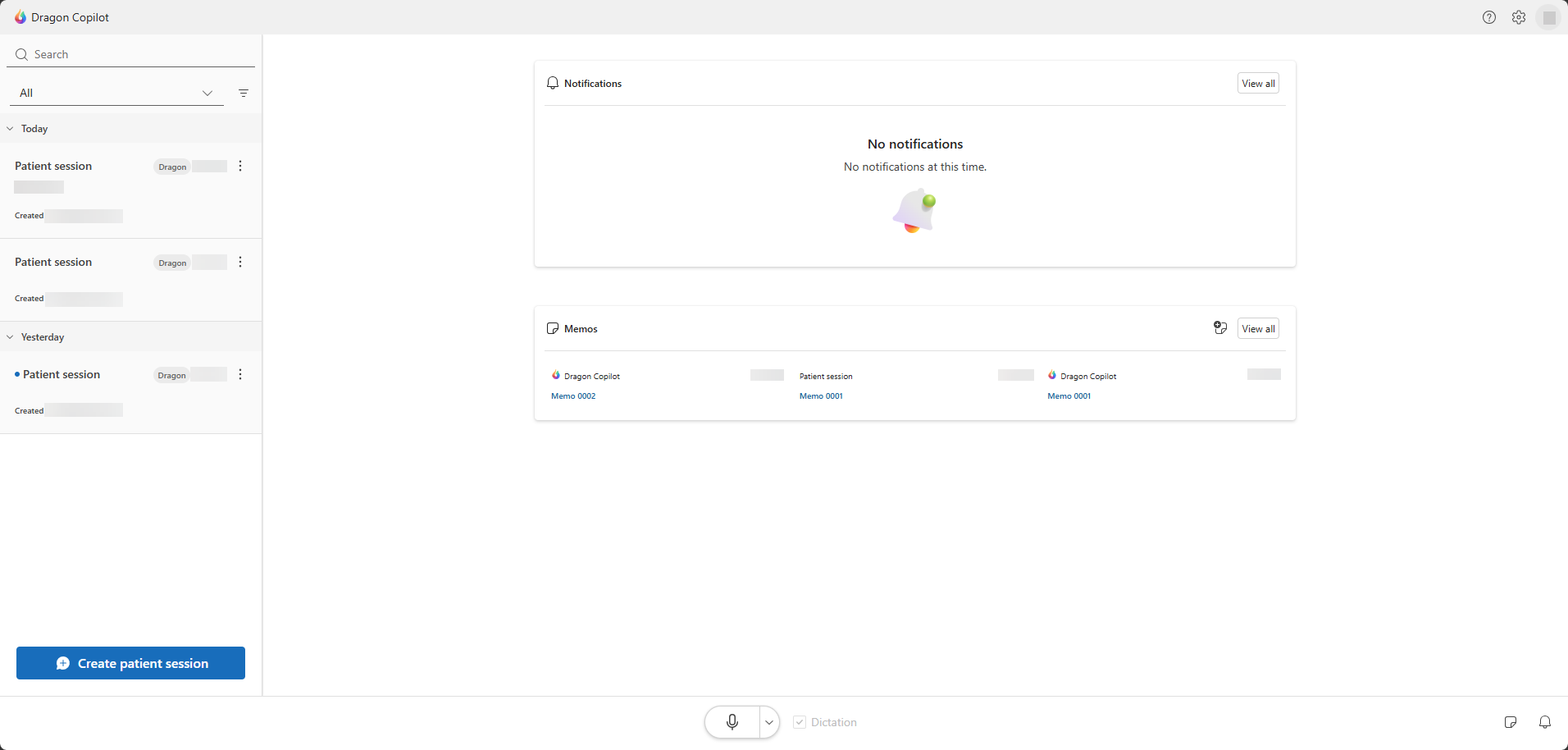
- Homepage: Find patients, open sessions, review notifications and memos, and access settings, help, and other workspace tools.
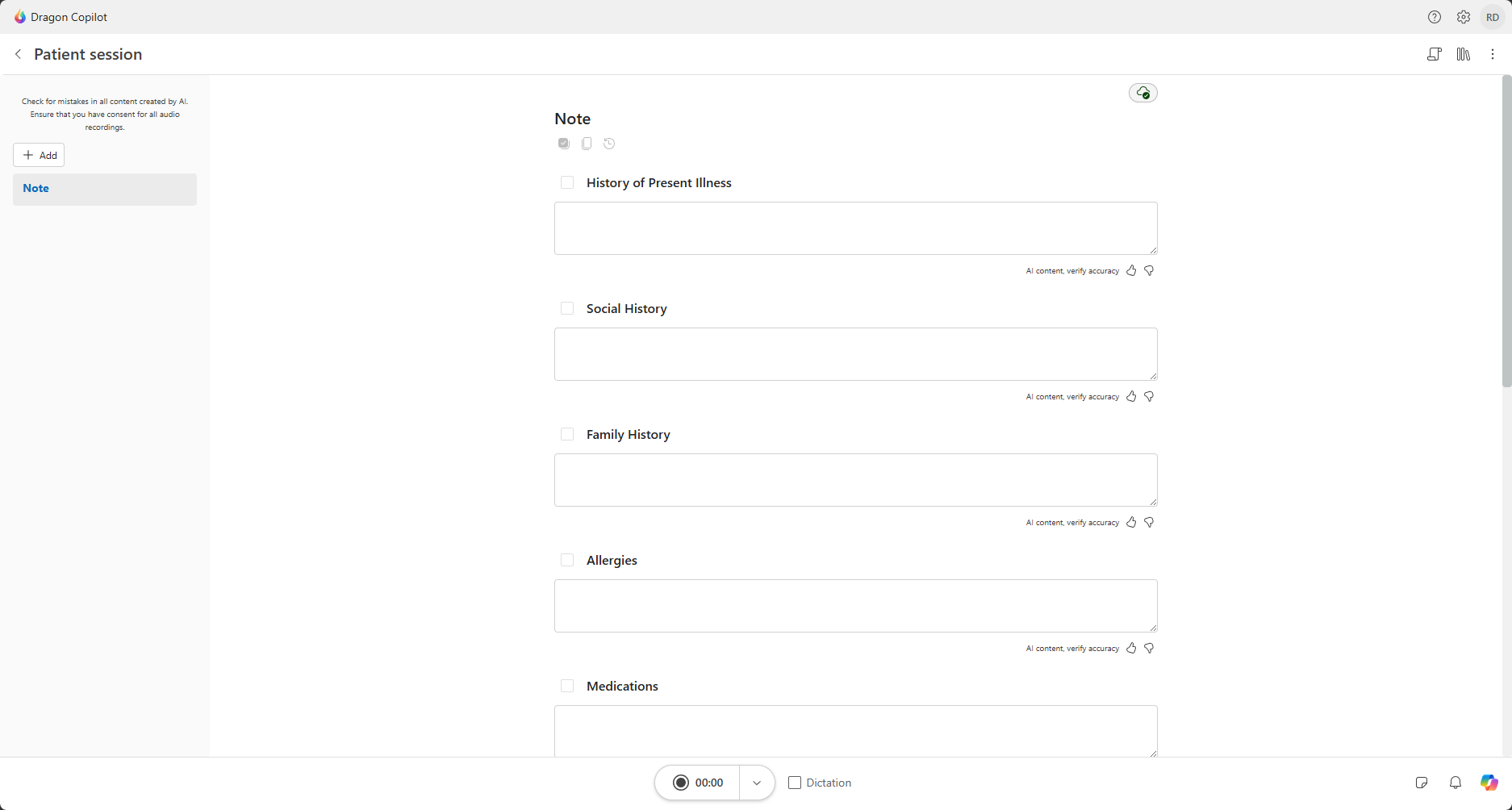
- Patient page: Record encounters, review notes and transcripts, use Copilot Chat, and complete documentation tasks.
Homepage
When you open Dragon Copilot, the homepage helps you find patients, review activity, and access commonly used tools.
Note
The notifications and memos only show up on the homepage if you access Dragon Copilot through the web or desktop app with a medium or large screen. Otherwise, you see only the session list.
Patient page
Select a patient to open a patient session or select Create patient session to start a new one.
The patient page is where you record encounters, review documentation, and work with patient-specific information.
Common icons
Depending on your environment and permissions, you might see the following icons:
 Help: Access resources, training materials, support information, and feedback options.
 Settings: Configure Dragon Copilot preferences and settings.
 Notifications: View important updates and alerts.
 Memos: View and manage notes that aren't part of the patient’s clinical note.
 Transcript: Show or hide the transcript of your visit conversation.
 Library: Access prompts and templates. To access all saved texts, prompts, vocabulary, templates, and workflows, use Settings > Library.
 Copilot Chat: Ask questions, generate content, and work with patient information by using natural language prompts.
Tip
Some icons and options might vary based on your device, deployment configuration, administrator settings, and available features.
Record your first patient encounter
- Select Create patient session at the bottom of Dragon Copilot.
- Select the microphone button to start ambient recording.
- Select the same button to stop the recording.
Tip
Before you start recording, be sure that the Dictation option on the microphone bar is unchecked. This action enables ambient mode so you can capture your patient conversation.
Microphone mode is remembered when switching between existing sessions on your worklist.
When a new session is created, the microphone mode defaults to ambient for the session.
Then, review your note and transcript
When Dragon Copilot finishes processing your recording, the note appears in the patient page, and the conversation appears in the Transcript
. Review the generated content, make any necessary updates, and use Copilot Chat  to complete additional documentation tasks.
Best practices for using Dragon Copilot in your clinical workflow
- Obtain patient consent before recording, following your organization's guidelines.
- Place your recording device where Dragon Copilot can hear the conversation between you and your patient.
- Speak naturally. Have a conversation with the patient as normal. Dragon Copilot understands without needing robotic speech, commands, or punctuation.
- Use verbal cues. Since Dragon Copilot can't see you or your patient, clearly describe what's happening. Specify location and laterality if the patient is vague or uses gestures, and detail the exams you perform.
Set your specialty for better notes
When you select a specialty, the generated notes are optimized for your clinical specialty by default.
To update your specialty, go to Settings
> Profile.
Select the specialty that best matches your clinical practice.
Ready to do more with Dragon?
Follow these links to learn more and do more with Dragon Copilot (physicians).
What's new in Dragon Copilot (physicians). See what's new in the latest Dragon Copilot release.
Dictate with Dragon. Learn how to dictate with Dragon, use commands, manage vocabulary, and edit and finalize your notes.
Core Dragon Copilot (physicians) workflow. Learn how to create ambient recordings, use Copilot Chat, create documents, and find what you need without leaving the app.
Improve your note output. Change settings, work with note section templates, and use advanced prompting to hone your AI-generated output.
Dragon Copilot (physicians) learning library. Explore training articles to get information and learn how to use all the features and functions of Dragon Copilot.
What can I say? Find voice commands you can use as you dicatate with Dragon Copilot.