
Save time by leveraging the power of AI in Dragon Copilot Chat to ask questions, make edits, create content, and more.
Access and use Dragon Copilot Chat
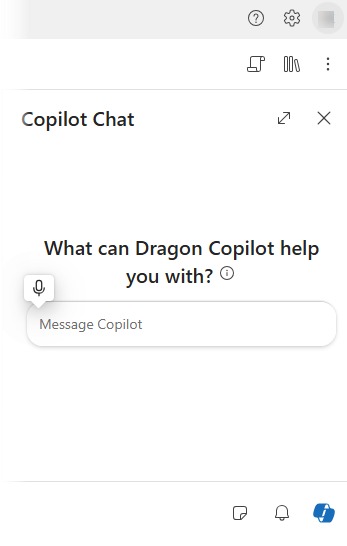
You can access Dragon Copilot Chat  in any patient session.
- Open a patient session.
- Select Dragon Copilot Chat
in the lower right of your screen.
- Type or dictate a prompt in the chat field.
- Select the Send icon
 to submit your prompt.
 - Dragon Copilot Chat
provides a response in the chat window.
Note
You may see status updates, such as Analyzing content, along with a streaming bar in the chat window while Dragon Copilot Chat
processes your prompt. These updates let you know that Dragon Copilot is actively working on generating a response.
Use prompts in Dragon Copilot Chat
Use prompts in Dragon Copilot Chat
to streamline your workflow.
Example ways to use Dragon Copilot Chat:
Type or dictate a question in Dragon Copilot Chat
about the encounter summary or transcript. Dragon Copilot combs through the content and provides a response.
For example:
- Did the patient mention taking (medication) during our discussion?
- Did I advise the patient to ___ ?
- What did the patient say about ___?
Use prompts and templates in your Library
To streamline your workflow, use your saved prompts and templates in your Library  .
.
Access and use your saved prompts and templates in the following ways:
- Select the Library icon
to browse and select saved prompts and templates. Once selected, Dragon Copilot Chat
inserts and executes the prompt or template.
- Type a forward slash (/) in Dragon Copilot Chat
to access prompts and templates in your Library
.
- Dictate or type the "spoken form" in Dragon Copilot Chat
.
Using prompts and templates in your Library helps you work more efficiently and maintain consistency in your documentation.
Tip
Dragon Copilot searches the transcript and summary for the current encounter. It can't search the EHR, or any past encounters for the patient. Dragon Copilot can also search enabled external sources. To learn how you can use external sources in prompts, see Use external sources in prompts.
Save and reuse prompts
You can save and reuse prompts in Dragon Copilot Chat
to streamline your workflow. Depending on your needs, you can save prompts for future use or create new ones.
- To save a prompt that you used in Dragon Copilot Chat
, hover over the prompt and select Save
 .
. - To save a new prompt, go to Settings
 > Library > Prompts.
Want to use a prompt that you saved? You can access your saved prompts by selecting the Library
in your patient session.
Tip
Dragon Copilot includes system prompts ready for use such as Apply my note style, Change pronouns to ..., Draft after-visit summary, Draft referral letter, Get coaching, Summarize evidence, and Summarize note.
Automate with settings
Have a prompt that you use frequently? Use settings to automatically run the prompt as part of your note template. Select Settings
> Templates > Note.
Build prompts around your clinical workflow to unlock more ways Dragon Copilot can support your daily tasks.