
Welcome to Dragon Copilot. This guide helps you get started using dictation with Dragon Copilot. It's designed for users who are new to Dragon Copilot and are using dictation only.
Applies to
- Dragon Copilot (desktop app).
- Physicians using Dragon Copilot for dictation.
Prerequisites
Before you begin, ensure that:
- Dragon Copilot is installed on your workstation.
- You have a Dragon Copilot username and password.
- A microphone is connected to your workstation or built into your laptop.
Access Dragon Copilot
- Find the Dragon Copilot icon
 on your workstation,
—or—
Open Dragon Copilot using the link provided by your Dragon or Microsoft administrator. - Sign in by using your Dragon Copilot username and password.
Choose and manage your microphone
Using the correct microphone helps improve dictation accuracy.
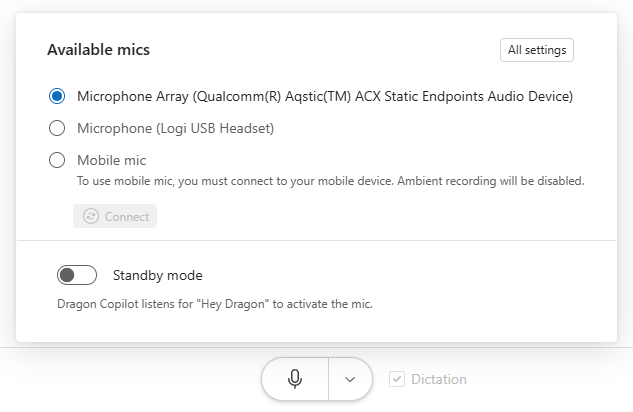
Dragon Copilot supports your computer’s built-in microphone, external microphones connected to your workstation, and mobile mic if available.
- Select Settings
 > Mic.
—or—
> Mic.
—or—
Select the drop-down menu next to the microphone icon .
. - Choose the microphone you want to use.
- Adjust microphone-related settings as needed.
Note
If dictation accuracy is poor, confirm that the correct microphone is selected before you begin dictating. Learn more about microphone selection.
Manage your desktop view
Dragon Copilot offers multiple views so you can position the app where it best fits your workflow. Learn more about desktop views.
Switch desktop views
- Select the down arrow
 to switch between standard and narrow view.
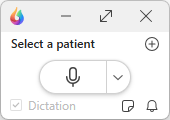
 - Select the compact view icon
 to use a smaller, movable window.

Use compact view
Compact view displays only the essential controls, and you can position it anywhere on your screen.
Key elements include:
- Minimize to system tray
- Expand to full view
- Create a patient session
- Dictation microphone
- Microphone settings
- Memos
- Notifications
- Copilot
Select Expand  to return to the full Dragon Copilot screen.
Note
When you relaunch Dragon Copilot, it opens by using the last view you selected.
Dictate with Dragon Copilot
Place your cursor where you want your text to appear.
Turn on the dictation microphone
.Begin speaking.
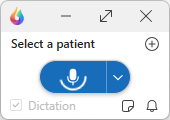
Speak punctuation as you dictate, such as “period,” “comma,” or “new paragraph.”
Dragon Copilot converts your speech to text as you dictate. When you finish, turn off the microphone. Learn more about dictating in Dragon Copilot.
Edit and navigate by using your voice
Use voice commands to edit and navigate text without using your keyboard. Learn about what you can say in Dragon Copilot.
- Place your cursor in the document or text field.
- Turn on the microphone.
- Speak your command.
You can also edit text manually at any time.
Use memos
If Dragon Copilot can't directly dictate into a field, your text appears in the memo. This situation can also happen if you begin dictating before placing your cursor in a text field.
- Review the dictated text in the memo.
- Transfer or copy and paste it into the appropriate field or document.
Note
Some EHR fields don't accept direct dictation. Memos ensure your text isn't lost. Learn more about memos.
Optional: Personalize your experience
When you're ready, try the following features. They're not required to use dictation, but they can save you time. You can create custom texts, personal vocabulary entries, and custom commands in your library. Learn more about the Dragon Copilot library.
Texts: Speak a command to insert predefined blocks of text, such as discharge instructions or common findings. Learn how to use texts.
Vocabulary: Add custom words or phrases so Dragon Copilot recognizes them during dictation. Learn how to use vocabulary.
Workflows: Speak a command to automatically perform a sequence of steps you would otherwise complete manually using your keyboard.
Workflows are useful when Dragon needs to simulate keyboard actions, such as moving between fields or inserting information, so you don't have to perform those steps manually.
For example, a workflow can move the cursor to a specific location and insert standard text before you continue dictating. Learn how to use workflows.
Next steps
Once you're comfortable with dictation, explore optional features that can help save time and personalize your experience.
Related articles
To learn more about Dragon Copilot features, see the following articles:
Configure your microphone buttons
How to dictate with Dragon Copilot