
Applies to: Dragon Copilot Desktop in English language only (U.S. and Canada)
Use your voice to start recording without selecting the microphone button.
When you enable standby mode, Dragon Copilot listens for the wake word Hey Dragon and then starts recording automatically.
Important
Standby mode is off by default. To use this feature, your organization must first enable standby mode, and then you must turn it on in Dragon Copilot settings. Dragon Copilot remembers your standby mode preference after you turn it on.
Turn on standby mode
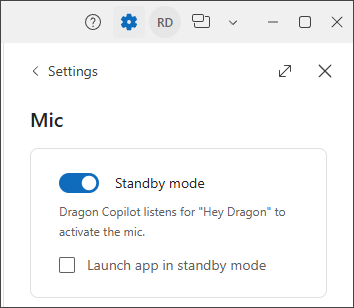
Under Settings  > Mic, turn on Standby mode.
Note
You can choose whether you want Dragon Copilot to launch with standby mode active going forward. Selecting Launch app in standby mode means standby mode will automatically be active when you open the app.
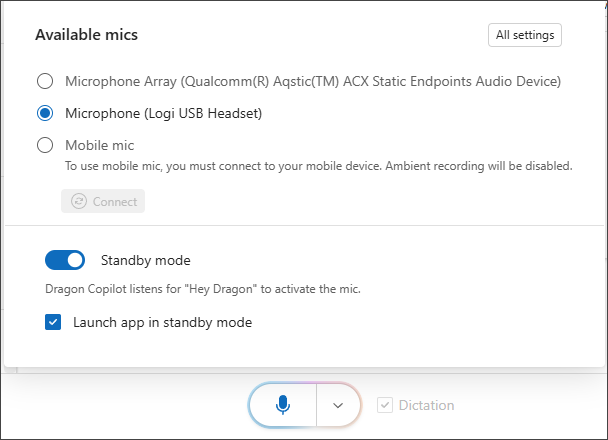
You can also turn on standby mode when selecting you microphone.
Important note on the use of Dragon Copilot. Dragon Copilot, including this wake word feature, is offered only as a tool to support qualified clinicians for intended healthcare uses. The clinician controls all decisions related to healthcare including, without limitation, diagnosis, medical testing, and treatment and is responsible for reviewing, editing, transferring the data to the patient file, saving the data, and signing off on all clinical documentation.
Customers of Dragon Copilot are also responsible for displaying appropriate notices and obtaining and renewing any relevant consents or authorizations for individuals whose personal data or voice is present on a healthcare recording.
For more information, see the Microsoft Products and Services Data Protection Addendum (DPA) and Product Terms, including the Dragon Copilot Service Specific Terms.
Recognize standby mode and microphone states
Use the microphone indicator to confirm whether standby mode is off, waiting for the wake word, or actively recording.
Standby mode off
When the microphone button is entirely white, standby mode is off and Dragon Copilot isn't listening for the wake word.

Standby mode on
When the microphone button shows a blue microphone with a colored ring around it, Dragon Copilot is in standby mode and listening for the wake word Hey Dragon.

Recording active
When the whole microphone button turns blue, Dragon Copilot is actively recording.

Note
When standby mode is on, Dragon Copilot listens locally for the wake word Hey Dragon. Audio isn't recorded until the microphone is used.
Start recording with your voice
Say Hey Dragon after you use the wake word. Dragon Copilot starts recording in the last mode you used, such as ambient recording or dictation.
Tip
If you switch between ambient recording and dictation, check the microphone indicator after saying Hey Dragon to make sure Dragon Copilot started in the mode you intended.
Return Dragon Copilot to standby mode
When you're finished recording, say one of the following commands:
- Go to sleep
- Stop listening
- Stop recording
These commands stop recording and return Dragon Copilot to standby mode (where it continues to listen for the wake word).
Turn off standby mode
To stop Dragon Copilot from listening for the wake word, turn off Standby mode in Settings. 