
Dragon Copilot can help you edit notes faster and make documentation more consistent. By using the right tools, you can update content in the way that works best for you while improving quality and saving time.
Dictate or record edits
Use your voice to make quick edits by dictating directly into a note section. Place your cursor in any note section or highlight part of a section and select the microphone  to dictate or use voice commands.
For larger updates, add a recording to speak naturally, update multiple sections at once, and let AI regenerate the note based on the new information.
Use saved Texts
Saved Texts help you insert common language quickly without retyping it each time. They're useful for repeatable content and can help you keep documentation consistent across notes.
To insert a Text:
- Place your cursor where you want your Text to go.
- Select the microphone
and say the Spoken form for the Text.
Tip
You can also type a forward slash (/) in Dragon Copilot Chat  to access saved Texts in your Library
  .
.
Use templates
Templates make it easier to apply a preferred structure or format to a note section. When you apply a template, AI can regenerate the section while keeping the manual edits you already made, helping you save time without losing important updates.
To apply a template, place your cursor in the note section where you want to apply the template, and use one of the following methods:
- Apply your template from the library. Select the Library icon
. Select the template from the list. Dragon Copilot regenerates the note section.
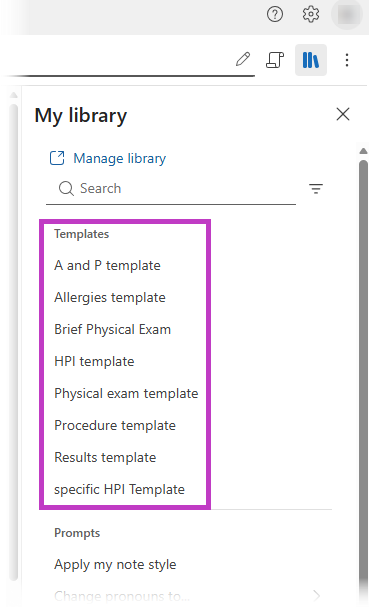
- Type into Dragon Copilot Chat. Apply a template by typing a prompt or using a voice command with the template's assigned spoken form. For example, if the template's spoken form is "after visit summary," dictate Dragon generate after visit summary.
Tip
You can also type a forward slash (/) in Dragon Copilot Chat
to access saved templates in your Library
.
Use built-in AI prompts
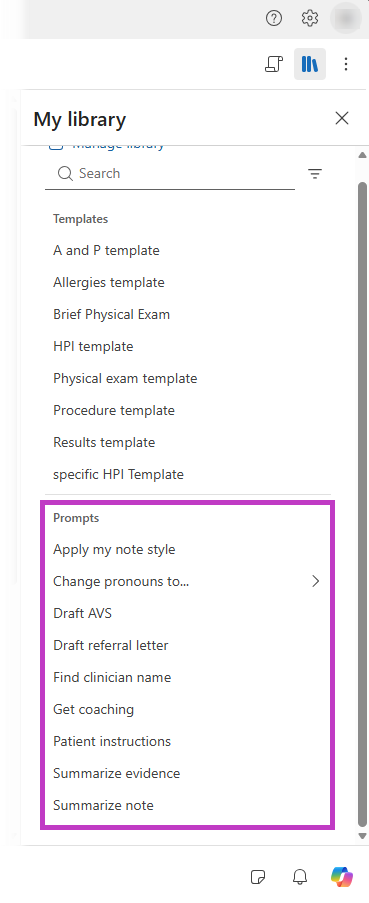
Dragon Copilot has built-in AI prompts to help you quickly revise and improve your notes. You can adjust pronouns, apply your preferred note style, change pronouns, draft after visit summaries and referral letters, get coaching, summarize evidence, and summarize the note.
Use prompts in the following ways:
- Select the microphone
and say the Spoken form for the prompt.
- Type a forward slash (/) in Dragon Copilot Chat
to access saved prompts in your Library
.
- Select the Library icon
and then select the prompt from your list.
Use your own prompts with Dragon Copilot Chat
For more flexibility, enter your own prompt in Dragon Copilot Chat
to guide how AI helps you edit or enhance a note. This approach is useful when you want to refine wording, reorganize content, tailor the output for a specific audience, or request a custom result based on your workflow.