
Microsoft Dragon Copilot is your AI assistant for the clinical workflow. Here's what's new in in the latest version of Dragon Copilot (physicians).
What's new in this release
Dragon Copilot has a new look and feel, driven by clinician feedback. This release includes a streamlined workspace, improved recording and editing experiences, enhanced templates, and new ways to provide feedback that helps improve Dragon Copilot over time. Overall, Dragon Copilot is designed to help you document more efficiently, customize your workflows, and access AI-powered assistance where you work.
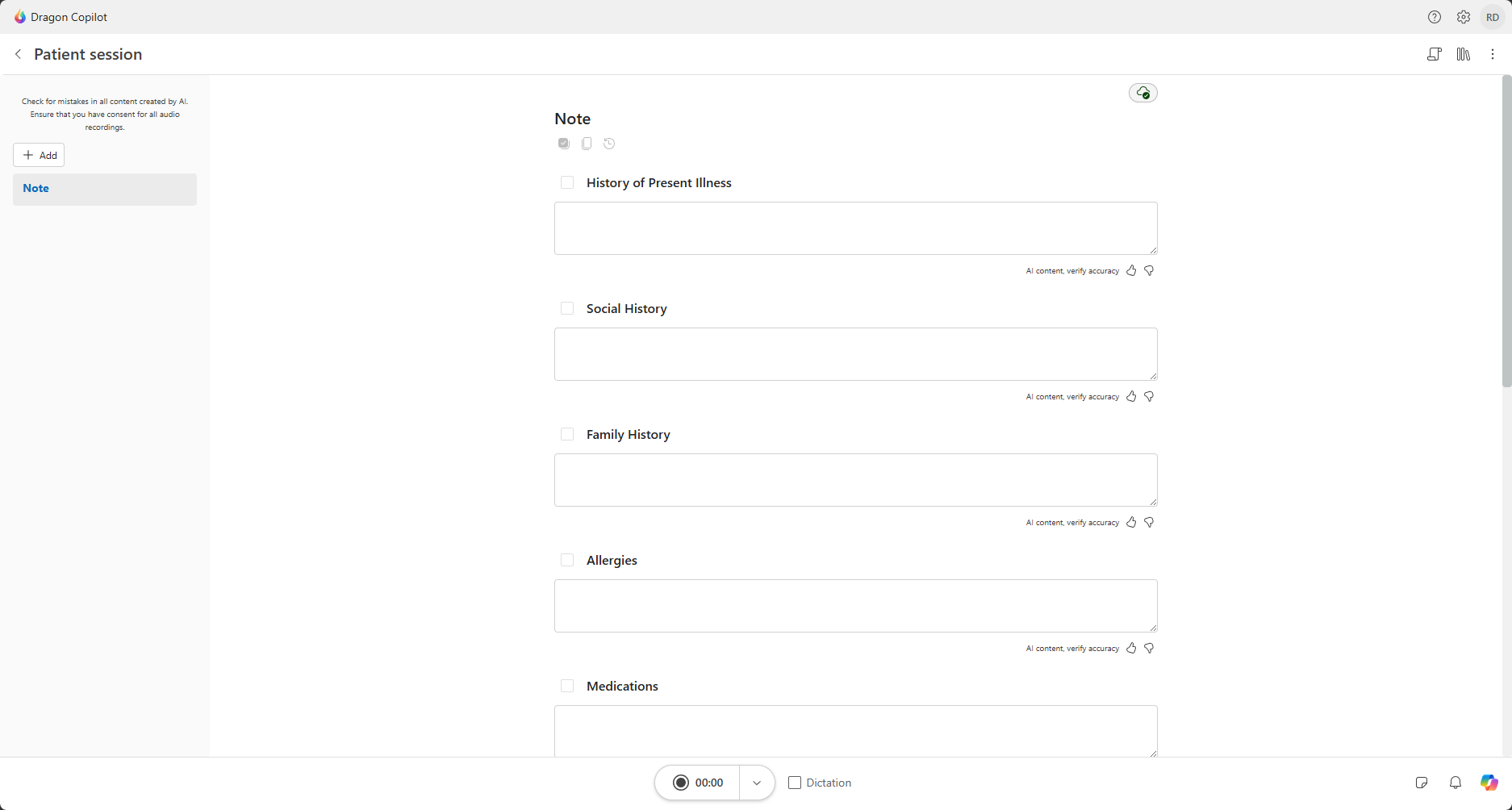
Simplified patient view
All patient session information is now together in one view for a clean, streamlined way to find everything you need.
- View your note, patient context, and generated clinical content all in one place.
- Your session content is front and center. Key functions like Copilot Chat
 , transcript
  , notifications
  , memos
  , and library
  are available when you need them. Access and work through these capabilities alongside your generated clinical content.
 - Access and use Copilot chat in its own dedicated space. All your conversations and requests can be easily accessible and reviewed in your session.
- Show or hide the transcript anytime by using the transcript icon
on the toolbar. On larger screens, your transcript displays alongside your note without borrowing screen space.
- Find all your library items when you’re in a patient session with the library icon
.
Navigate the Dragon Copilot workspace
New template capabilities
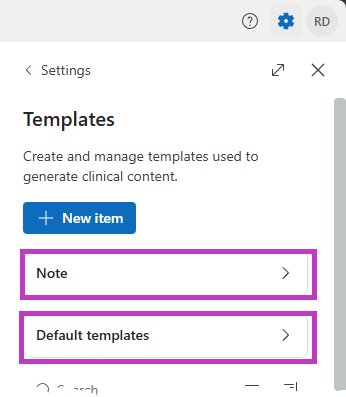
Templates are now organized in a central location. You can now find, manage, and use note templates, note section templates, and clinical document templates from the same place.
Access note style settings and configure default templates
To access note style settings or configure default templates, open the templates section in Dragon Copilot by using a voice command or selecting Settings  and then Templates. You can also access templates through the Library.
Select Note to set your style and formatting preferences and configure note section templates for specific sections of a note.
Select Default templates to configure document templates that are available when you create a new session and automatically generate after each recorded patient session.
Learn more about templates.
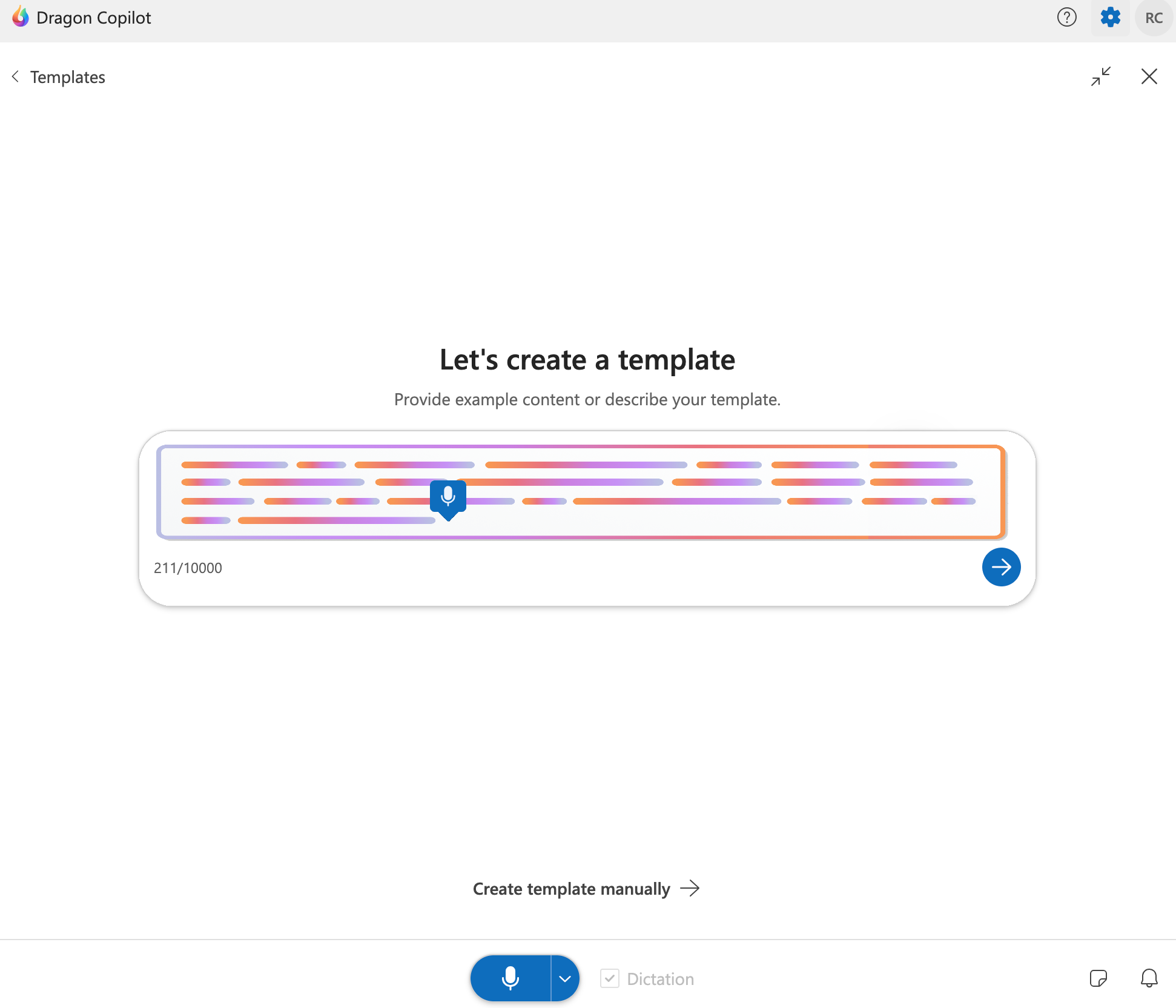
Let AI create templates for you
When creating a new note section template or document template, you can have the template builder create the template for you. Use natural language to describe the type of template you want built or provide an example. It's now easier to create the templates you want for your clinical workflows.
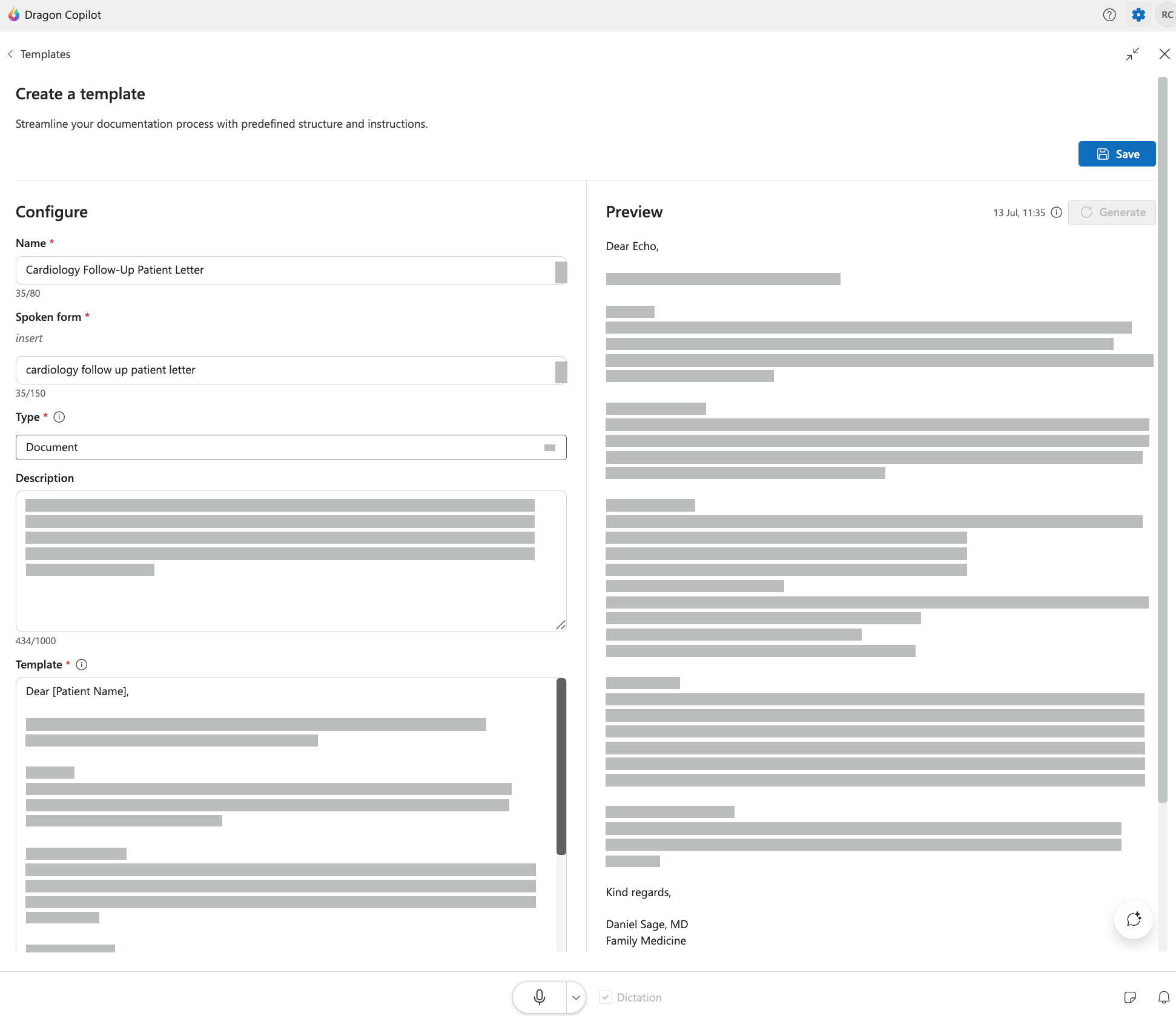
Preview your template outcome
When using the template builder, you can see a preview of what the generated content looks like before you use the template in your clinical workflow. Request edits or modifications, and the template builder makes the refinements for you, ensuring you reach the results you want.
Learn more about how to use templates.
Record, dictate, and edit where you work
This release of Dragon Copilot adds new ways to capture and refine documentation within your workflow. Start recordings more easily, dictate directly into supported Dragon Copilot fields, and use AI-powered editing to update content without leaving your current task.
Dragon Copilot now uses a single microphone button for both dictation and ambient recording. Simply switch the microphone to the desired mode, depending on what and how you want your recording captured.
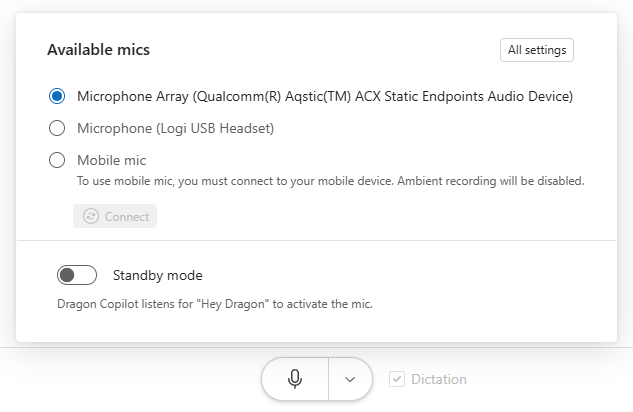
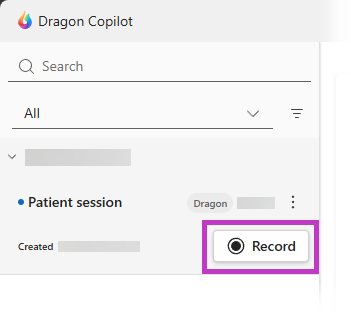
On web and desktop, quickly start recording directly from your worklist. Hover over the patient session you want to record, select the icon, and start recording your patient encounter.
And if you’re in a Dragon Copilot text field, you now have a quick way to dictate wherever your cursor is. Just select the microphone icon  and start talking.

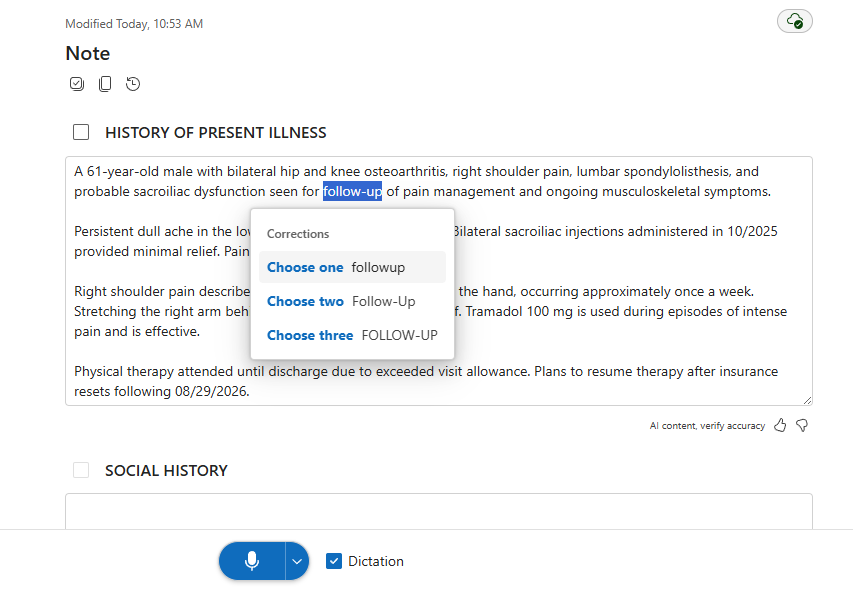
This release also introduces a corrections menu for web, desktop, and embedded applications. Use your voice to select or correct text you want to change, and select an alternative from the list to help you make changes faster. You can select alternatives manually or with your voice.
Use voice commands for more
Dragon Copilot runs on commands. Use a voice command to edit text, navigate, transfer, and more.
Choose a language
To see a full list of available voice commands, say What can I say.
Access additional in-app training resources by saying open resources.
Do you have the new Dragon Copilot experience?
If your organization didn't upgrade to the new Dragon Copilot experience yet, your Dragon administrator can turn on the feature in the Dragon admin center.