
Applies to: Dragon Copilot Desktop
When you use anchor speech focus, you can place your cursor where you want text to appear, such as a note field in your EHR. You can continue navigating other parts of the chart or a web page without interrupting dictation.
Manual anchoring
To anchor speech focus:
- Open Dragon Copilot and the application you want to dictate into.
- Place your cursor where you want the text to appear.
- Turn on the microphone, and then say anchor speech focus. The microphone icon changes to a lock symbol.
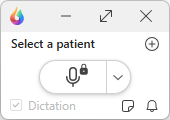
- Begin dictating while you move between applications. The microphone remains active while it's on.
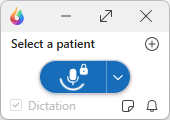
To return to standard dictation, say release speech focus.
Additional voice commands are available.
Note
Press Alt + Shift + A to toggle anchoring on or off. You can also configure buttons on PowerMic or the mobile mic. This feature might not work with some web-based EHRs or applications. If not supported, dictate into a memo and transfer the text later.
Automatic anchoring
Automatic anchoring starts and stops anchoring for you.
To enable it:
- Select Settings
 .
. - Select General.
- Turn on Anchor speech focus automatically.
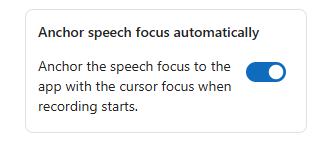
When you dictate into a supported third-party text field, anchoring starts automatically and stops when dictation ends.
You can still use manual commands, buttons, or shortcuts at any time.