
참고
Teams의 비디오 요약은 Teams 모임을 보다 개인화되고 지능적이며 안전하게 만드는 추가 기능을 제공하는 추가 기능 라이선스인 Microsoft Copilot의 일부로 사용할 수 있습니다. 적격 라이선스에 액세스하려면 IT 관리자에게 문의하세요.
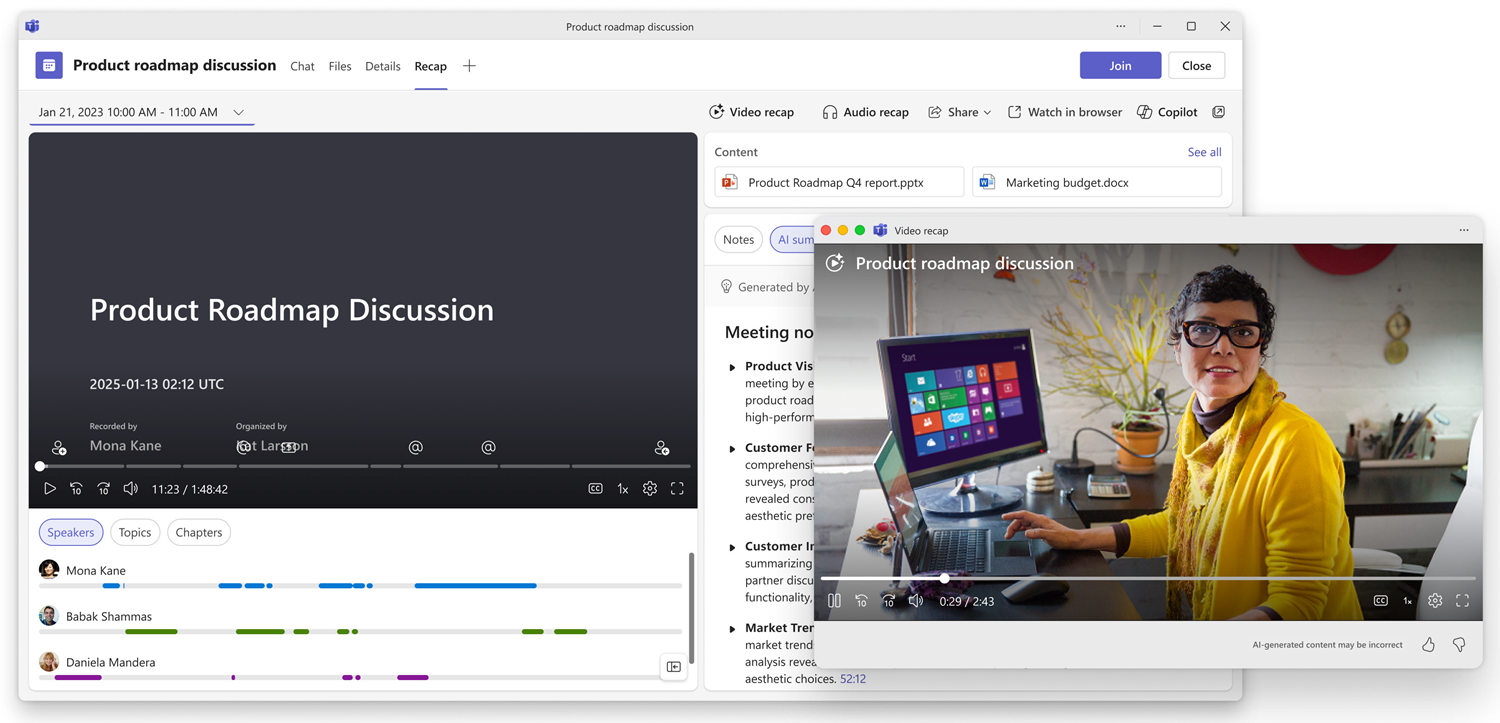
Microsoft Teams 비디오 요약을 통해 모임의 주요 대화와 순간을 파악하세요. 녹화되고 기록된 모임이 종료되면 Teams에서 프레젠테이션된 콘텐츠, 실제 비디오 클립 및 모임의 토론을 캡처하는 내레이션 하이라이트 비디오를 생성합니다.
참고
비디오 요약은 현재 모바일 장치용 Teams에서 지원되지 않습니다.
비디오 요약 보기
Teams에서 비디오 요약을 보려면:
모임이 종료된 후 모임 채팅에서 요약 을 선택합니다. 비디오 요약을 선택합니다.
Teams 일정에서 과거 모임을 선택하고 요약 보기를 선택합니다.
참고
비디오 요약은 AI에서 생성하므로 정확성을 확인해야 합니다.
비디오 요약 요구 사항
모임 후에 생성할 비디오 요약:
모임 시간은 10분에서 90분 사이여야 합니다.
모임을 녹음하고 기록해야 합니다.
모임에서 클라우드 녹음/녹화를 사용하도록 설정해야 합니다.
지원되는 언어
비디오 요약은 31개 언어 및 지역별 변형에 걸쳐 23개 언어로 모임을 지원합니다.
지원되는 언어는 아랍어, 중국어(간체 및 번체), 체코어, 덴마크어, 네덜란드어, 영어, 핀란드어, 프랑스어, 독일어, 히브리어, 헝가리어, 이탈리아어, 일본어, 한국어, 노르웨이어 복말, 폴란드어, 포르투갈어, 러시아어, 스페인어, 스웨덴어, 태국어, 터키어 및 우크라이나어입니다.
영어, 중국어, 프랑스어, 포르투갈어 및 스페인어에 대해서도 국가별 변형이 지원됩니다.
저장소 & 제한
비디오 요약 데이터(하이라이트 메타데이터, 오디오 클립 및 캡션)는 SharePoint/OneDrive의 원래 Teams 모임 녹음/녹화 파일에 대체 스트림으로 저장됩니다.
비디오 요약은 최소한의 SharePoint/OneDrive 저장소를 사용합니다.
비디오 요약은 원본 녹화와 함께 저장됩니다. 별도의 파일이 만들어지지 않습니다.
FAQ
모든 모임에 비디오 요약을 사용할 수 있나요?
비디오 요약을 사용하려면 클라우드 녹화 및 전사를 사용하도록 설정해야 합니다. 적격 모임에 대해 자동으로 생성됩니다. IT 관리자에게 organization의 가용성을 검사하세요.
동영상 요약을 공유할 수 있나요?
비디오 요약은 모임 요약의 일부입니다. 녹화에 액세스할 수 있는 모든 사용자가 비디오 요약을 볼 수 있습니다. 비디오 요약 액세스 권한을 부여하려는 사용자와 모임 요약을 공유합니다.
비디오 요약을 생성하는 데 시간이 얼마나 걸리나요?
모임 녹음/녹화 및 기록이 성공적으로 업로드된 후 10분에서 15분 후에 비디오 요약을 사용할 수 있습니다. 시간은 모임 길이에 따라 달라질 수 있습니다.