
追加の登録設定と要件を使用してウェビナーに構造を追加します。 出席者の登録を変更するには、Teams 予定表からウェビナーを開き、[ 登録>設定] に移動します。

ここから、以下を実装できます。
- イベントの容量 - ウェビナーに登録できるユーザーの数に制限を設定します。
- すべてのイベント登録の手動承認を必須にする* - 登録要求を承認または拒否することで、ウェビナーに参加できるユーザーを決定します。
- このイベントの待機リストを有効にする* - イベントの容量がいっぱいになった後、待機リストを実装してオーバーフロー登録要求を管理します。 順番待ちリストの収容人数は、イベントの収容人数と同様です。
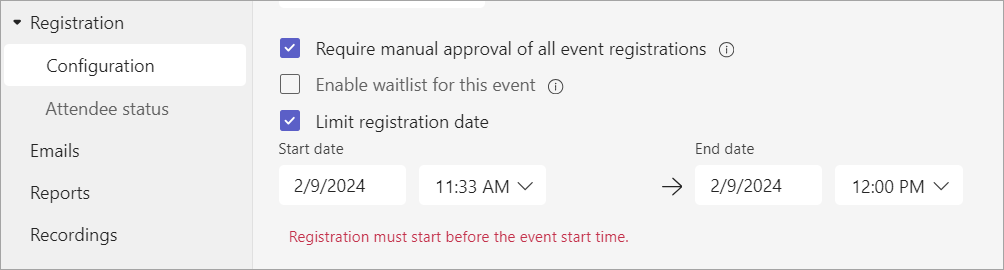
- 登録日を制限* - 潜在的な参加者がイベントに登録できる時間枠を設定します。
*高度な登録機能。
注
イベント構成に登録機能がない場合は、IT 管理者にお問い合わせください。
登録の開始時刻と終了時刻の設定
注
- 登録の開始/終了時間を制限するのは高度な登録機能であり、最大 3,000 人の参加者を含むイベントで利用できます。 大規模なイベントでこの機能を使用するには、最大 100,000 のインスタンスを有効にするための出席者キャパシティ パックを組織に用意する必要があります。
- 2026 年 4 月 1 日以前に Teams Premium を利用していた場合は、ライセンスの有効期限が切れるまで、最大 100,000 人の参加者が参加するイベントでこの機能に引き続きアクセスできます。 イベント用の Teams ライセンスの詳細については、IT 管理者にお問い合わせください。
登録の開始時刻と終了時刻を設定して、潜在的な出席者がウェビナーに登録できる時間を制限します。
登録の開始日時と終了日時を設定するには:
[ 登録>設定] に移動します。
[ 登録日を制限する] を選択します。
[ 開始日 ] と [終了日 ] ドロップダウン メニューで登録ウィンドウを指定します。
登録の管理
ウェビナー登録フォームに質問を追加すると、背景、イベントについてどのように聞いたかなどの詳細について、対象ユーザーの詳細を確認できます。 また、潜在的な参加者が表示して同意するための法律条項を含めることもできます。
登録フィールドの追加
登録フォームにフィールドを追加するには:
[ 登録>設定] に移動します。
フォーム で、 フィールドの追加 を選択します。
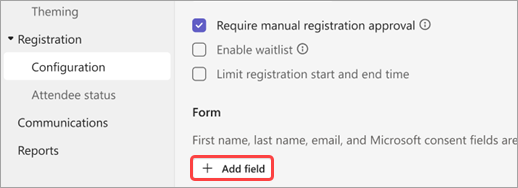
プリセット フィールドから選択するか 、[カスタムの質問] を選択して独自の質問を作成します。
フィールドまたは質問を追加したら、[ 必須] を選択して登録フォームに追加します。
注
既定では、開催者が別の登録終了時刻を有効にして設定しない限り、イベントが終了するまで登録は開いています。
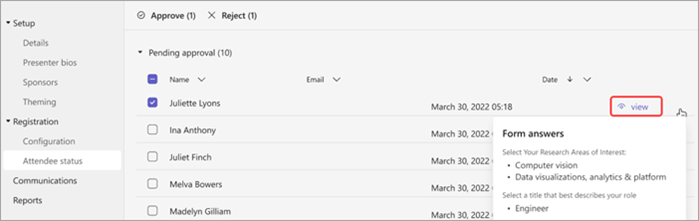
フォームの回答を表示する
出席者の可能性のあるフォームの回答を表示するには:
[ 登録>設定] に移動します。
[ 保留中の承認] の横にあるドロップダウン矢印を選択します。
出席者の行で [表示 ] を選択すると、登録フォームへの回答が表示されます。
要求を承認または拒否する
注
- 登録要求の確認は高度な登録機能であり、最大 3,000 人の参加者を含むイベントで利用できます。 大規模なイベントでこの機能を使用するには、最大 100,000 のインスタンスを有効にするための出席者キャパシティ パックを組織に用意する必要があります。
- 2026 年 4 月 1 日以前に Teams Premium を利用していた場合は、ライセンスの有効期限が切れるまで、最大 100,000 人の参加者が参加するイベントでこの機能に引き続きアクセスできます。 イベント用の Teams ライセンスの詳細については、IT 管理者にお問い合わせください。
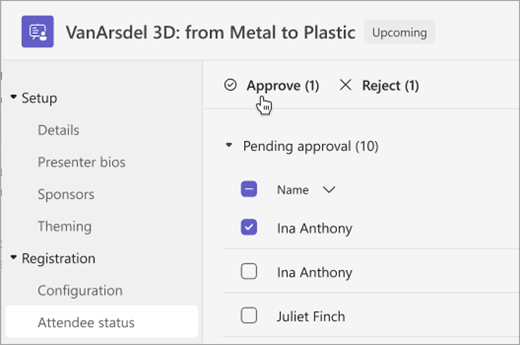
登録要求を承認または拒否するには:
[ 登録] で、[ すべてのイベント登録の手動承認を必須にする] が選択されていることを確認します。
[ 登録>出席者の状態] に移動します。
[ 保留中の承認] を選択します。
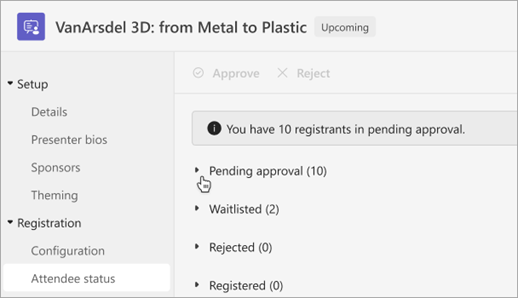
承認または拒否する各名前の横にあるチェック ボックスをオンにします。 [ 名前 ] の横にあるボックスを選択して、すべてを選択します。
[ 承認 ] または [却下 ] を選択して、要求を管理します。
登録待機リストを管理する
注
- 登録待機リストの管理は高度な登録機能であり、最大 3,000 人の参加者がいるイベントで利用できます。 大規模なイベントでこの機能を使用するには、最大 100,000 のインスタンスを有効にするための出席者キャパシティ パックを組織に用意する必要があります。
- 2026 年 4 月 1 日以前に Teams Premium を利用していた場合は、ライセンスの有効期限が切れるまで、最大 100,000 人の参加者が参加するイベントでこの機能に引き続きアクセスできます。 イベント用の Teams ライセンスの詳細については、IT 管理者にお問い合わせください。
イベントが定員に達した後にウェビナーに登録した People は、順番待ちリストに追加されます。 主催者が定員を増やしたり、他の登録者がキャンセルしたりするためにスポットが空いた場合、手動承認が有効になっている場合、待機リストに登録者は承認 待ち に移動します。 それ以外の場合は、登録が自動的に行われます。
待機リストを有効にするには:
- Teams 予定表でウェビナーを開きます。
- [登録>構成] に移動します。
- [ このイベントの待機リストを有効にする] を選択します。
待機リストにアクセスするには:
Teams 予定表でウェビナーを開きます。
[ 登録>出席者の状態] に移動します。
注
開催者は、待機リストから出席者を削除または承認することはできません。ただし、イベントの登録容量を増やして、待機リストに登録された参加者を登録済みまたは承認保留中の状態に移動することはできます。
登録した出席者にロビーをバイパスできるようにする
ウェビナーに参加するユーザーは、開催者、共同開催者、または発表者によって許可されるまで、まずロビーに入ります。 ロビーをより簡単に管理するには、ロビー バイパス設定を変更して、登録した出席者がロビーを自動的にバイパスできるようにします。
登録済みの出席者がロビーをバイパスできるようにするには:
Teams 予定表に移動し、ウェビナーを選択します。
[ イベントの表示
![] を選択します teams-expand-icon](../media/teams-expand-icon.png) .
.[イベントの管理]
 を選択します。
[会議オプションの設定
![] ボタン](../media/skype-teams-mobile-icon-settings.png) を選択します。
を選択します。[会議へのアクセス] で
 で、[登録リンクを持つ出席者はロビーの切り替えをバイパスできます] をオンにします。
注
これにより、内部および外部の登録ユーザーと [ ロビーをバイパスできるユーザー? ] ドロップダウンで指定されたユーザーが、ロビーをバイパスできるようになります。
[ ロビーをバイパスできないユーザーを拒否 する] トグルをオンにして、イベントに登録されていないユーザーを拒否します。
注
このオプションは、[ 登録リンクを持つ出席者がロビーをバイパスできる] トグルがオンになっている場合にのみ使用できます。
[ 保存
![] を選択します](../media/save-icon-001.png) 。
。
この設定は、イベントの前と開催中に変更できます。 イベント中に変更すると、設定変更後にロビーに入る出席者にも影響します。 詳細については、「 Teams 会議でのロビーの使用」を参照してください。
登録レポートをダウンロードする
登録レポートをダウンロードするには:
- Teams で
 を選択します。
 - レポートをダウンロードするウェビナーを選択します。
- [イベントの管理] を選択します。
- [レポート] を選択します。
-
 >
登録レポートをダウンロード] を選択します。
>
登録レポートをダウンロード] を選択します。