
Dragon Copilot with Work IQ helps you quickly find and summarize information from your emails, Teams messages, and Microsoft 365 files. Get the information you need while staying in your Dragon Copilot workflow.
Important
The features and functionality available to you might vary based on your organization's configuration and regional settings. Your administrator must enable Work IQ for your organization before you can use it. Work IQ is only available in US and CA.
Turn on Work IQ
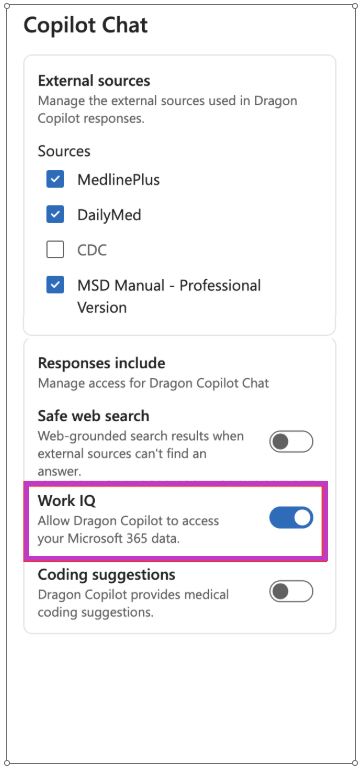
In Dragon Copilot, go to Settings
 > Copilot Chat.
Under Responses include, turn on Work IQ.
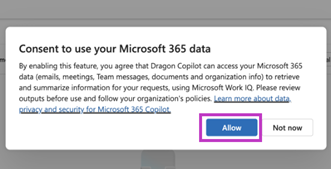
- Review the consent message, and then select Allow.
Important
Use the same Microsoft Entra ID account to sign in to Dragon Copilot and access Microsoft 365.
Search for information by using Dragon Copilot with Work IQ
In Dragon Copilot Chat  , describe what you're looking for. Include details such as a person's name, topic, source (Outlook, Teams, OneDrive, SharePoint), or date to help narrow the results. The more specific you are, the better results you get.
For example:
Summarize my emails from today.
Find the email from Dr. Smith about the upcoming procedure.
Find in my SharePoint the document with this week’s on-call schedule.
Summarize the recent Teams discussion about the referral process.
Review the sources
Responses include links to relevant emails, Teams messages, or documents. Select a link to open the original source in Outlook, Teams, SharePoint, or OneDrive.
Review the sources and confirm important information before using the response.
Tips for using Work IQ
Access your Microsoft 365 information. Work IQ uses the account you use to sign in to Dragon Copilot and your existing Microsoft 365 permissions. You can access emails and Teams messages available to your account and files you have permission to view in SharePoint, and OneDrive.
Stay in control of your Microsoft 365 content. Work IQ helps you find and summarize information while keeping you in control. It doesn’t send emails, post Teams messages, or change your Microsoft 365 content.
Add details to your request. To help Work IQ find the information you need, be as specific as possible by including a person's name, topic, date, source, or any other relevant details.
Turn Work IQ back on. If you turn off Work IQ, you'll need to review the consent message and select Allow again the next time you turn it on.
Check your account. If you don't see the information you expect, make sure you're signed in to Dragon Copilot with the Microsoft Entra ID account associated with that Microsoft 365 information.
Contact your administrator if you need help. If you still can't use Work IQ, contact your administrator for access.