

Ja jums rodas problēmas ar kameru pakalpojumā Microsoft Teams, mums ir daži ieteikumi, kas palīdzēs jums atsākt darbu.
Padoms
Windows 10 lietotāji var arī skatīt šeit, lai iegūtu papildinformāciju par bieži sastopamu kameras problēmu novēršanu.
Pārbaudiet, vai kamera tiek izmantota
Lai pārliecinātos, ka kameru varat izmantot programmā Teams, veiciet tālāk norādītās darbības.
- Aizveriet visas pārējās programmas, kas, iespējams, izmanto kameru (piemēram, Skype vai FaceTime).
- Ja izmantojat ārēju kameru, mēģiniet to atvienot un pievienot vēlreiz.
- Mēģiniet restartēt ierīci.
- Ja rodas aparatūras problēma, sazinieties ar ierīces ražotāja atbalsta dienestu.
Datu joslas, kas izceļ pozitīvās un negatīvās vērtības
Pārliecinieties, vai jums ir instalēts jaunākais Windows atjauninājums vai Mac OS atjauninājums un Teams programmas versija .
Pārbaudiet, vai nav atjauninājumu programmā Teams , lai pārliecinātos, vai datorā darbojas jaunākā versija.
Piezīme
Lai novērstu problēmas saistībā ar Teams virtuālās darbvirsmas infrastruktūrās (VDI), sazinieties ar IT administratoru vai skatiet papildinformāciju .
Veiciet testa zvanu
Lai vēlreiz pārbaudītu, vai kamera darbojas, veiciet pārbaudes zvanu programmā Teams.
Lai veiktu testa zvanu:
- Atlasiet Iestatījumi un citas
 Teams augšējā labajā stūrī.
 - Atlasiet pogu Iestatījumi
 >Ierīces
 .
. - Sadaļā Audio iestatījumi atlasiet Veikt pārbaudes zvanu
 .
.
Pārbaudes zvanā redzēsit, kā darbojas mikrofons, skaļrunis un kamera. Izpildiet norādījumus no testa zvanu robota un ierakstiet īsu ziņojumu. Ziņojums tiks atskaņots jūsu vietā. Pēc tam jūs saņemsit testa zvana kopsavilkumu, un varat doties uz ierīces iestatījumiem, lai veiktu izmaiņas.
Piezīme
- Testa zvana līdzeklis pagaidām ir pieejams tikai angļu valodā. Drīzumā būs pieejamas arī citas valodas.
- Testa ieraksts tiks izdzēsts uzreiz pēc zvana. Microsoft tos nesaglabā un neizmanto.
- Testa zvana līdzeklis pašlaik nav pieejams programmai Teams tīmeklī.
Problēmu novēršana operētājsistēmā Windows
Ja joprojām rodas problēmas ar kameru, izmēģiniet vēl dažus risinājumus.
Lai iegūtu papildu palīdzību, skatiet sadaļu Kamera nedarbojas operētājsistēmā Windows.
Teams mobilā programma atļauju pārbaude
Iespējams, jums būs jāmaina atļaujas mobilajā ierīcē.
Lai mainītu atļaujas savā Windows ierīcē:
Savā ierīcē atveriet programmu Iestatījumi .
Atlasiet Konfidencialitātes & drošības>kamera.
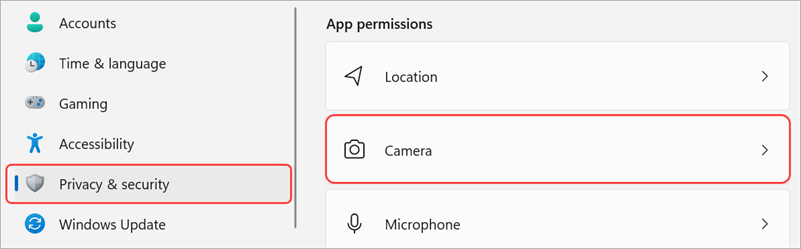
Ieslēdziet slēdzi Atļaut programmām piekļūt jūsu kamerai .

Sadaļā Atļaut programmām piekļūt jūsu kamerai ieslēdziet slēdzi Microsoft Teams (darbam vai mācībām)
- Ja pārslēgs jau ir ieslēgts, izslēdziet to un ieslēdziet vēlreiz.
Aizveriet visas programmas un restartējiet ierīci.
Pārbaudiet draiverus
Ja kamera nedarbojas operētājsistēmā Windows 10 (vai ja izmantojat ārēju tīmekļa kameru), iespējams, problēma ir radusies saistībā ar draiveriem. Skatiet šeit , lai skatītu detalizētus norādījumus par Windows draiveru pārbaudi.
Problēmu novēršana operētājsistēmā Mac OS
Ja joprojām rodas problēmas ar jūsu kameru, šeit ir cits risinājums, ko varat izmēģināt.
Programmu atļauju pārbaude
Iespējams, jums būs jāmaina ierīces atļaujas.
Lai mainītu atļaujas savā Mac OS ierīcē:
- Savā ierīcē atveriet sistēmas iestatījumus .
- Atlasiet Drošība & Konfidencialitāte.
- Sadaļā Konfidencialitāte atlasiet Kamera.
- Pārliecinieties, vai ir atlasīts Microsoft Teams (darbam vai mācībām).
- Aizveriet visas programmas un restartējiet ierīci.
Piezīme
Šie iestatījumi attiecas uz Mac OS 10.14 un jaunākām versijām.
Teams tīmeklī problēmu novēršana
Ja izmantojat Teams tīmeklī, šeit ir kaut kas, ko varat darīt, lai pārliecinātos, vai jūsu kamera ir iestatīta pareizi.
- Pārbaudiet pārlūkprogrammas iestatījumus: Iespējams, jums vajadzēs "atļaut" jūsu kamerai un/vai mikrofonam strādāt pakalpojumā Teams.
- Sazinieties ar IT administratoru: dažus iestatījumus var pārvaldīt jūsu IT administrators. Sazinieties ar viņiem, lai iegūtu papildinformāciju.
Piezīme
Microsoft Teams tīmeklī pašlaik tiek atbalstīta pārlūkprogrammās Chrome, Safari, Edge, Firefox un Internet Explorer 11.
Microsoft Edge
Atlasiet Iestatījumi un citas iespējas
 > Papildu opcijasPoga Iestatījumi .
Atlasiet Sīkfaili un vietņu atļaujas.
Atlasiet Kamera.
Ieslēdziet pārslēgu Jautāt pirms piekļūšanas (ieteicams).
Piezīme
Ja tas ir izslēgts, piekļuve jūsu kamerai tiks bloķēta pārlūkprogrammā Edge.
Google Chrome
Atveriet iestatījumus.
Atlasiet Konfidencialitāte un drošība>Vietnes iestatījumi>Atļaujas.
Atlasiet Kamera.
- Šī ekrāna augšdaļā pārliecinieties, vai nolaižamajā izvēlnē ir atlasīta pareizā ierīce.
- Sadaļā Noklusējuma uzvedība atlasiet Vietnes var lūgt izmantot kameru.
Safari
- Pārlūkā Safari atveriet Preferences.
- Atlasiet tīmekļa vietnes.
- Sadaļā Vispārīgi atlasiet Kamera.
- Blakus vienumam Apmeklējot citas tīmekļa vietnes:atlasiet Jautāt vai Atļaut.
Sazinieties ar Microsoft atbalstu
Vai tomēr nepieciešama palīdzība? Sazinieties ar Microsoft atbalsta dienestu.