
重要
Teams ライブ イベント エクスペリエンスは 、2026 年 6 月 30 日に廃止されます。 最新のイベント機能とエクスペリエンスについては 、Teams タウン ホールに切り替え てください。 詳細については、 このブログ記事を参照してください。
イベントが終了したら、プロデューサー は、記録と関連付けられたレポート (構成されている場合) で次のアクションを実行できます。
| Teams で表示する | ダウンロード | 削除 | ||
|---|---|---|---|---|
| 出席者レポート |
|
|
|
|
| ライブ イベントの記録 |
|
|
|
|
| ハイブ インサイト レポート | いいえ - ブラウザーでハイブ リンクを開きます |
|
|
|
| Q&レポート |
|
|
|
|
| トランスクリプト |
|
|
|
注
現在、Teams で生成されたライブ イベントからの録画は、Microsoft Stream に保存されていません。 会議の詳細から録画をダウンロードし、イベント後に Microsoft Stream に手動でアップロードできます。
レポートを管理するには、[Calendar Meetings![] ボタン](../media/skype-teams-schedule-icon.png) を選択し、ライブ イベントを選択して、[イベント リソース] セクションに移動します。
を選択し、ライブ イベントを選択して、[イベント リソース] セクションに移動します。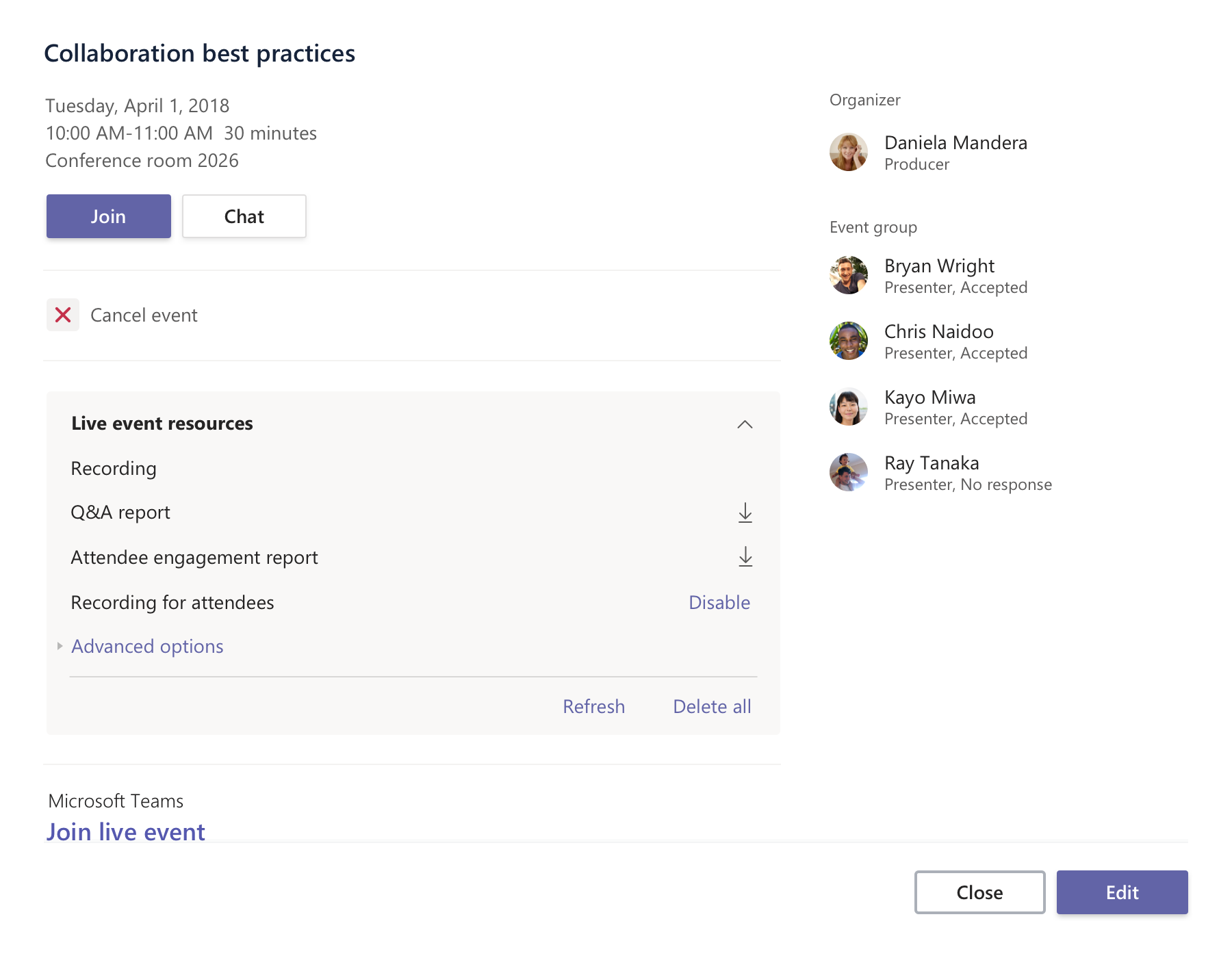
レコーディングまたはレポートをダウンロードするには、アイテムの横にある [ ダウンロード ] を選択します。
一覧表示されているすべての項目を削除するには、[ すべて削除] を選択します。
注
誤って削除した内容を復元するには、最大 7 日間かかります。
[ 更新] を選択して、ライブ イベントに関連する最新のレポートを表示します。