
Filtrera bort bakgrundsljud under samtal och möten i Teams med röstisolering. Röstisolering använder AI för att blockera omgivande ljud så att andra kan höra dig tydligt.
Så här fungerar det
När du lägger till en röstprofil vet Teams vilka ljud som ska behållas (din röst) och vilka som ska filtreras bort. Röstisolering filtrerar också bort ljud från andra högtalare för att förhindra ekon. Röstisolering drivs av AI i Teams.
Lägg till din röstprofil
Lägg till en röstprofil för att börja använda röstisolering i dina möten och samtal. Det tar cirka 30 sekunder att skapa en röstprofil och den kan tas bort när som helst.
Så här lägger du till din röstprofil:
Välj Inställningar med mera
 > Fler alternativ i Microsoft TeamsKnappen
  i Teams.
Välj igenkänning
 .
.Välj Skapa röstprofil.
Obs
Kontakta IT-administratören om du inte ser knappen Starta
i inställningarna.Välj din mikrofon i listmenyn.
Välj Starta röstinspelning och läs upp den angivna texten.
När du har läst klart väljer du Stoppa röstinspelning.
Välj Stäng.
Inaktivera röstisolering
Röstisolering kommer att vara aktiv i dina samtal och möten när du har lagt till din röstprofil.
Så här inaktiverar du röstisolering i ett Teams-möte:
- Välj listrutepilen bredvid knappen Stänga
 mikrofon i möteskontrollerna.
 - Inaktivera växlingsknappen Brusreducering .
Du kan också komma åt de här inställningarna genom att välja listrutepilen bredvid för mikrofon och välja Fler ljudinställningar.
Så här ser det ut
När du har lagt till din röstprofil visar indikatorer när och hur röstisolering fungerar i mötet eller samtalet.
| Indikator | Vad innebär detta? |
|---|---|

|
Röstisolering är aktiverat och aktivt. |

|
Du kom in i mötet med mikrofonen avstängd. |

|
Bara ditt namn visas. Oönskat ljud identifieras inte och röstisolering är aktiv. |

|
Röstisolering är aktiv och filtrerar bort oönskat ljud. |

|
Någon i närheten identifieras (t.ex. om du och en kollega delar din enhet för mötet). Om du vill att de ska höras väljer du Inaktivera röstisolering. |
Felsökning
Om du har problem med att lägga till en röstprofil:
- Se till att du befinner dig i en relativt tyst miljö.
- Anslut mikrofonen igen eller använd en annan för att förbättra ljudet.
- Starta om Teams.
- Sök efter uppdateringar i Teams.
- Ta bort och återskapa din röstprofil.
Du kan få någon av dessa aviseringar i Teams. Lär dig vad de betyder och hur du löser dem:
| Varning | Det här innebär |
|---|---|

|
Det finns ett problem med att aktivera röstisolering i ett möte eller samtal. Starta om Teams för att läsa in röstisolering igen. |
|
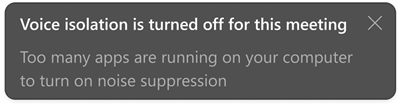
Enheten kör för många appar och har inte stöd för röstisolering. Prova att stänga andra appar på enheten. Inaktivera sedan röstisolering och aktivera sedan igen. |